
5 Paid AI Photo Upscalers: Price and Output
Pick the right paid AI photo upscaler by matching price, export limits, face recovery and batch speed to your Instagram workflow.
Pick the right paid AI photo upscaler by matching price, export limits, face recovery and batch speed to your Instagram workflow.
4.98 /5 - from 58k reviews
Trusted by 50,000+ creators — get real engagement delivered to your profile in minutes, not days.
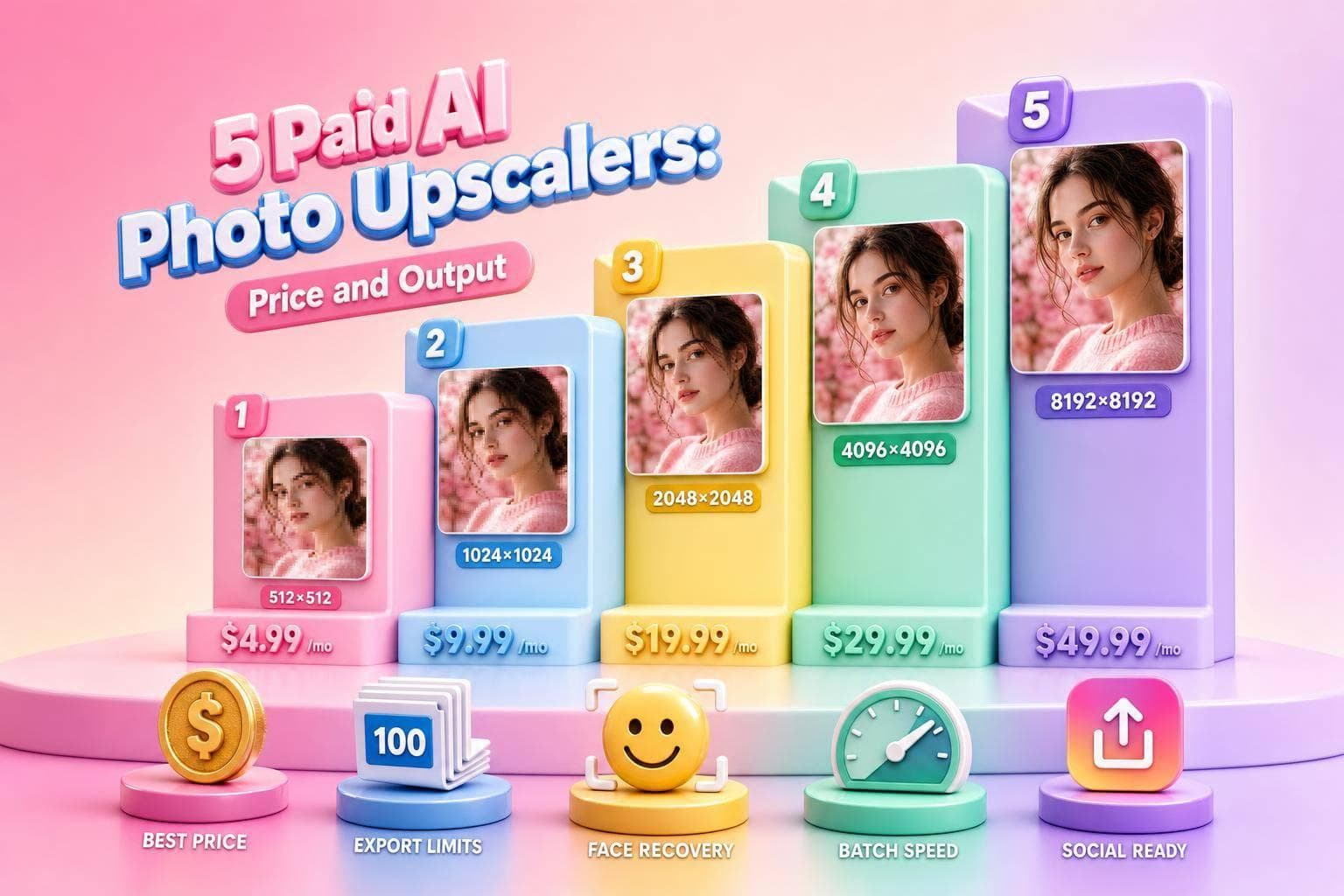
If you post on Instagram often to grow your following, image quality and batch limits matter more than the lowest monthly price. I looked at 5 paid AI photo upscalers for profile photos, carousels, and Reels covers as part of your Instagram SEO strategy: Topaz Gigapixel AI, LetsEnhance, HitPaw FotorPea, Bigjpg, and Icons8 Smart Upscaler.
Here’s the short version:
I also focused on 4 buying points:
One useful benchmark: the article puts the category median at $49/month. That makes it easier to see which tools sit below or above the middle of the pack.
| Tool | Best for | Main thing to check |
|---|---|---|
| Topaz Gigapixel AI | Portraits | Face detail and natural-looking output |
| LetsEnhance | Old photos | How well it cleans up archived uploads |
| HitPaw FotorPea | Lower budgets | Entry price versus output limits |
| Bigjpg | Product photos | Edge detail and texture retention |
| Icons8 Smart Upscaler | Heavy posting | Batch workflow and export volume |
If you upload 15 to 30 posts per month, this kind of tool can help your images hold up better after Instagram compression. That’s the core tradeoff: price vs. output quality vs. batch workflow.
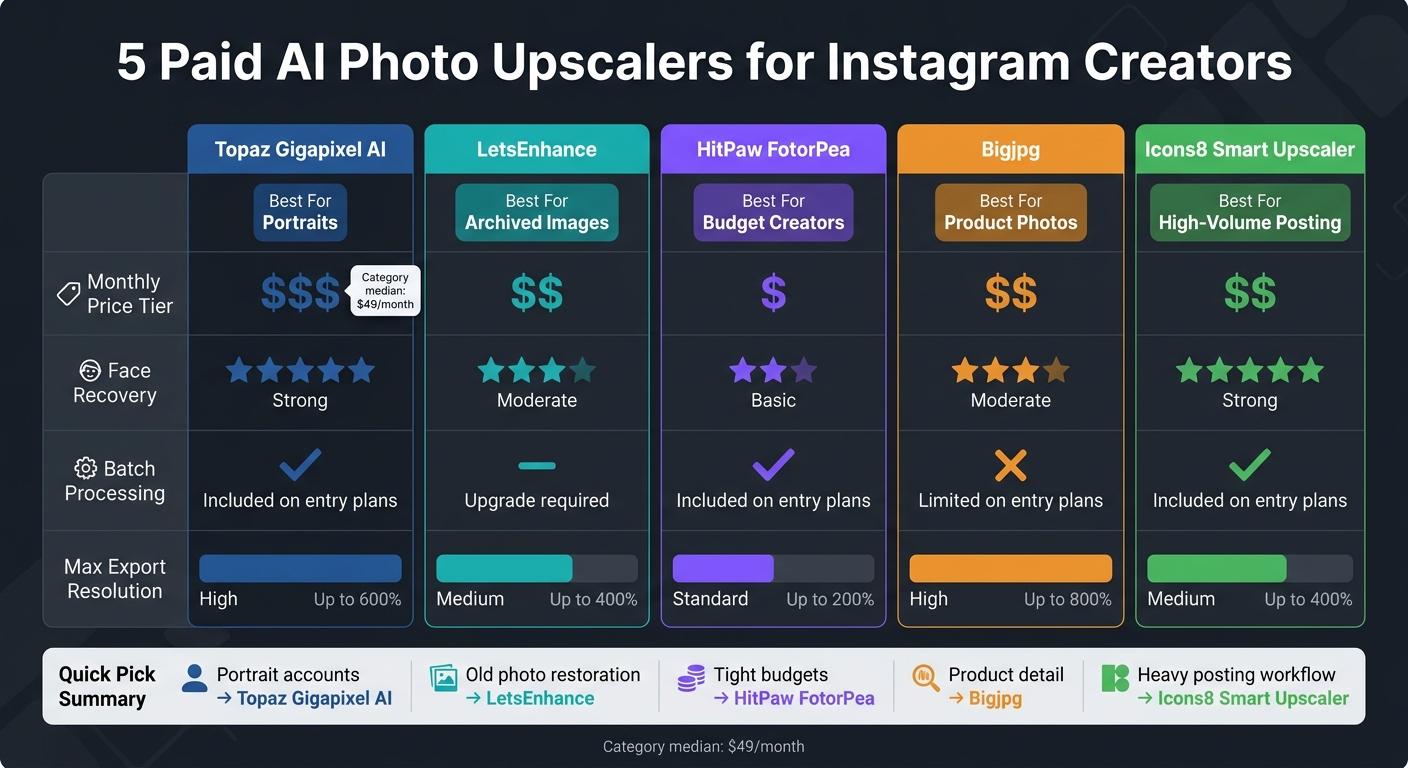
5 Paid AI Photo Upscalers Compared: Price, Output & Best Use Case
Use the table below to compare pricing and workflow limits at a glance.
| Comparison Point | What to Check | Why It Matters |
|---|---|---|
| Monthly price tier | See how the plan stacks up against the category median and whether billing is month to month | Makes it easier to test output quality before you commit to annual pricing |
| Bulk processing on entry plans | Check whether the lowest-cost plan includes batch processing | A big deal for carousel-heavy workflows and growing your Instagram followers with steady posting volume |
| Verified export limits and face recovery | See whether the tool clearly lists resolution caps and portrait handling before you buy | This has a direct effect on Instagram-ready output quality - check each tool's pricing page first |
The reviews below break down where each tool stands out on output quality.
The pricing table gives you part of the story. The bigger issue is image quality.
That’s where these five paid upscalers start to separate from each other. Some do a better job cleaning up portraits. Others hold onto tiny product details. A few save time with faster batch exports. And sometimes the deal-breaker is simple: the tool either feels easy to use, or it doesn’t.
For Instagram creators, that stuff matters. A profile photo needs clean facial detail. Carousel images need to stay sharp when people swipe through. Reels covers need to look polished at a glance.
This section focuses on the tools that produce the best results for Instagram profiles, carousels, and Reels covers. The reviews below look at how each one handles portraits, products, and batch exports.
Once you’ve compared the specs, the next move is simple: line each tool up with the way you post.
Not every upscaler shines in the same situation. A portrait account needs clean face detail. Product images need crisp edges and texture. Older archive photos often need more repair than a standard upscale can give. And if you post often, batch speed can make or break your workflow.
So instead of picking based on features alone, tie the tool to the kind of content you publish most or use free Instagram tools to supplement your workflow.
| Use Case | Best-Fit Tool | Why It Works |
|---|---|---|
| Portrait-heavy accounts | Topaz Gigapixel AI | Strong face recovery and natural detail |
| Product detail | Bigjpg | Preserves edges and textures well |
| Archived images | LetsEnhance | Good for restoring older uploads |
| High-volume posting | Icons8 Smart Upscaler | Simple batch-friendly workflow |
| Budget-conscious creators | HitPaw FotorPea | Lower-cost entry with usable output |
If you publish multiple carousels each week, or you spend a lot of time cleaning up old images, put extra weight on the batch workflow. That’s often the difference between a tool that fits into your routine and one that slows you down.
Cleaner upscales can make profile images, carousel posts, and Reel covers look sharper on the grid. That polish helps your feed feel more put together, which can support stronger engagement.
At this point, the main things separating these tools are price, output quality, and batch speed.
After comparing output quality and workflow limits, the takeaway is simple: the best value depends on how often you post, how many exports you need each month, and how fast you need batch processing to move. If you publish often, the cheapest monthly plan usually isn't the best fit. What matters more is higher export limits and batch support.
Sharper exports also make a visible difference. They help profile photos, carousels, and covers look cleaner on the grid.
For portraits, Remove.bg is the best pick. It stands out with 94% to 96% accuracy on human subjects, which makes it a strong fit for personal branding shots and lifestyle photos.
No matter which AI upscaler you use, pick a model that improves facial features in a natural way and keeps skin texture looking like skin. If the result comes out too smooth, add a light layer of film grain in your photo editor.
Yes - if you post often, batch processing is a smart move.
It lets you upscale many images at the same time, which saves time and helps keep your content looking consistent from post to post.
Working through your content calendar in batches also makes your workflow smoother. That means less time stuck on image prep and more time spent making content while keeping a clean, consistent look.
For Instagram, keep your images at a maximum width of 1,080 pixels. If you upload larger files, Instagram will resize and compress them on its own, and that can make the image look less sharp.
Best sizes are:
Use sRGB and aim for a file size between 500 KB and 2 MB.


