
7 Canva Features For AI Caption Writing
Draft, review, and schedule Instagram captions in one place using seven Canva features: Magic Write, tone, Brand Kit, Docs, Planner, comments, and publish.
Draft, review, and schedule Instagram captions in one place using seven Canva features: Magic Write, tone, Brand Kit, Docs, Planner, comments, and publish.
4.98 /5 - from 58k reviews
Trusted by 50,000+ creators — get real engagement delivered to your profile in minutes, not days.
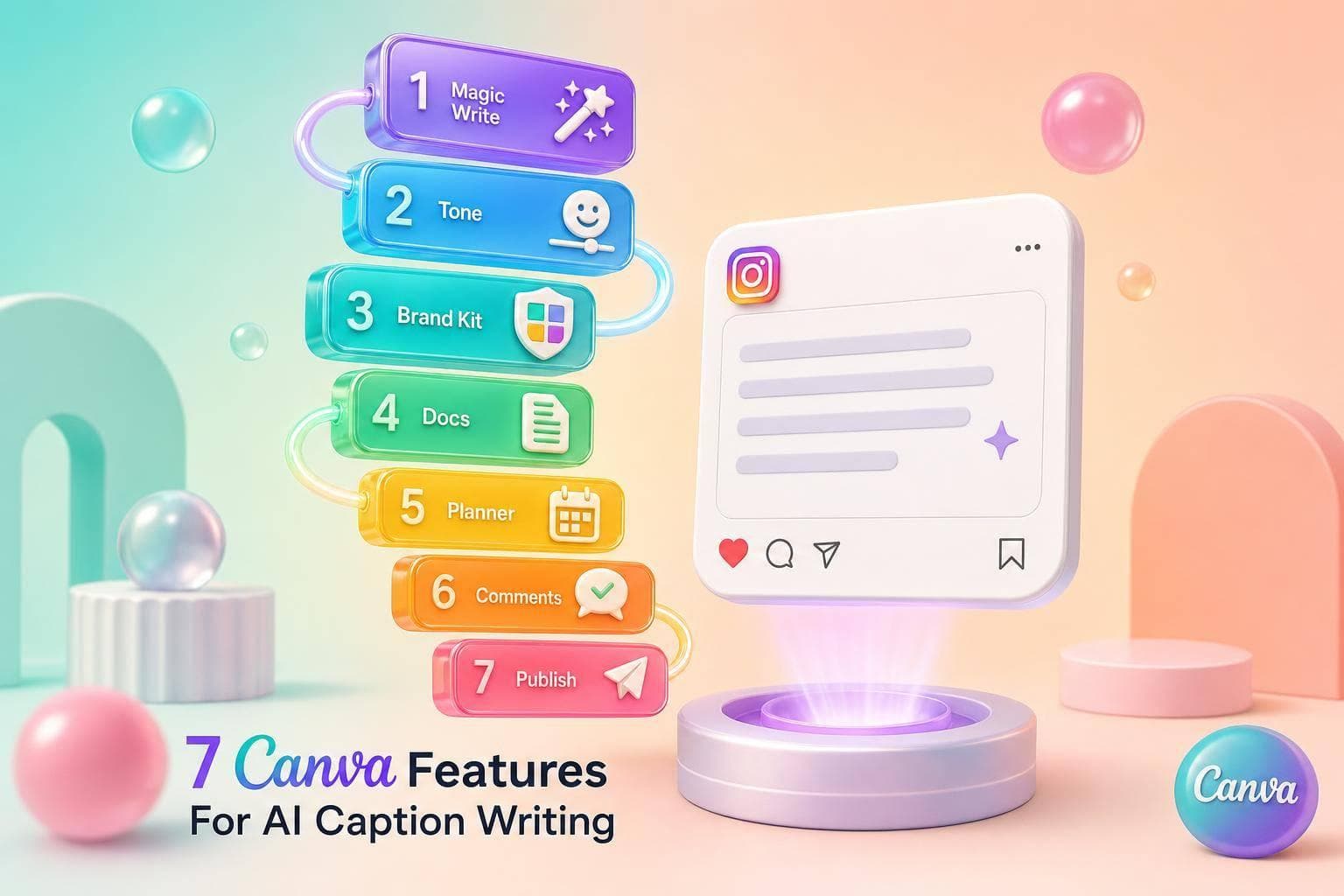
You can write, review, schedule, and publish Instagram captions in Canva without jumping between tools. The article’s main point is simple: Canva works best when you use seven features in order - Magic Write, tone settings, Brand Kit, Docs, Content Planner, comments, and publishing.
Here’s the short version:
The article also makes one practical point: better prompts lead to better drafts. You can also use ChatGPT for Instagram captions to refine your messaging further. It suggests using clear inputs like audience, tone, U.S. spelling, topic, CTA, and caption length. It also notes Instagram’s 2,200-character caption limit and recommends using performance data like essential Instagram metrics including saves, shares, comments, and engagement rate to guide future prompts.
| Feature | What I use it for | Best stage |
|---|---|---|
| Magic Write | Draft caption ideas from a prompt | Start |
| Tone settings | Control voice and formality | Early draft |
| Brand Kit | Keep brand rules in one place | Before drafting |
| Canva Docs | Plan, edit, and organize caption drafts | Drafting |
| Content Planner | Review timing, pacing, and post mix | Scheduling |
| Comments | Get line-by-line feedback and approval | Review |
| Publishing/export | Post to Instagram or export files | Final step |
In other words: this is less about “AI writes everything” and more about using Canva as one caption workflow from first idea to post.
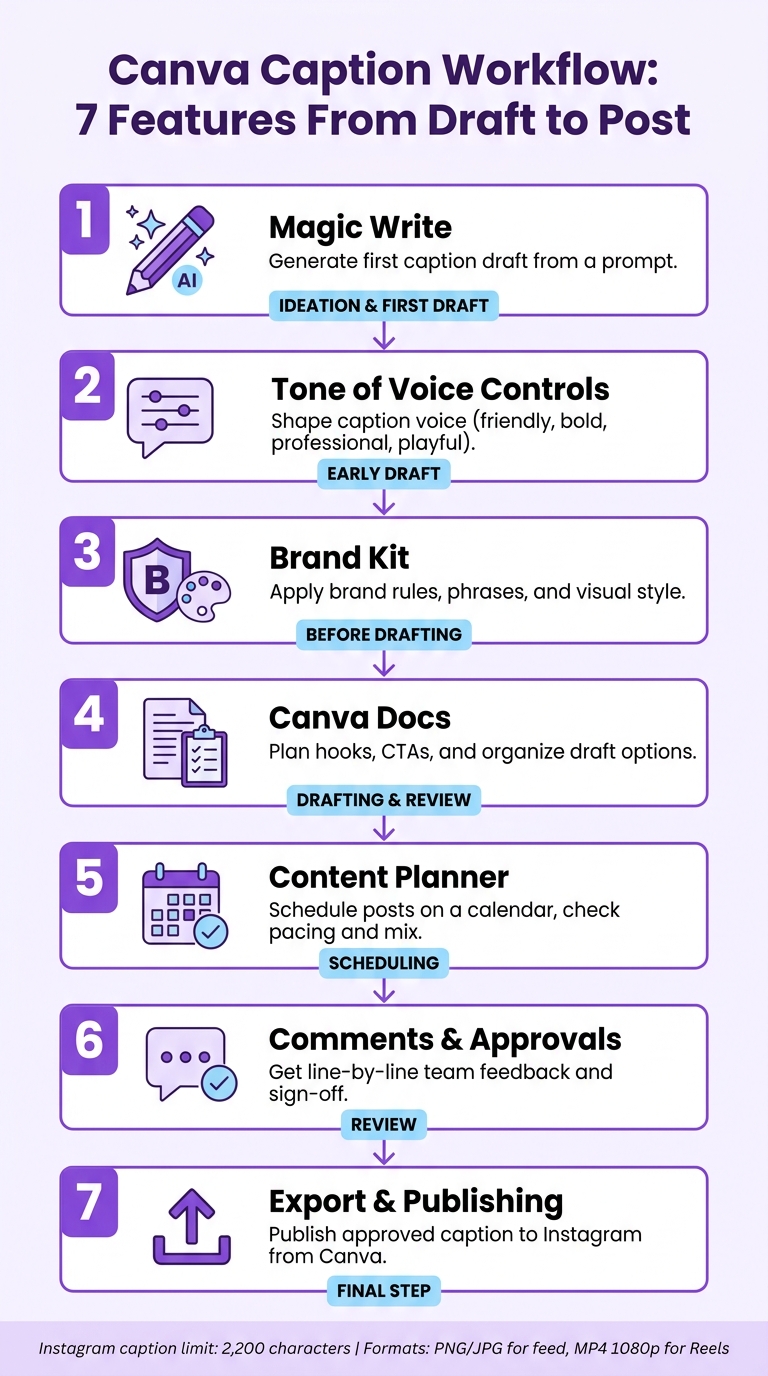
Canva Caption Workflow: 7 Features From Draft to Post
For Instagram captions, Canva lets you move from proven Instagram caption ideas to a scheduled post in one place.
Writing a caption isn't just one step. You draft it, shape the tone, match it to your Brand Kit, plan it in Docs, line it up in Content Planner, gather team feedback right where the work happens, and then publish to Instagram.
Canva covers that whole path in one platform.
Here's how that workflow breaks down.
These seven features follow a clear sequence: Magic Write, tone controls, Brand Kit, Docs, Content Planner, comments, and export or publishing. Put together, they take a caption from prompt to post with fewer handoffs.
First: Magic Write prompt input.
Magic Write is Canva's built-in AI text generator. You enter a prompt, and it gives you a caption draft in seconds. Canva says to treat that output as a draft, then proofread and edit it before you publish. So the tool handles the first pass - prompt in, draft out - and a person makes the final call.
Magic Write does better when your prompt is specific. The more direction you give it, the less cleanup you usually need later. For U.S. audiences, call out US English, American spelling, and seasonal hooks like back-to-school or Black Friday. Keep prompts under 200 words, and include the topic, audience, tone, brand phrases, and the caption length or style you want.
For example:
"Write a confident, friendly Instagram caption in US English for a vitamin C serum. Audience: US women ages 25–45 interested in clean beauty. Highlight that it's dermatologist-tested. End with a CTA to tap the link in bio. Include 4 niche skincare hashtags"
That kind of detail gives Magic Write a much better starting point.
Magic Write fits into the ideation and first-draft stage. It writes the draft, while Docs and Content Planner take care of planning and scheduling. That makes it handy when you want a few rough options fast. Instead of staring at a blank page, you get something concrete to react to, trim, and rewrite.
From there, the draft moves into Content Planner for scheduling.
Magic Write helps you put together first drafts for Reels, carousels, and single-image posts fast, then passes the copy on for editing and scheduling.
Next, tone controls shape the draft's voice.
Add a tone cue to the prompt - friendly, professional, playful, or bold - and Magic Write will shape the caption in that voice. This changes the wording and level of formality before the caption is even created. From there, Brand Kit helps keep the rest of the brand voice in line.
Use Canva brand voices, Docs, or shared folders to keep approved tone notes in one place. That way, captions can stay steady across posts, Reels, and Stories instead of sounding different from one format to the next.
Set the tone first. Then move the chosen caption into design and scheduling.
Try different tone options to see which voice gets more engagement.
Next, Brand Kit keeps that tone aligned with the rest of the post.
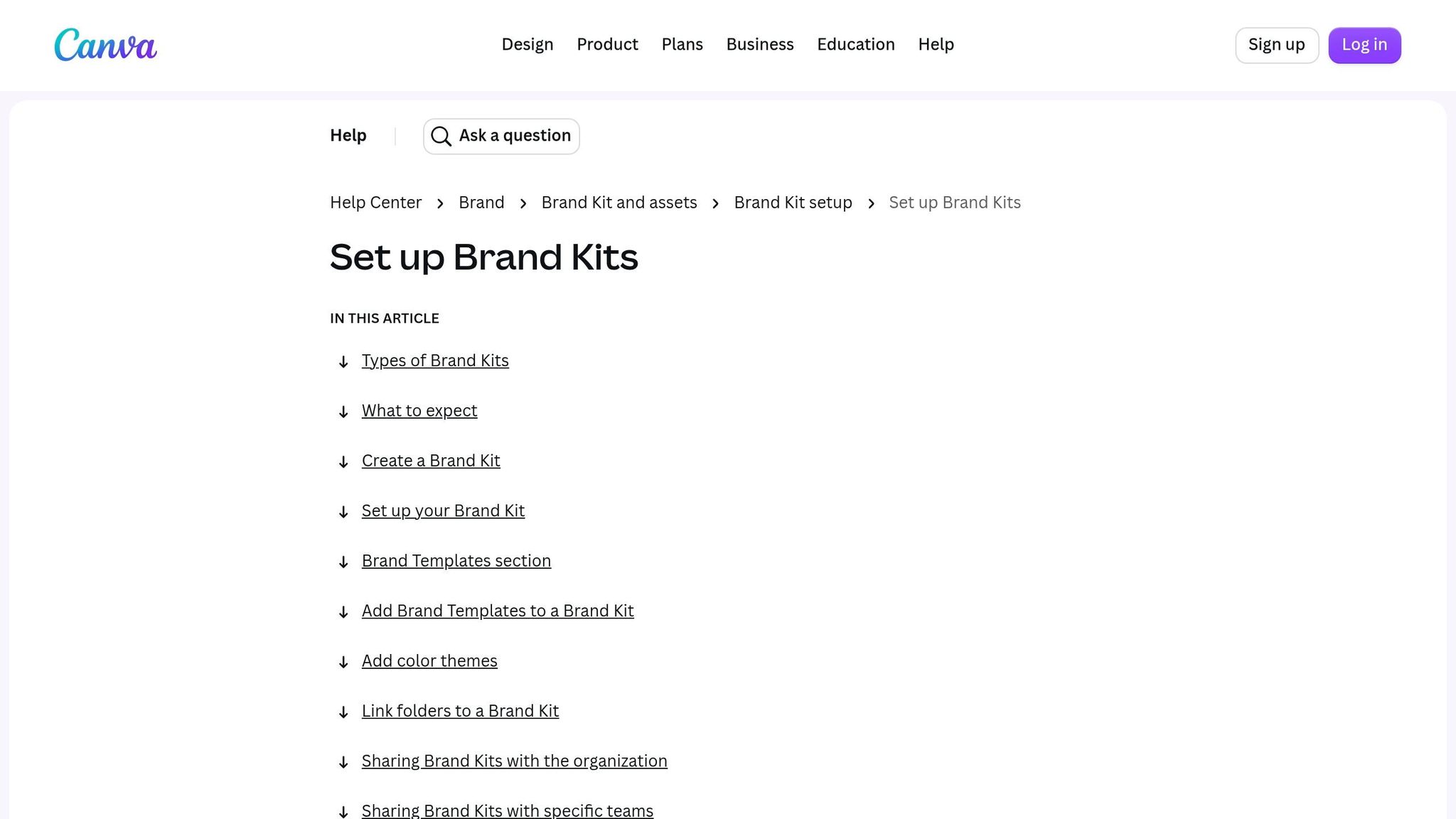
Canva's Brand Kit puts your brand rules in one spot, which makes it much easier to write caption prompts using free AI-powered Instagram tools that match your voice and visual style. Pair it with brand voice notes in Magic Write or Canva Docs, and your captions are more likely to feel specific to your brand instead of sounding like generic filler.
Once those rules are in place, the next job is making sure that same voice shows up in every draft and revision.
Brand Kit helps keep captions steady across posts and across team members. Say you're running a fitness brand. You can match bold visuals with repeatable phrases and CTA patterns so each post sounds like it came from the same team, not five different people.
Canva also lets you set up campaign-specific kits. That's handy when a seasonal campaign needs its own style, while the main brand still stays the same.
After the brand rules are locked in, Canva Docs gives you a clear place to map out the caption before it moves into scheduling.
Use Brand Kit at the very start of the workflow. Add brand rules into the prompt first, and you'll cut down on revisions later.
Steady Brand Kit rules help captions and visuals feel connected, which makes your brand easier to recognize on Instagram.
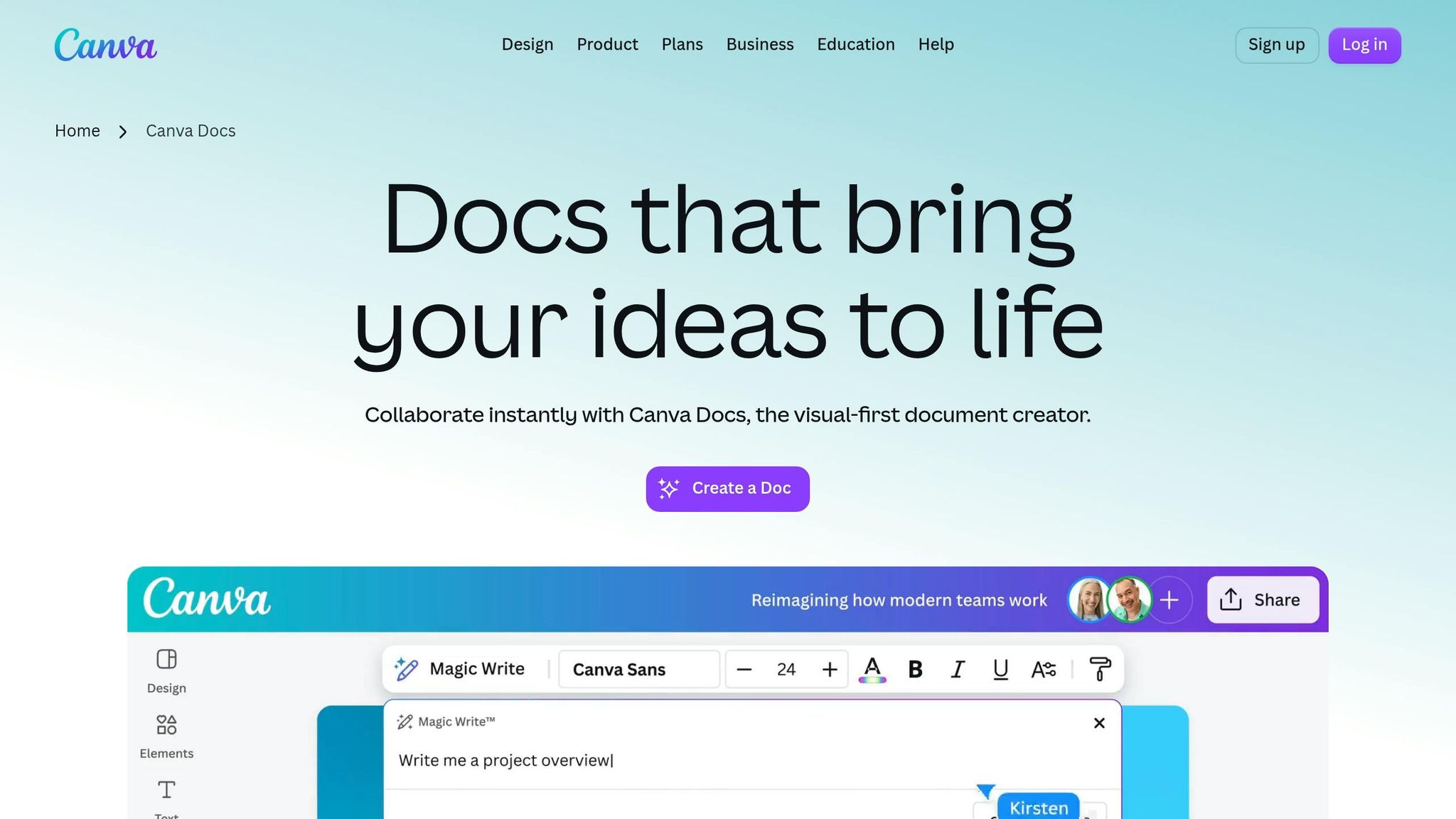
Canva Docs is the place to sort caption ideas before anything goes live. You can line up hook options, CTA lines, and final formatting in one spot. Magic Write can turn one prompt into several caption drafts, which gives you something concrete to react to, edit, and tighten up. That makes the jump from brainstorm to final caption feel fast and a lot less messy. Once the draft is set up, move into tone and brand checks.
Docs keeps Brand Kit rules in view while you write, so captions stay on-brand from the first draft. From there, Docs becomes the working space to polish the copy before scheduling.
Docs sits between idea generation and scheduling. Use Docs for drafting and approval, then send the caption to Content Planner for post drafts and scheduling.
Docs improves clarity and consistency before posting.
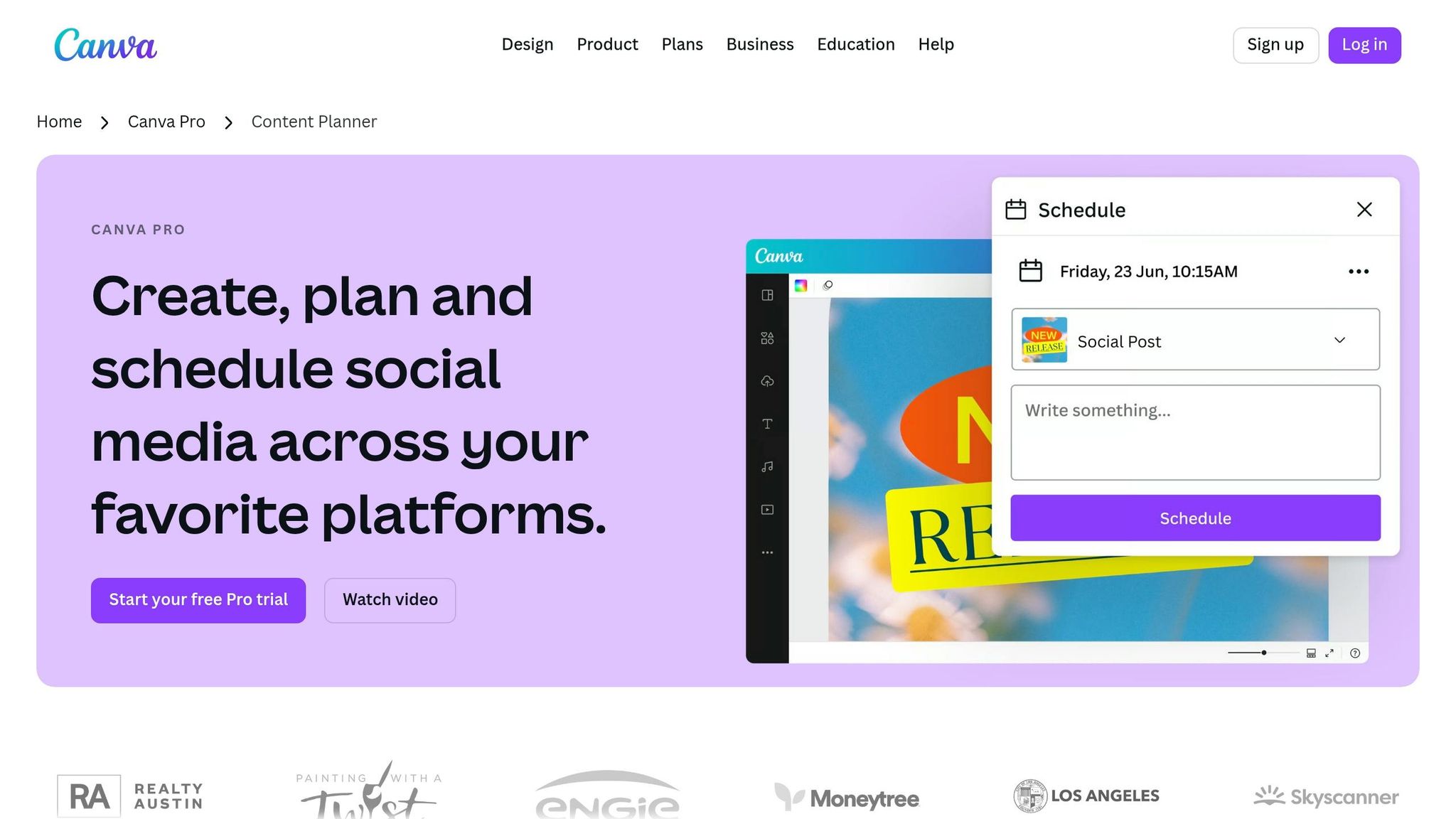
Once the caption is finished in Docs, move it into Content Planner so you can check the post visually and place it at the right time. This is where approved captions sit next to the visual, which makes it much easier to review the copy, the design, and the posting plan in one spot.
Instead of checking posts one by one, you can move approved captions from Canva Docs into Content Planner and look at a full week or even a full month of ready-to-review posts together. That bird’s-eye view makes small issues easier to catch before anything goes live.
The difference between a draft and a scheduled post matters more than it seems. A post should stay in draft when it still needs stakeholder approval or legal review. It should move to scheduling only after the copy is approved and the publish timing is locked in.
The calendar view helps you spot pacing and mix at a glance. You can see if you’re repeating the same angle too often or leaving awkward gaps in your posting rhythm. That way, each post draft is set up for approval before it moves into scheduling.
Canva keeps captions within Instagram’s 2,200-character limit and shows line breaks in preview. That makes hooks, CTAs, and hashtags easier to scan alongside the creative.
Once the draft is in Docs, team comments help clean it up before it reaches Content Planner.
After Magic Write creates a draft, Canva's comment tools make review fast and precise. People can highlight a line and leave a note on that exact sentence instead of dropping a vague comment on the whole post. A brand manager might flag a phrase. A legal reviewer might ask for a disclaimer. Then use Resolve as the final sign-off step before the caption moves to Content Planner or export.
Use @mentions to send feedback to the right reviewer without leaving the draft. You can also add freelancers or agency partners as limited-access collaborators, so they can review and comment without getting full edit access.
This step fits after drafting and before scheduling, when comments, approvals, and version history matter most. Version history gives teams a safety net. If a round of edits goes sideways, it lets them roll back to an earlier draft.
After approval, move the caption into Content Planner for scheduling.
After approval in Docs or Content Planner, export is the last step before publishing. At this point, Canva polishes the AI draft you already approved instead of making a brand-new one.
Before you publish, clean up the caption a bit. Tighten the hook, add a clear CTA, and place hashtags at the end. Small edits here can make the post feel sharper and easier to read.
Canva also helps keep the post in line with your Brand Kit. Make sure the caption uses American spelling and includes any required disclosure language. If legal or compliance reviewers left notes during the comment stage, apply those final review notes here.
Once the caption is approved, Canva can publish it straight to eligible Instagram Business accounts. Match the export format to the post type:
The big plus here is simple: you can publish the approved caption without leaving Canva. The caption you finish in Canva is the same one that gets scheduled, which cuts down on copy-paste errors and old draft mix-ups.
That means your brand stays consistent, and your team can keep publishing from one place.
That sets up the workflow overview below.
Canva Docs, Magic Write, and Content Planner each do a different job. The simplest way to think about them is by stage: plan, draft, then schedule.
Use this quick breakdown to choose the right tool for the right step.
| Feature | Primary Use | Best For | Key Benefits |
|---|---|---|---|
| Canva Docs | Plan and organize caption ideas | Batch planning, campaign notes, team review | Keeps drafts, brand notes, and campaign details in one place. |
| Magic Write | Generate and refine captions with AI | Overcoming writer's block, testing hooks and CTAs | Turns prompts into editable captions fast and can generate new variations. |
| Content Planner | Schedule and publish finalized captions | Mapping posts around U.S. holidays, launches, and promos | Schedules captions with visuals and publish times in one calendar. |
In day-to-day use, Canva Docs is where you map things out, Magic Write is where you build the caption, and Content Planner is where you line it up for publishing.
Put together, these tools take a caption from rough idea to live Instagram content. Once that workflow makes sense, the next move is to use performance data to sharpen the prompt.
After you plan and schedule your posts, the next move is simple: let the numbers guide the next caption draft.
Before you draft in Magic Write, look at your Instagram performance data. Prompts work better when they’re built on what your audience already responds to.
The main metrics to check are saves, shares, comments, and engagement rate by format. Saves and shares matter a lot in Instagram’s algorithm, so they can tell you what kind of caption to write next. For example, if your carousels keep getting more saves than your single-image posts, that’s a clear sign. Your audience likely wants how-to content, step-by-step tips, or posts they can come back to later. In that case, prompt Magic Write to produce captions that teach something and nudge people to save or share the post.
Match the caption style to the format that’s already working. Reels with strong watch time often do better with short, sharp captions. Tip-based carousels usually need longer captions with a clear structure.
It also helps to keep a running file in Canva Docs with your top-performing patterns. Save the hooks, caption setups, and calls to action that brought in the most saves or comments. Then feed those patterns back into your Magic Write prompts each week. That way, you’re not starting from scratch every time. You’re building from what already works.

If you want a broader read on audience signals before drafting, UpGrow can help. Its live analytics dashboard and audience filters - age, location, gender, interests, and language - can show which topics click with which audience groups.
You can then bring those signals back into Canva. Use them to shape your prompts, adjust tone settings, and guide your Content Planner drafts.
These seven Canva features fit together as one workflow: draft, shape, align, plan, review, and publish in one place. That flow is what makes Canva so useful for caption work.
The big upside is simple: it keeps captions consistent and cuts down on back-and-forth edits.
Use this workflow each week. Draft in Canva Docs, refine with Magic Write, match tone with Brand Kit, schedule in Content Planner, gather feedback in comments, and publish from Canva. The result is a faster process and a more consistent caption system for sharing content.
Your prompt should be clear and detailed so Magic Write can match your brand and goals.
Include the content topic, target audience, tone of voice, main goal, caption length, call to action, and any formatting, emoji, or hashtag preferences. The more specific you are, the more likely you are to get a caption that needs only light editing.
Use Canva Docs to brainstorm, draft, and sort out your text before you move into design. It works best for planning your message, shaping the tone, and polishing caption drafts.
Use Content Planner when your Instagram posts, Reels, and carousels are finished and ready to go out. Canva Docs helps you build the story. Content Planner manages the publishing calendar.
Use Instagram Insights to track engagement rate, saves, shares, and click-through rates. Those numbers show which hooks, caption lengths, and calls to action land best with your audience.
Then feed what you learn back into future AI-generated drafts. That way, your captions stay grounded in data instead of guesswork. If you want deeper, real-time analysis, UpGrow offers a live dashboard that helps you spot trends and fine-tune your strategy faster.


