Table of contents

If I had to cut this down to one answer, it would be this: Canva is the best all-around pick for most Instagram graphics, Adobe Express is best for polished promo posts, Ideogram is best for text-heavy visuals, Microsoft Designer is best for fast first drafts, and Simplified is best if I want graphics and captions in one place.
Here’s what matters most before I pick any free tool:
- Can I export without watermarks?
- How many AI generations do I get for $0?
- Can I use it for business or client work?
- Does it handle carousels well, or just single posts?
- Can I keep colors, layouts, and branding the same to create a consistent Instagram aesthetic?
That’s the core of this roundup. It compares 5 tools across 5 Instagram formats:
- single-image posts
- carousel slides
- quote cards
- product visuals
- promo graphics
And it looks at the limits that hit first on free plans:
- AI credit caps
- premium asset traps
- watermark risk
- commercial-use rules
- public visibility on free generations
I Tested 5 Free AI Image Generators (So You Don't Have To)
sbb-itb-3c55afb
Quick Comparison
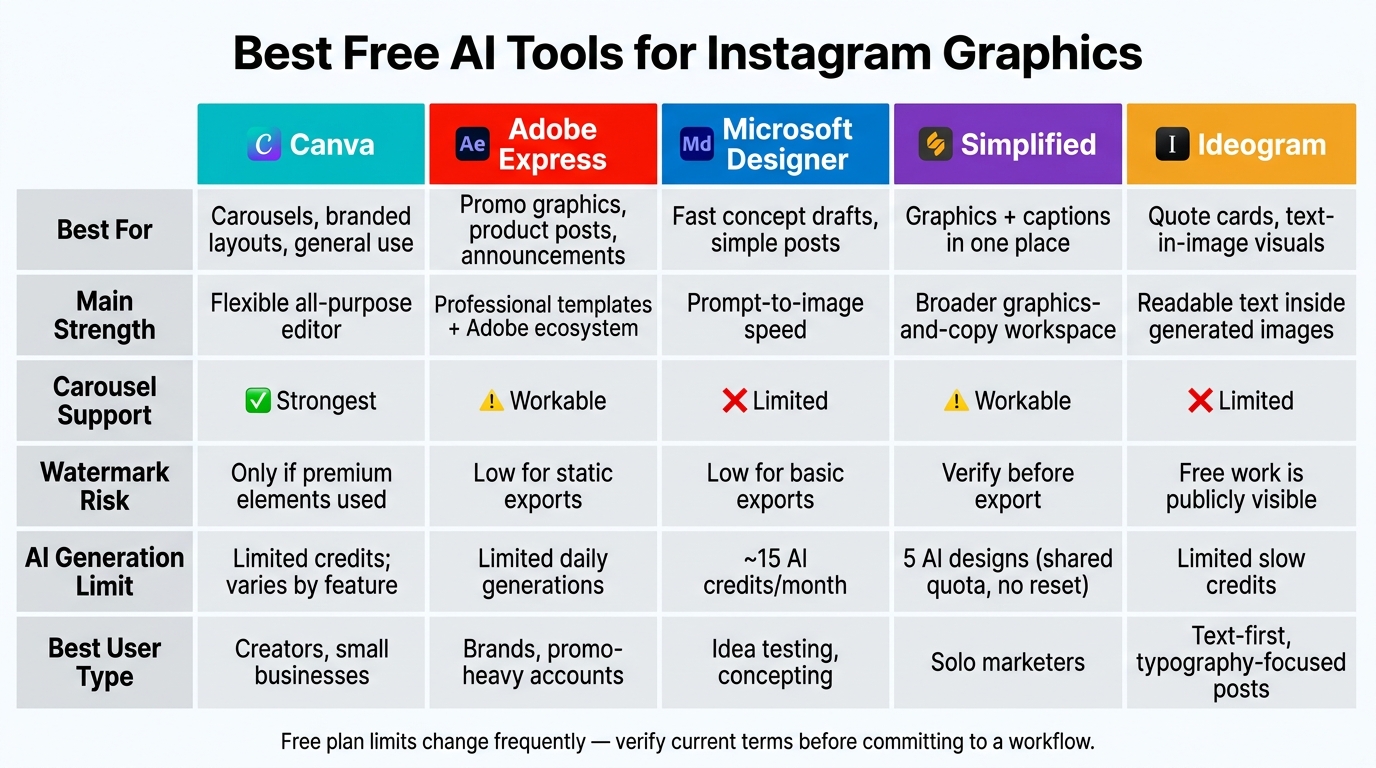
Best Free AI Tools for Instagram Graphics: Side-by-Side Comparison
| Tool | Best for | Main issue on free plan | Best fit |
|---|---|---|---|
| Canva | Carousels, repeatable post layouts, general use | Premium elements and some AI limits | Creators, small businesses |
| Adobe Express | Promo graphics, product posts, announcements | Paid stock, paid templates, AI caps | Brands, promo-heavy accounts |
| Microsoft Designer | Fast concept drafts, simple posts | Credit limits and possible personal-use limits | Idea testing |
| Simplified | Graphics plus captions | Small free quota shared across tasks | Solo marketers |
| Ideogram | Quote cards and text-in-image visuals | Not a full editor; free work may be public | Text-first posts |
My short take: if I post often, carousels and export rules matter more than flashy AI demos. A tool can look good in a promo video and still slow me down after 3 or 4 posts.
So the smart move is simple: test each tool on one feed post, one 5-slide carousel, one quote card, one product image, and one promo graphic before I build my workflow around it.
The 5 Best Free AI Tools for Instagram Graphics
These five tools were tested using the same hands-on briefs: a square 1080 × 1080 image post, a five-slide educational carousel, a quote card, a product launch visual, and a limited-time promo graphic. Each one was judged on three things: output quality, workflow speed, and export limits.
Canva and Adobe Express
Canva is the most flexible tool in this group. Its template library, drag-and-drop editor, and page-duplication setup make it simple to build carousels, quote cards, and repeatable branded posts without needing deep design skills. If you want one free tool that can handle a bit of everything, Canva is the safest bet here.
Its free exports depend on what you use in the design, not just the fact that you're on a free account. If your design uses only free elements and your own uploads, you can export without watermarks. But if you add premium assets, Canva may add watermarks or ask for payment. AI image generation is also available on free accounts, but usage is limited.
Adobe Express is a stronger fit for polished promo graphics, especially product announcements, event posts, and brand-led visuals that lean on Adobe's template and stock library. The free plan works well for quick creation and export, but some templates, stock assets, and AI features sit behind paid limits. Before you download anything, check whether the design includes premium content. If it does, you may run into export limits or watermarking.
| Criterion | Canva | Adobe Express |
|---|---|---|
| Strongest uses | Image posts, carousels, quote cards, branded templates | Promotional graphics, product visuals, announcements |
| Main strength | Flexible all-purpose editor and fast multi-page workflows | Professional templates and Adobe ecosystem |
| Main weak point | Premium assets and some advanced features are mixed into the free workflow | Premium stock/templates and capped AI access can interrupt production |
| Free-plan restriction to test | AI quota, premium elements, and brand features | AI credits, premium assets, and export rules |
| Export or watermark concern | Free-only designs can export without watermarks; premium elements may require payment or display restrictions | Check whether premium content is included; free-plan export rules and AI allowances may change |
| Best user type | Beginners, creators, small businesses, and carousel-heavy accounts | Brand-focused users making promotional or product-led content |
If you care more about speed than template control, the next two tools lean harder into prompt-based workflows.
Microsoft Designer and Simplified
Microsoft Designer is all about speed. You describe the post you want - say, a quote card with bold typography - and it gives you a draft fast. That can save time when you're staring at a blank canvas. The downside is control. Typography placement and layout precision aren't as steady as what you'd get from a template-first editor.
AI use runs on credits that refresh each month, but Microsoft doesn't always publish a clear free-tier credit number. So if you plan to use it often, check your own account limits first instead of guessing.
Simplified goes in a different direction. It mixes AI graphic generation with AI writing, templates, and social scheduling. That makes it handy if you want to build a promo visual and draft the caption in the same place. This integration is a key part of a social media workflow for Instagram that saves time. On paper, that sounds convenient. In practice, the free plan is tighter than it first appears.
Reported limits include 5 AI designs and 5,000 one-time AI-writing words, with no monthly reset. That same quota applies across images, carousels, and presentations, so if you make a lot of carousel content, you'll burn through it fast. Think of it less like a long-term free tool and more like a small test budget.
| Criterion | Microsoft Designer | Simplified |
|---|---|---|
| Strongest uses | Simple image posts, quote cards, rapid visual concepts | Promotional graphics plus supporting captions and content variations |
| Main strength | Fast prompt-to-image workflow | Broader graphics-and-copy workspace |
| Main weak point | Less precise typography, layout, and brand control | AI and export limits may be shared across several functions |
| Carousel consistency | Better for generating individual concepts than exact repeated slide systems | Useful if its editor and templates support duplicated, consistently branded pages |
| Free-plan issue to verify | AI credits and account-specific limits | AI design quota, export limits, watermark rules, storage, and premium template access |
| Best user type | Users prioritizing speed and ideation | Solo marketers and small businesses managing graphics and copy together |
If readable text inside the image is your top concern, the last tool is built for that job.
Ideogram: Best for Text-Forward Visuals
Ideogram stands apart from the other four because its biggest strength is producing readable text inside generated images. That's a big deal for quote cards, event announcements, poster-style graphics, and headline visuals where legible typography does most of the heavy lifting.
That said, Ideogram is not a full production editor. If you need exact canvas sizes, fixed brand colors, logo placement, or clean slide-to-slide carousel formatting, you'll still need a separate editor. A good way to use it is simple: generate the concept in Ideogram, then move it into a layout tool for sizing and export.
Also, proofread every result. Even Ideogram can still misrender punctuation, numbers, or brand names. The free plan costs $0, but its current allowances can change.
Side-by-Side Comparison by Instagram Graphic Type
Which Tool Works Best for Each Format
Not every design tool shines in the same spot. A tool might feel great for a single post, then slow you down the minute you start building a carousel.
The table below rates each tool as Strongest, Workable, or Limited for five common Instagram graphic formats. These ratings reflect workflow fit, not general feature counts.
| Format | Canva | Adobe Express | Microsoft Designer | Simplified | Ideogram |
|---|---|---|---|---|---|
| Image posts | Strongest | Strongest | Workable | Workable | Workable |
| Carousel slides | Strongest | Workable | Limited | Workable | Limited |
| Quote cards | Workable | Workable | Workable | Workable | Strongest |
| Product visuals | Strongest | Strongest | Workable | Workable | Limited |
| Promotional designs | Strongest | Strongest | Workable | Workable | Limited |
Format fit matters, but free-plan limits often decide whether a tool can stay part of your day-to-day workflow.
Canva leads for carousels because it duplicates pages cleanly and keeps layouts lined up from slide to slide. That matters more than it sounds. If you’ve ever had to fix spacing on eight slides in a row, you know how annoying that gets.
Adobe Express works well for polished image posts and promo graphics, especially product-led designs. It feels like a good match when the goal is something polished without a lot of fuss.
Ideogram gets its Strongest rating for quote cards because it renders readable words inside generated images more reliably than the other tools here. That’s a big deal. Most AI image tools still stumble when text appears inside the image itself. A practical setup is to use Ideogram for the initial idea, then finish the exact wording in Canva or Adobe Express.
Microsoft Designer and Simplified can work, but they usually need manual cleanup before you publish. And if your process leans heavily on carousels, free credits disappear faster than they do with single-image posts.
Free-Plan Limits That Affect Your Instagram Workflow
Free plans can look fine at first glance, then trip you up right before export. This is where a lot of people get burned.
| Tool | AI generation limit | Watermark risk | Key restriction |
|---|---|---|---|
| Canva | Limited AI credits; varies by feature | Only if premium elements are used | Premium templates, assets, and brand kit features are mixed into the free editor |
| Adobe Express | Limited daily generations; allowances can change | Low for static exports | Some premium templates and stock assets require a paid plan |
| Microsoft Designer | Reported 15 AI credits/month | Low for basic exports | Free-account guidance has been reported as personal, non-commercial use |
| Simplified | Limited free AI credits | Verify before export | Quota is shared across content types, so carousels can use it up quickly |
| Ideogram | Limited slow credits | Public on the free plan | Free generations are visible to others, so avoid unreleased or confidential content |
Check for premium elements before export, especially in Canva and Adobe Express, where free and paid assets sit right next to each other. It’s easy to build something that looks done, only to find out one stock image or template piece pushes you into a paid plan.
Commercial use is a separate issue from watermarking. That point matters. Microsoft Designer's free guidance has been reported as personal use only, which matters for client work and ads. Always verify current terms on the tool's pricing page before committing to a workflow that involves advertising spend or client deliverables.
Once you’ve picked the tool and the format, export settings become the last bottleneck. Export text-heavy graphics as PNG and photo posts as JPG. Use standard social media image sizes, such as 1,080 × 1,350 pixels for carousel slides, unless your account uses square assets.
How to Choose the Right Tool for Your Instagram Workflow
Best Tool by User Type
After looking at features and limits, the simplest way to choose is to start with the format you make most often.
| User Type | Best Fit | Why It Works |
|---|---|---|
| Solo creator, frequent posts | Canva | Build once, reuse often. |
| Small business, product promos | Adobe Express | Fast polish for promo-heavy accounts. |
| Freelancer or agency | Canva or Adobe Express | Client template systems and steady exports. |
| Copy-focused marketer | Simplified | Graphics and captions in a single workflow. |
| Quote cards and typography | Ideogram | Readable text inside generated images. |
| Fast concept testing | Microsoft Designer | Use it for concepting, then finish the design in an editor. |
Here’s the short version: use Canva for repeatable layouts, Adobe Express for polished promos, and Microsoft Designer or Ideogram when you need to generate ideas fast.
After that, don’t judge a tool by how slick the editor looks. Judge it by post performance. This is a key part of optimizing your Instagram reach through better content visibility. In most cases, the best signal is which posts get the most saves and shares.
Connecting Graphics to a Broader Instagram Growth Workflow
Choose the tool that matches your most common post format. Then use Instagram Insights to spot the formats that drive the most saves, shares, and profile visits.
Conclusion: The Right Free AI Tool Depends on the Graphic You Need
No free AI tool is best at every Instagram graphics job. The right pick comes down to what you make most often and how much editing you want to handle.
Match the tool to your main format: Canva for all-around workflows, Adobe Express for polished promos, Microsoft Designer for fast concept drafts, Simplified for design plus copy, and Ideogram for text-heavy visuals.
The easiest way to choose is simple: look at the type of post you publish most. Then test a short list with actual assets, such as:
- a feed post
- a carousel
- a quote card
- a product visual
- a promo graphic
That kind of side-by-side test tells you more than any feature page ever will.
Free plans also change fast, so check the live pricing page before you build your workflow around one tool. Pay close attention to limits, exports, watermark rules, storage, brand kit access, and commercial-use rights - as of September 22, 2026.
Pick the tool that fits your most common Instagram graphic, then verify the current free limits before you commit.
FAQs
Which free tool is best for carousel posts?
For carousel posts, Canva’s free tier is the best pick. It’s made for carousel-style layouts and template-based slide design, with Instagram-ready sizing and simple editing tools.
Can I use these free AI tools for client work?
Yes - many AI tools can be used for client work, but you need to check each platform’s licensing terms first.
For example, UpGrow’s free AI-powered toolkit includes commercial use rights. Adobe Firefly is another solid pick because it’s trained on licensed Adobe Stock images.
The main point is simple: always review each tool’s terms to make sure commercial use is allowed.
How do I avoid watermarks on exports?
Use tools that clearly offer watermark-free exports on their free plan. The article points to Instagram Edits as one option, with no watermarks and 4K HDR export.
It also helps to check the fine print. Some free plans cap how many exports you get, while others add a watermark unless you upgrade. And if you plan to use the file for business, ads, or client work, review the licensing terms before you export.