Best AI Tools for Instagram Video Resize
Compare top AI tools to resize and reframe videos for Instagram Reels, posts, and Stories.
Compare top AI tools to resize and reframe videos for Instagram Reels, posts, and Stories.
4.98 /5 - from 58k reviews
Trusted by 50,000+ creators — get real engagement delivered to your profile in minutes, not days.

If you need one video to fit Reels, Stories, square posts, and feed posts, the best tool depends on how you work. From the article, I’d put Premiere Pro first for editor control, Vizard and OpusClip first for high-volume clip production, CapCut first for caption-heavy social edits, Descript first for transcript-led repurposing, and Pixelcut first for simple one-off resizing.
Instagram sizing is not optional. While getting the dimensions right is crucial for quality, using an Instagram growth service can help ensure that high-quality content actually reaches your target audience. Reels and Stories use 9:16 (1,080 × 1,920), portrait feed posts use 4:5 (1,080 × 1,350), square posts use 1:1 (1,080 × 1,080), and some posts still use 16:9. When framing is off, faces get cut, text slips out of view, and video quality can drop. That’s why I’d judge these tools on a short list: aspect ratio support, auto reframe, subject tracking, batch export, captions, templates, and export settings.
Here’s the short version:
Bottom line: if you want control, pick Premiere Pro. If you want volume, pick Vizard or OpusClip. If you want easy caption-first editing, pick CapCut. If you want transcript-led editing, pick Descript. If you want basic resizing without much setup, pick Pixelcut.
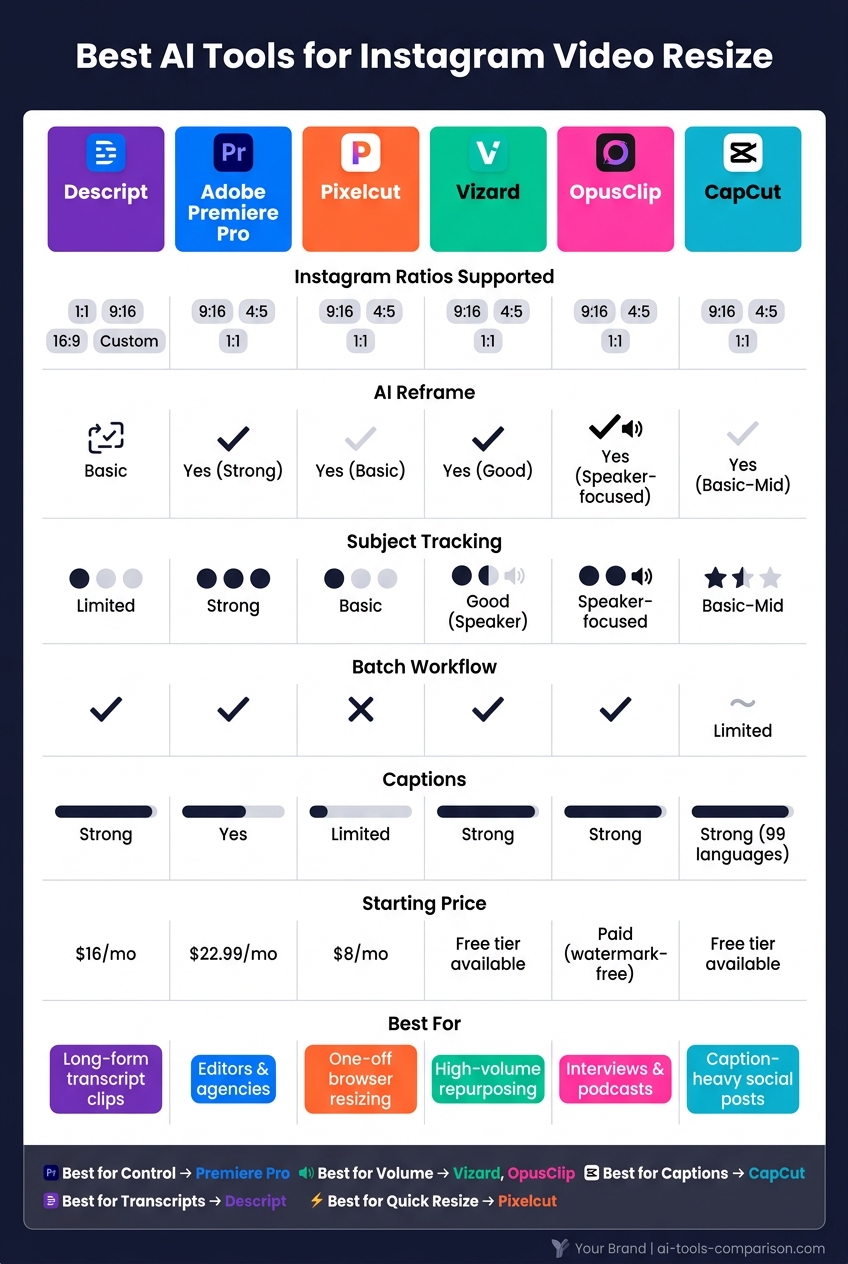
Best AI Tools for Instagram Video Resize: Side-by-Side Comparison
| Tool | Instagram Ratios | AI Reframe | Subject Tracking | Batch Workflow | Captions | Best Fit |
|---|---|---|---|---|---|---|
| Descript | 1:1, 9:16, 16:9, custom | Basic | Limited | Yes | Strong | Long-form clips from transcripts |
| Premiere Pro Auto Reframe | 9:16, 4:5, 1:1 | Yes | Stronger than most | Yes | Yes | Editors and agencies |
| Pixelcut | 9:16, 4:5, 1:1 | Yes | Basic | No | Limited | One-off browser resizing |
| Vizard | 9:16, 4:5, 1:1 | Yes | Good for speakers | Yes | Strong | High-volume repurposing |
| OpusClip | 9:16, 4:5, 1:1 | Yes | Speaker-focused | Yes | Strong | Interviews, webinars, podcasts |
| CapCut | 9:16, 4:5, 1:1 | Yes | Basic to mid-level | Limited | Strong | Caption-heavy social posts |
If I were choosing fast, I’d match the tool to the job instead of chasing the longest feature list. That’s the main takeaway from the article.
Descript is a text-based video editor made for turning long videos - like podcast episodes, webinars, and interviews - into shorter social clips. It has a 4.6/5 rating on G2. For UGC teams, it’s a strong pick when one source video needs to become several Instagram formats in a short amount of time.
Descript supports 1:1 square, 9:16 vertical, 16:9 horizontal, and custom ratios. That gives you coverage for Reels, Stories, and feed posts. Optimizing these formats is a key part of learning how to get more followers on Instagram organically. You can resize the canvas and then reposition layers to fit the new frame.
That said, it’s not a pure one-click preset setup. After resizing, you’ll usually need to make a few manual tweaks to get the framing right. Changing size is simple. The bigger sticking point is motion tracking.
Descript can help with basic talking-head framing, but it does not offer full subject tracking. If your footage has movement, multiple people, or jump cuts, expect to handle cropping by hand.
This is one of Descript’s strongest areas for UGC teams. You can duplicate a full video - or just selected parts - into separate versions for different aspect ratios, then export those versions all at once or one by one.
Descript also includes AI tools that can spot clip-worthy moments for social. From there, users can add captions, change the aspect ratio, and save the layout as a template for repeat use.
Descript exports at 480p, 720p, 1080p, or 4K. Free users are limited to 720p. The Hobbyist plan starts at $16 per person per month when billed annually.
If you need more automated reframing for footage with a lot of movement, the next tool is a better match.
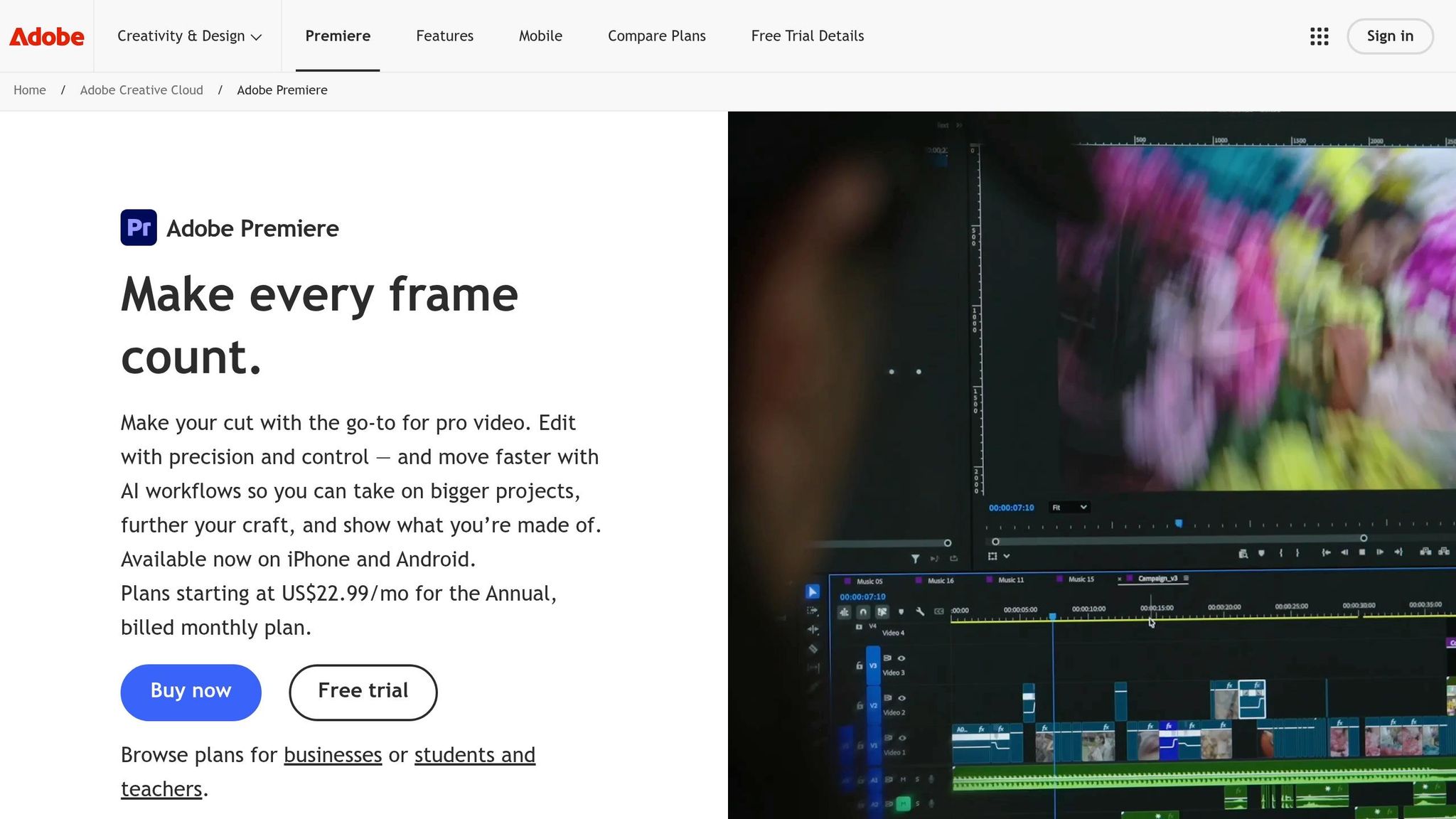
For teams that need stronger motion tracking than basic resize tools can handle, Premiere Pro Auto Reframe uses Adobe Sensei to resize clips for Instagram while keeping the subject centered.
Auto Reframe supports the Instagram formats most UGC teams use: 9:16 for Reels and Stories, 4:5 portrait for feed posts, and 1:1 square.
There’s one catch. Motion Graphics Templates (MOGRTs) and other on-screen graphics don’t reframe on their own, so you may need to move those elements by hand after the AI finishes the initial pass.
Auto Reframe works by adding position keyframes in the background as it tracks the subject through the clip. In plain English, Premiere is doing the camera move for you without forcing you to animate every shot yourself.
It tends to do best with single-subject footage, like talking-head videos or product demos. Things get trickier with multi-person scenes or fast-moving clips, where it can lose track of the main subject. If that happens, Premiere gives editors clip-level control through the Effect Controls panel, so keyframes can be fixed shot by shot.
That setup works well for teams that want automatic reframing first, with manual control there when it’s needed.
Premiere supports sequence-level auto reframe and batch export through Media Encoder. That matters if you’re turning one edit into several Instagram formats and don’t want to export each version one at a time.
A common export setting for Reels and Stories is H.264 at 1,080 × 1,920, with bitrate adjusted to balance image quality and file size for mobile upload, or use an Instagram post optimizer to ensure your content is ready for the algorithm. So if your team already edits inside Adobe, this can slot into the workflow without much friction.
Premiere lets you import SRT files or build native caption tracks in the Captions and Graphics workspace. For vertical video, captions still need separate placement inside the safe zone of the 9:16 frame.
Premiere Pro costs $22.99/month on the annual plan billed monthly or $34.49/month on a month-to-month plan. For teams already using Premiere, Auto Reframe can make multi-format Instagram editing a lot less manual.
Pixelcut is a prompt-based Instagram video resizer that can export 9:16, 4:5, or 1:1 clips fast. You upload a clip, tell it how to resize, and export a watermark-free MP4 that’s ready for Instagram.
Pixelcut supports 9:16 for Reels and Stories, 1:1 square, and 4:5 portrait. A single prompt can set both the ratio and the framing. For example, you can tell it to keep the speaker centered or leave room for captions at the bottom.
Pixelcut uses AI to keep the main action in frame while it changes the crop. That makes it a good fit for talking-head videos, product close-ups, and other clips where the subject stays near the center.
With multi-person scenes or fast-moving footage, though, it’s smart to check the output before publishing. In those cases, the crop can drift a bit.
Pixelcut does not offer true batch video resizing, so most teams handle clips one by one. If you’re working at scale, that matters. Pixelcut fits better as a single-clip resize tool than as a bulk-processing setup.
Pixelcut doesn’t include dedicated subtitle tracking during resize, so if your clip has baked-in captions near the bottom, you’ll want to spell that out in the prompt and make sure the text stays visible. Its templates lean toward ecommerce and social media content strategies. Exports come out as watermark-free MP4 files, ready for Instagram or your scheduling tool.
Pro starts at $10/month or $8/month billed annually. Business starts at $30/month or $24/month billed annually.
If you need stronger batch clip selection and subtitle workflows, Vizard is the next comparison.
If simple resizers handle one clip at a time, Vizard is built for volume. It takes a long video and turns it into multiple Instagram-ready clips, which makes it a strong fit for podcasts, webinars, and interviews.
Vizard supports 9:16, 4:5, and 1:1. Free exports go up to 720p, while paid plans open up 1080p and 4K.
Vizard’s Auto-reframe tracks faces, speakers, and key actions to keep the main subject centered. That makes it handy for podcast and interview clips where the active speaker shifts back and forth.
That said, it’s not perfect every time. If a clip has multiple speakers or a lot of movement, you may still need to tweak the crop by hand after the AI pass.
This is where Vizard stands out. It can turn one source video into multiple clips, then lets you batch review, edit, export, or schedule them.
If your team likes that kind of speed but wants more control at the clip level, OpusClip is the next tool to look at.
Vizard auto-generates captions and gives you control over font, size, color, and placement, so the text stays readable after reframing. Paid plans add brand kits and watermark removal.
User ratings are strong too: 4.7/5 on G2 and 4.9/5 on Capterra. People often point to caption accuracy and how fast it is for repurposing.
Use Vizard when speed and output volume matter more than frame-by-frame control. If you want tighter timing and motion edits, OpusClip is the next step.
OpusClip turns long videos into Instagram-ready clips fast, using AI reframing to handle the resize work for you. This is a key part of a strategy to get more followers on Instagram by maintaining a consistent posting schedule. It makes the most sense when speed matters more than hands-on editing.
OpusClip supports 9:16 for Reels and Stories, 1:1 for square feed posts, and 4:5 for portrait feed posts. You can export multiple Instagram aspect ratios from a single upload, which saves time if you're posting the same video in more than one format.
Compared with Vizard, OpusClip puts more weight on speaker-aware reframing than large-scale clip review. It uses Active Speaker Detection and AI reframing to keep the main speaker centered when turning landscape footage into vertical video.
That setup works well for interviews, testimonials, and solo talking-head clips. If your footage has multiple speakers or a lot of fast movement, though, you may still need to make a few manual fixes. AI can get you close, but not always all the way there.
OpusClip also includes Fill and Fit framing options:
Auto-generated captions come standard, and you can adjust the font, size, color, and placement. OpusClip also includes animated caption styles and brand templates, which help keep colors, fonts, and logos consistent across your clips.
On the export side, it supports exports sized for Instagram, plus XML export for teams that want to finish clips in Premiere Pro or DaVinci Resolve. Paid plans remove watermarks.
If you want more template-led, mobile-first editing after resizing, CapCut is the next tool to compare.
CapCut is a ByteDance-owned editor that runs on mobile, desktop, and the web. It’s built for fast short-form editing, so it makes sense for teams that want quick social edits with templates, resizing, and built-in captions. It’s less suited to heavy batch resize jobs across a large video library.
CapCut supports 9:16, 1:1, and 4:5. You can resize at the project level, then fine-tune each clip with crop, zoom, and reposition controls.
That setup is handy for single videos or small runs. But CapCut doesn’t have strong batch resizing, so it’s a better fit for one-off edits than high-volume processing.
Auto Reframe can handle the first pass, which saves time when you need to shift footage into a new frame. After that, crop and zoom controls help clean things up.
The catch is simple: framing may go fast, but captions and template layouts still need a human check.
Auto Captions creates synced subtitles, supports SRT import, and lets you edit the style and placement before export. It also supports burn-in captions in up to 99 languages.
CapCut’s template library is geared toward short-form vertical video. You get preset 9:16 layouts, plus transitions, overlays, and text placement options made for social posts.
Once framing and subtitles are locked in, export settings become the main thing to watch. CapCut supports control over:
A common Instagram Reels export is MP4 at 1,080 × 1,920 and 30 fps.
Paid plans add watermark-free exports, 4K output, and access to premium templates. Once your content is ready, you can further boost your reach with free Instagram followers to jumpstart engagement.
No single tool fits every Instagram resize workflow. The right pick usually comes down to speed, control, or scale.
For UGC teams, a few things matter most: how fast the tool resizes video, how well it follows the subject, how it handles subtitles, and how much control you get at export. The table below makes that easier to sort out.
| Tool | Strengths | Key Limitations | Best For |
|---|---|---|---|
| Descript | Transcription-led editing; fast clip creation from transcripts; strong for turning long recordings into clips | Not built for bulk aspect-ratio batching across large libraries | Podcasters, B2B teams, and creators cutting multiple clips from long-form recordings |
| Adobe Premiere Pro Auto Reframe | Strong subject-aware reframing; target resolution control; fits established Adobe workflows | More manual setup; steeper learning curve for non-editors | Editors and agencies that need accuracy and full creative control |
| Pixelcut | Prompt-based resize; keeps important action in frame; watermark-free MP4 output | Limited batch and subtitle depth | Solo creators and small brands needing fast, simple format conversion |
| Vizard | One-click resize; speaker detection; transcription; subtitle editing with SRT export | Less suited for advanced timeline editing or complex post-production | Social teams and agencies running high-volume repurposing pipelines |
| OpusClip | Smart reframing around speakers; auto captions; AI-driven clip extraction from long videos | More specialized for clip generation than broad editing tasks | Podcast, webinar, and interview teams publishing to Reels |
| CapCut | Batch template workflow; fast social-oriented editing; easy project duplication across aspect ratios | Less precise than Adobe for complex manual reframing | Teams producing many similar short-form posts quickly |
The big divide here is automation vs. control.
If your team wants the tool to do most of the work, OpusClip and Vizard stand out. They handle speaker tracking well and move fast when you're turning long videos into social clips. If your team wants tighter manual control, Adobe Premiere Pro Auto Reframe and CapCut give you more room to adjust framing by hand.
A few patterns are worth calling out:
So the choice isn't just about features on a pricing page. It's about how your team works day to day. A solo creator cutting a few clips each week will likely want something very different from an agency moving dozens of Reels through a content pipeline.
That leaves one final question: which tool fits your team's workflow best?
Choose based on workflow, not feature count.
That’s the fastest way to make the right call.
| Recommended For | Best Tool | Why |
|---|---|---|
| Professional editors and agencies | Adobe Premiere Pro Auto Reframe | Full NLE control, timeline-based reframing, and multi-aspect exports for Reels, Stories, and feed posts. |
| Browser-only workflows | Pixelcut or Vizard | Fast upload-and-resize workflows, Instagram presets, and no software install required. |
| Long-form clips with moving speakers | OpusClip | AI subject tracking helps keep moving speakers centered during landscape-to-vertical crops. |
| Sound-off UGC | CapCut | Auto-caption generation, mobile-first styling, and burned-in subtitle export for sound-off viewing. |
Use the notes below to confirm the fit.
If your team already works in Premiere, Auto Reframe makes the most sense. It fits right into a pro editing setup and gives you the tightest control over subject tracking across aspect ratios.
For landscape-to-vertical repurposing, OpusClip is the strongest match. It works especially well for podcast, webinar, and interview clips where the speaker keeps moving.
If your focus is caption-heavy vertical content, CapCut is the clear pick.
For beginners, Instagram Edits is the best pick for resizing and editing. It’s free, simple to use, and comes with the basics you’ll want right away, like templates, auto-captions, and watermark-free exports.
It also helps with teleprompting and silence removal, which can save a lot of time. If you want another beginner-friendly option, the free version of CapCut offers a similar interface and the main editing tools most people need.
Yes. AI tools can handle reframing and resizing, but you should still give the final cut a manual review.
Check that key visuals and on-screen text stay inside safe zones and away from Instagram UI elements. Then make sure the framing still lines up with your goal, whether that's grabbing attention, driving clicks, or keeping the main subject front and center.
In practice, small manual edits often make the difference between a video that feels auto-generated and one that looks polished and ready to post.
For Instagram, use 9:16 (1080x1920) for Reels and Stories, and 4:5 (1080x1350) for in-feed videos. Stick with at least 1080p. For the file, MP4 with H.264 or H.265 is a safe pick for compatibility and image quality.
Instagram will still compress your video, so it helps to compress it yourself before uploading. The goal is simple: keep the bitrate and file size in check without making the video look soft or messy.
Also, keep your main visuals inside the central 4:5 area. That way, they’re more likely to stay visible in the feed instead of getting cut off.