
AI Reel Caption Generator: 7 Key Tools
Compare seven AI tools for Instagram Reels captions: inputs, 9:16 safe zones, styling, and repurposing strengths.
Compare seven AI tools for Instagram Reels captions: inputs, 9:16 safe zones, styling, and repurposing strengths.
4.98 /5 - from 58k reviews
Trusted by 50,000+ creators — get real engagement delivered to your profile in minutes, not days.
If I had to cut this list down fast, I’d put Flixier, Vmake AI, ClipCap, and OpusClip at the top of the usable options - because those are the tools with the clearest public feature details. The other three - CutSnap, AutoSubtitles, and Scenith - show up in the list, but the source material leaves too many gaps to judge them with much confidence.
Here’s the short version:
That matters because this comparison is based on six simple checks: video input, caption output, language support, style controls, export fit, and Instagram workflow. Out of the 7 tools listed, only 4 have enough source-backed detail to compare with any clarity.
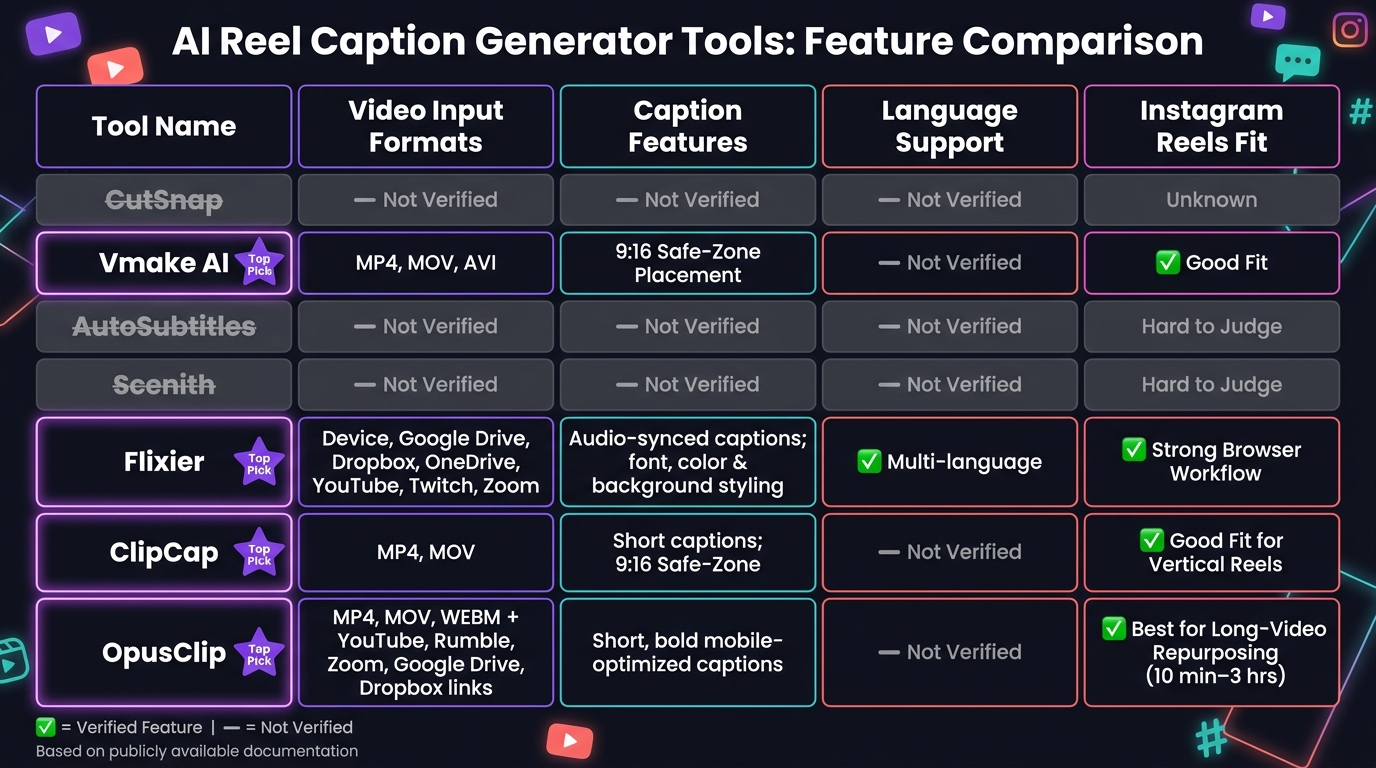
AI Reel Caption Generator Tools: Feature Comparison Chart
| Tool | Input Options | Caption Notes | Language Info | Instagram Fit |
|---|---|---|---|---|
| CutSnap | Not verified | Not verified | Not verified | Not verified |
| Vmake AI | MP4, MOV, AVI | 9:16 safe-zone placement | Not verified | Good fit for Reels layout |
| AutoSubtitles | Not verified | Not verified | Not verified | Hard to judge |
| Scenith | Not verified | Not verified | Not verified | Hard to judge |
| Flixier | Device, Google Drive, Dropbox, OneDrive, YouTube, Twitch, Zoom | Audio-synced captions, punctuation, styling | Multi-language transcription | Strong browser-based workflow |
| ClipCap | MP4, MOV | Short captions, 9:16 safe-zone | Not verified | Good fit for vertical Reels |
| OpusClip | MP4, MOV, WEBM, plus YouTube, Rumble, Zoom, Google Drive, Dropbox links | Short, bold captions | Not verified | Best for long-video repurposing |
My main takeaway: if you want simple Reel-ready layout, start with Vmake AI or ClipCap. If you want more editing control, look at Flixier. If you turn long videos into short clips on a regular basis, OpusClip makes more sense.
That’s the core of the article in one place - so you can scan the list, spot the tradeoffs, and pick based on how you optimize your Instagram posts now.
CutSnap comes first on this list, but there’s a catch: the available sources don’t give us much verified detail.
At this point, the sources do not confirm CutSnap’s:
So while CutSnap is included here, the current source material leaves some gaps. That means it’s smart to treat any extra product claims with caution unless they’re backed by direct documentation or a trusted source.
Vmake AI works with MP4, MOV, and AVI files and is tuned for vertical 9:16 clips. It also places AI-made captions inside Instagram’s safe zones, so text stays clear of the app’s interface. This ensures your content remains professional, which is key to growing your Instagram followers organically.
That gives Vmake AI a clear edge for input format support and Reels-safe caption placement. The tradeoff is simple: there isn’t much source-backed detail on deeper caption controls.
Two things are confirmed here: input format support and vertical safe-zone placement. But the finer points of caption performance are still unclear. Punctuation accuracy, speaker detection, timing, styling, language support, and export formats are all unverified based on the source material available here.
So while the tool looks like a solid fit for vertical video workflows, the documentation still leaves several core caption features unanswered.
AutoSubtitles has limited public documentation, so it’s hard to verify how well it works for Instagram Reels.
That creates a simple problem: there isn’t enough clear info to judge it on the same points as the other tools.
Details like supported video formats, caption timing, styling, language support, and export options aren’t documented well enough to assess its fit for Reels. Because of that, AutoSubtitles is tough to score against the tools with clearer public info that come next.
Next, Scenith offers a clearer feature set for comparison.
Scenith has very limited public documentation, which makes its fit for Reels hard to judge. The available sources don’t clearly confirm which inputs it supports, how it compares to proven Instagram caption ideas, which languages it handles, or what export options it offers. Because of that, Scenith is tough to compare fairly with the next tools, which are documented much more clearly.
Flixier shares enough public detail to make a solid comparison for Reels caption workflows.
Flixier runs in the browser, so you don't need to install anything. You can import video from your device, Google Drive, Dropbox, OneDrive, or direct links from YouTube, Twitch, and Zoom.
Flixier's AI auto-subtitle feature lines captions up with the audio, which helps timing feel tighter. It also adds basic punctuation and capitalization on its own. From there, you can edit the text, adjust timing, and style fonts, colors, and backgrounds so captions stay easy to read in Reels. This is a key part of using Reels to grow your following.
Flixier supports multiple languages for auto-transcription.
Because it's browser-based, Flixier can slot into an Instagram Reels workflow without much friction. The caption styling tools also help when you want clips to look polished without spending a lot of time on edits.
Next, ClipCap shifts the focus to caption generation and editing.
ClipCap supports short-form vertical video, which makes it a solid match for Instagram Reels.
ClipCap supports direct uploads for common video formats, including MP4 and MOV. It is built for vertical video with a 9:16 aspect ratio, and captions stay inside Reels safe zones. This is a crucial step when learning how to create Instagram Reels that go viral.
ClipCap keeps captions short, which fits the fast pace of Reels.
Prompt controls are not specified in the available source material.
Language support is not specified.
Export formats are not specified. Its vertical layout and safe-zone captions help keep videos Reels-ready.
Next, OpusClip adds a more feature-heavy Instagram caption workflow.
OpusClip takes a different route. Instead of focusing on direct caption writing, it starts with long-form video repurposing. The tool turns longer videos into clipped, captioned short-form content, which makes it a better match for creators chopping up existing footage than for someone who just wants a one-off Reel caption.
OpusClip supports direct local uploads in MP4, MOV, and WEBM formats. It also accepts third-party links from YouTube, Rumble, Zoom, Google Drive, and Dropbox. The platform is built for videos between 10 minutes and 3 hours long.
OpusClip uses short, bold captions that are easier to read on mobile screens.
Prompt options are not specified in the available source material.
Language support details are not specified in the available source material.
This setup makes OpusClip a stronger fit for repurposing long videos than for simple, one-off Reel captions.
Export formats are not specified in the available source material.
OpusClip fits creators repurposing long videos into Reel-ready clips as part of a broader Instagram marketing strategy.
Below are only confirmed features. The biggest gaps show up in video input, Reels-safe placement, and how deep each workflow goes. Put simply: some tools are set up for direct Reel captioning, while others make more sense for broader video editing jobs.
| Tool | Video Input | Caption Quality & Sync | Language Support | Export & IG Fit |
|---|---|---|---|---|
| CutSnap / AutoSubtitles / Scenith | No verified public specs | No verified public specs | No verified public specs | No verified public specs |
| Vmake AI | MP4, MOV, AVI | 9:16 safe-zone placement | - | Reels-safe layout |
| Flixier | Browser-based; device, Google Drive, Dropbox, OneDrive, YouTube, Twitch, Zoom | Audio-synced captions; font, color, and background styling | Multi-language auto-transcription | Browser workflow; caption editing |
| ClipCap | MP4, MOV | Short captions; 9:16 safe-zone | - | Reels-ready vertical layout |
| OpusClip | MP4, MOV, WEBM; local uploads + YouTube, Rumble, Zoom, Google Drive, Dropbox links | Short, bold mobile-optimized captions | - | Built for 10-minute to 3-hour source videos |
A few patterns stand out fast.
Vmake AI and ClipCap lean into vertical video. That makes them a better fit if your main goal is getting captions onto Reels without fighting the layout. This is a key part of a broader strategy to get more followers on Instagram through high-quality video content.
Flixier goes in a different direction. Since it runs in the browser and pulls from places like Google Drive, YouTube, and Zoom, it fits better if your files live across a bunch of platforms and you want more control over caption styling.
OpusClip looks built for a heavier workflow. If you're cutting short social clips from long-form video, its support for source videos from 10 minutes to 3 hours is a big deal.
Then there's CutSnap / AutoSubtitles / Scenith. Right now, there just aren't verified public specs listed here, so they can't be judged side by side on the same level.
Next, those verified differences translate into distinct strengths and tradeoffs.
Based on the verified features above, each tool comes with its own tradeoffs. Some give you clear format support and caption controls. Others are a bit of a black box, at least from what’s publicly confirmed.
| Tool | Pros | Cons |
|---|---|---|
| CutSnap | - | No verified public specs available |
| Vmake AI | MP4, MOV, AVI support; 9:16 safe-zone caption placement | Caption controls, language support, and export formats unverified |
| AutoSubtitles | - | No verified public specs available |
| Scenith | - | No verified public specs available |
| Flixier | Browser-based; wide import options; audio-synced captions; font, color, and background styling; multi-language transcription | Requires browser access; no confirmed Reels-specific safe-zone placement |
| ClipCap | MP4, MOV support; 9:16 safe-zone captions; short captions suited to Reels pacing | Language support and export formats unverified |
| OpusClip | Handles MP4, MOV, WEBM; accepts links from YouTube, Rumble, Zoom, Google Drive, Dropbox; built for long-form repurposing | Designed for 10-minute to 3-hour source videos; less suited for one-off Reel captions |
If you want something geared toward Instagram Reels, Vmake AI and ClipCap stand out because both have verified 9:16 safe-zone caption placement. That matters more than it may seem. A caption tool can work fine on paper, but if text ends up behind Reels UI elements, it’s a pain.
Flixier gives you more styling and import flexibility, which is handy if you want to tweak how captions look. OpusClip, on the other hand, makes more sense for turning long videos into shorter clips than for adding captions to a single Reel.
For CutSnap, AutoSubtitles, and Scenith, the main issue is simple: there aren’t verified public specs to back up feature claims right now.
After comparing input options, caption quality, and export workflow, the choice mostly comes down to how you make Reels.
The best tool depends on your day-to-day process. Some are better for adding captions straight to Reels. Others give you more control over how captions look. And some make more sense if you’re turning longer videos into short-form clips.
The easiest way to narrow the list is by use case, or by exploring other free AI-powered Instagram tools that complement your workflow.
| Use Case | What to Look For |
|---|---|
| Reel-ready caption placement | Clear 9:16 export readiness |
| Brand voice and style control | Caption styling controls and language support |
| Repurposing longer videos into Reels | A workflow built for turning footage into short-form clips |
| Fast editing and export | Fast editing and simple export |
For Instagram workflows, the big things to check are caption accuracy, language support, and 9:16 export readiness. If brand styling matters, go with a tool that gives you caption styling controls and solid language support.
From there, choose the one that fits your caption workflow best, then lean into what matters most for your team: speed, styling, or repurposing.
For Instagram Reels, Canva’s Magic Write is the best fit. It creates caption copy for Reels right inside the design workflow.
That makes it easier to draft and polish captions fast while keeping them in sync with your visuals.
9:16 safe-zone captions matter because they make Reels easier to read. Instagram Reels are vertical, so captions need to sit in spots where they won’t get cut off or block the main visual. That matters even more when people are watching with the sound off.
Keep captions short, use high-contrast text, and place them away from the edges so they stay fully visible in the 9:16 frame.
Before you pick an AI reel caption generator, check the basics first: clear pricing, plain-English feature details, and user reviews that sound like they came from actual people.
You’ll also want a tool that fits your brand. That means adjustable tone, language settings, and support for the way you work day to day. Things like grammar checks, simple editing, and multilingual support can save time and cut friction.
It also helps to look at the bigger picture. Think about your campaign goals, the risk tied to each post, and the ROI you expect. A low-stakes post may not need much oversight. A campaign tied to sales or brand image probably does.
Most of all, check whether the tool lets you use your Instagram performance data to shape prompts and improve what you publish next. Metrics like saves, shares, and engagement rates can show you what’s landing and what’s falling flat. That kind of feedback loop makes a big difference.


