
AI Background Removal vs Green Screen for UGC
Compare AI background removal vs green screen for UGC—speed, cost, setup and edge quality to pick the right workflow.
Compare AI background removal vs green screen for UGC—speed, cost, setup and edge quality to pick the right workflow.
4.98 /5 - from 58k reviews
Trusted by 50,000+ creators — get real engagement delivered to your profile in minutes, not days.
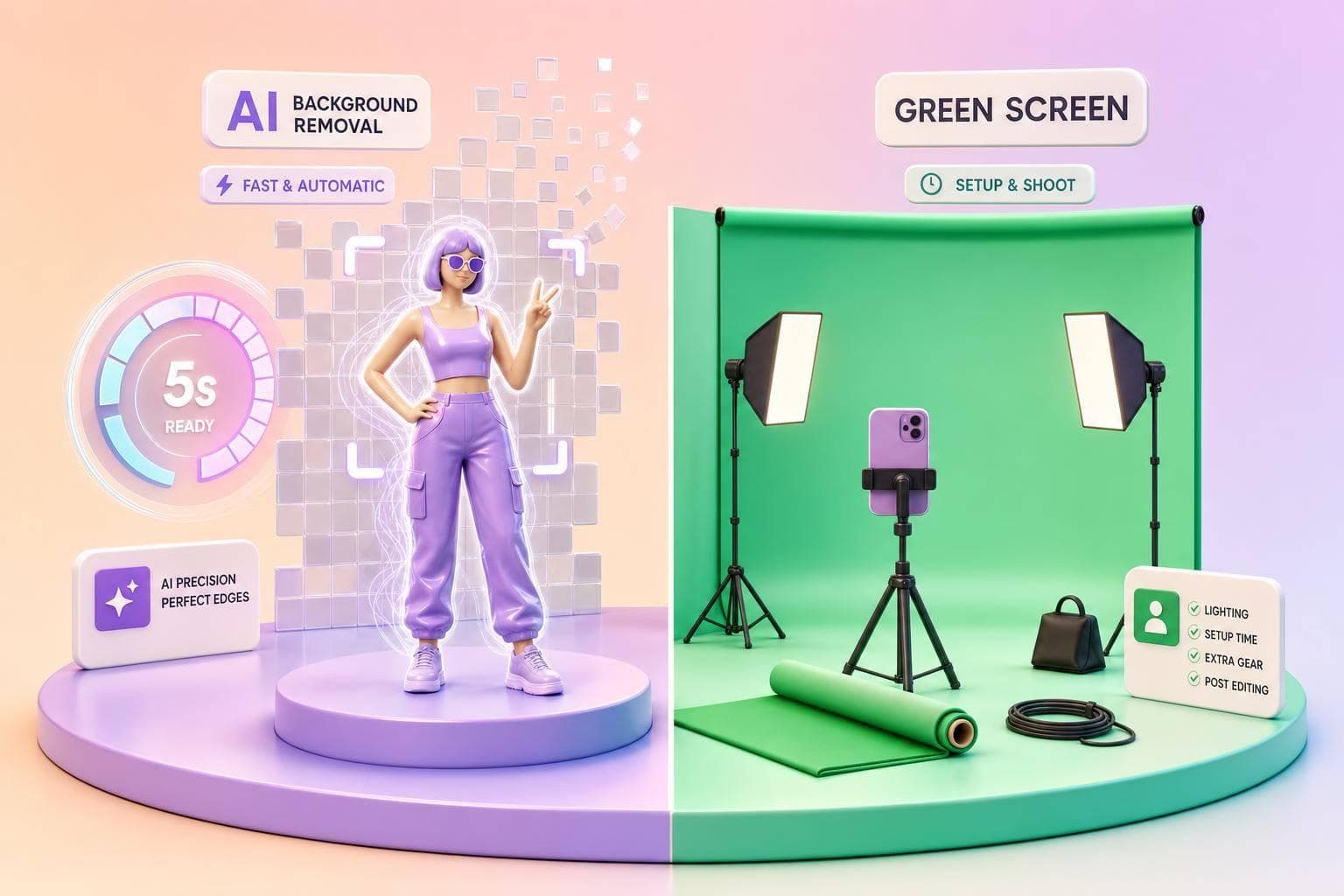
If I need fast Instagram UGC, I’d pick AI background removal. If I need cleaner edges and the same branded look every time, I’d use green screen.
Here’s the short version:
If I’m posting several Reels a week, AI removal fits better. If I’m producing repeat client videos with strict brand rules, green screen gives me more editing control.
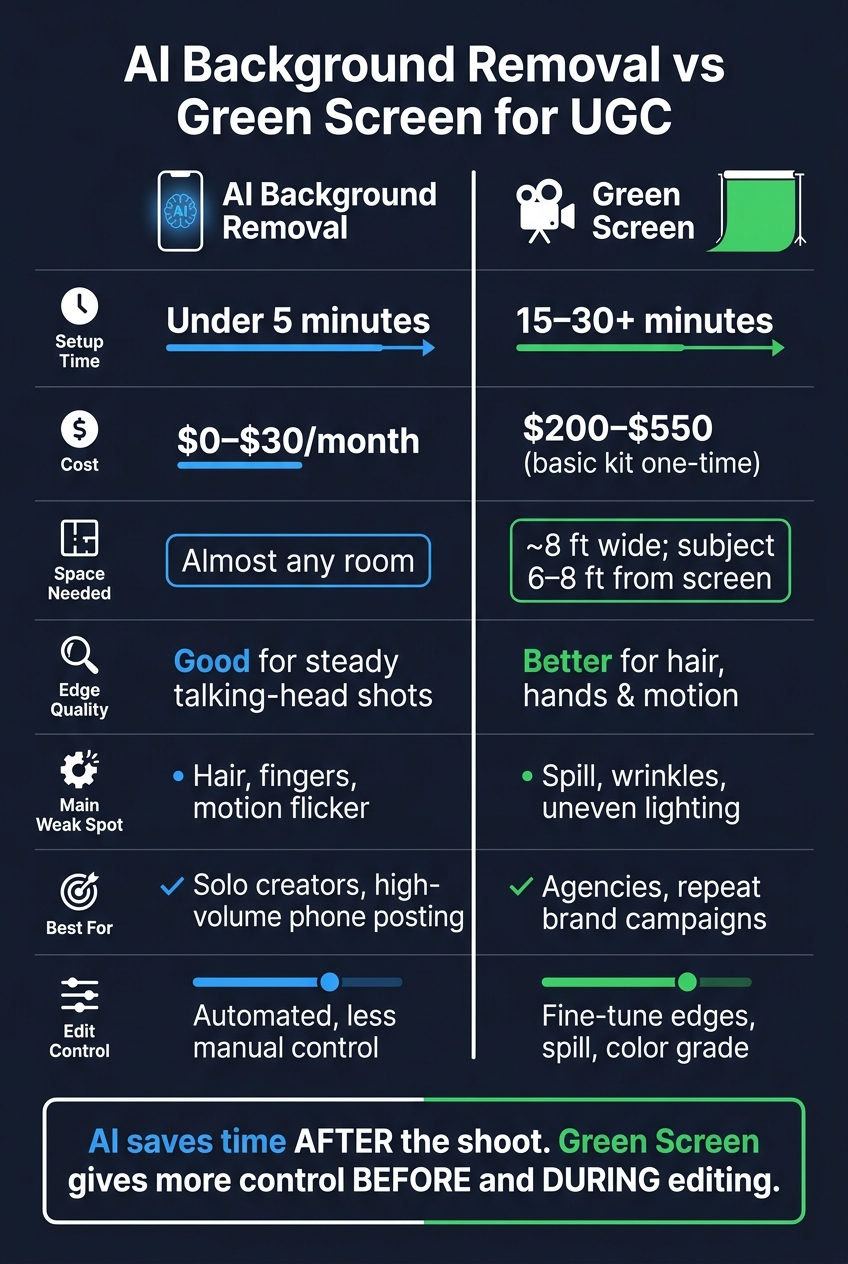
AI Background Removal vs Green Screen: UGC Workflow Comparison
| Factor | AI Background Removal | Green Screen |
|---|---|---|
| Setup | Film first, remove background later | Set up backdrop and lights before filming |
| Time | Under 5 minutes in many cases | 15–30+ minutes |
| Cost | $0–$30/month | $200–$550 basic kit |
| Best for | Solo creators, phone workflows, high posting volume | Agencies, batch shoots, repeat brand work |
| Edge quality | Good for steady talking-head clips | Better for hair, hands, and motion |
| Space needed | Almost any room | More room; subject often needs 6–8 ft from screen |
| Main weak spot | Hair, fingers, motion wobble | Spill, wrinkles, uneven lighting |
So the choice is simple: AI saves time after the shoot. Green screen gives me more control before and during editing.
Setup is where these two methods part ways almost right away.
If you make phone-first content, speed is the big draw. You find decent light, frame the shot, and hit record. Then you swap the background later in a phone editor, often in under a minute for a 15–30 second clip.
That’s why this works so well for creators posting multiple Reels each week. Using free AI-powered Instagram tools can further streamline this high-volume production. You can film in a bedroom corner, at a desk, or even in a car, then change the background in post so it lines up with a brand’s colors or product shots. No stands. No fabric. No cleanup after the shoot.
A few small tweaks can help the cutout look cleaner:
Those details tend to improve subject separation.
Green screen moves more of the work to the production side. Instead of fixing the scene later, you spend more time getting it ready before you record. Mounting the backdrop, smoothing wrinkles, and placing lights can take 15–90 minutes.
Distance is a big deal here. If you stay at least 6 feet from the screen - and 8–10 feet is even better when you have the room - you cut down on green spill around your hair and shoulders, which can make the edges look rough. The usual approach is simple: light the screen evenly, then light yourself on a separate setup.
That extra effort pays off when you need the same look again and again. A lot of agencies keep the setup in place, so they can walk in and start filming right away. That makes green screen a better fit for repeatable, planned shoots.
Once setup is handled, the next gap is post-production control.
Once setup time is handled, the next tradeoff is editing control.
Green screen gives you more control when the setup is clean. If the backdrop is evenly lit and the subject is well separated from it, chroma keying lets you fine-tune edge softness, reduce color spill, and color-grade the subject and background on their own. That level of precision matters when you need the same branded look across a campaign.
AI background removal gives up some of that control in exchange for speed. The software segments the subject on its own, so you can skip manual masking for most talking-head clips. For most phone-shot UGC, that's enough. But hair, hands, and sheer fabric can trip up the cutout and sometimes need manual cleanup.
More control usually means more gear and more labor. Cost is one of the clearest lines between these two workflows.
| Workflow | Typical U.S. Cost | What's Included |
|---|---|---|
| Phone-only AI removal | $0–$30/month | Smartphone + AI app subscription |
| Basic green screen kit | $200–$550 (one-time) | Backdrop, stands, 2–3 lights |
| Agency green screen setup | $800–$2,000+ | Larger backdrop, C-stands, pro lighting |
A phone-only AI workflow has almost no hardware cost beyond the phone you already own. For solo creators posting short-form video content each week, a subscription in the $5–$15/month range covers most needs.
A basic green screen kit usually costs $200–$550 up front. That starts to pencil out when you're running repeat client campaigns and can spread the gear cost across a lot of shoots.
Solo creators usually get the most from AI removal. No gear pile, no setup hassle, no need to find space to store equipment. Agencies usually get more from green screen because it gives them repeatable lighting and repeatable results. On planned batch shoots, where the setup stays put and talent rotates through, the extra production steps are easier to manage and the time per video stays reasonable.
In plain terms, the split usually comes down to who's filming: one creator with a phone, or a team building repeatable client work.
After setup and edit control, motion is where the tradeoffs get obvious. Hair, hands, and fast gestures tend to expose the weak spots in both methods. AI removal usually struggles first when things move. Green screen issues, on the other hand, usually come from poor setup.
Fine hair is the biggest trouble spot. Curly hair, flyaways, and afros can turn into soft, blended edges, especially on larger screens. In testing, fast head turns caused visible edge breakup in 4 of 6 AI tools.
Hands are another problem area. When fingers move fast - pointing, waving, or holding up a product - the spaces between fingers often vanish. That can make hands look like one solid shape. The mask may also flicker from frame to frame, which creates a visible wobble in Reels. A lot of tools still handle motion frame by frame, so moving edges are less steady.
A few simple changes can help:
Reflected green light - spill - is the most common green screen problem, and it's especially visible on lighter or blonde hair. Shadows and wrinkles can also leave green patches or rough, jagged edges.
Keep the subject 6 to 8 feet from the screen to cut down on shadows and spill.
These edge cases show up most in fast talking-head Reels and product demos.
Once setup, cost, and edge quality are out of the way, the choice is pretty simple: speed vs. control. Both options can do the job. The better fit depends on how you shoot and how polished the final clip needs to be.
If you’re posting several Reels each week from your phone, AI background removal is usually the easier default. You can clean up the background in post in just a few minutes, or even use ChatGPT for Instagram to help draft the perfect captions for your new look. And most phone editing apps land around $0–$30 per month.
This works well for solo creators, lean budgets, and fast-turnaround content where getting the post out matters more than edge-perfect cutouts.
Go with green screen when you need the same visual look to show up again and again across a campaign, and when every clip has to line up with the brand style.
Agencies, in particular, should lean on green screen when client projects call for steady compositing and repeatable branding.
Here’s a quick side-by-side view of both workflows:
| Factor | AI Background Removal | Green Screen |
|---|---|---|
| Setup time | Under 5 minutes | 15–30+ minutes |
| Cost | $0–$30/month | About $200–$550 for a basic kit |
| Best for | Solo creators, high-volume posting | Agencies, repeatable campaigns |
| Edge quality | Good for steady shots | Better for hair and fast motion |
| Space needed | Any room | About 8 ft wide, with the subject 6–8 ft from the screen |
Yes - use a hybrid workflow.
Start with AI background removal for speed and batch cleanup. It’s a good way to get consistent cutouts fast, especially when you’re working through a large set of images. AI also does a solid job with hands and major edges, which cuts down setup time.
Then switch to manual touch-ups for the hard parts: hair, transparent materials, fine textures, or any spot where the cutout starts to slip. That gives you control where it matters most without slowing down the whole process.
The result is simple: fast setup, careful finish.
Use high-resolution settings and shoot in clean, consistent conditions. When your subject stands out from the background and the frame stays uncluttered, AI background removal tools can spot edges with less guesswork.
Consistent lighting helps too. Warm studio light or golden-hour light can make edges look cleaner during processing and export.
Green screen is worth the extra cost when you need more reliable, cleaner edges on tricky subjects, especially products with small details or shots with hair and hands that are hard to cut out cleanly. It also makes more sense when you’re producing enough UGC on a regular basis to justify the extra setup time.
If your goal is faster, lower-cost turnaround so you can test a lot of creatives, AI background removal is usually the better fit. Most edits are processed in about 2–5 seconds, and the per-image cost is much lower.


