
Instagram Comment Tools: Native Filter Review
Step-by-step use of Instagram's Hidden Words, Advanced Filtering, custom lists, Restrict, Block, and Report to reduce abusive comments.
Step-by-step use of Instagram's Hidden Words, Advanced Filtering, custom lists, Restrict, Block, and Report to reduce abusive comments.
4.98 /5 - from 58k reviews
Trusted by 50,000+ creators — get real engagement delivered to your profile in minutes, not days.

If you want cleaner Instagram comments, use the native tools as a stack: filter first, then restrict, block, or report based on severity.
I’d sum it up like this: Hidden Words, Advanced Comment Filtering, and custom word lists do the first pass automatically. Then Restrict handles repeat friction, Block stops contact, and Report sends policy issues to Instagram. The big stat here is simple: Instagram says Hidden Words can cut unpleasant and insulting comments by about 40%.
Here’s the short version:
A few things stand out in this review:
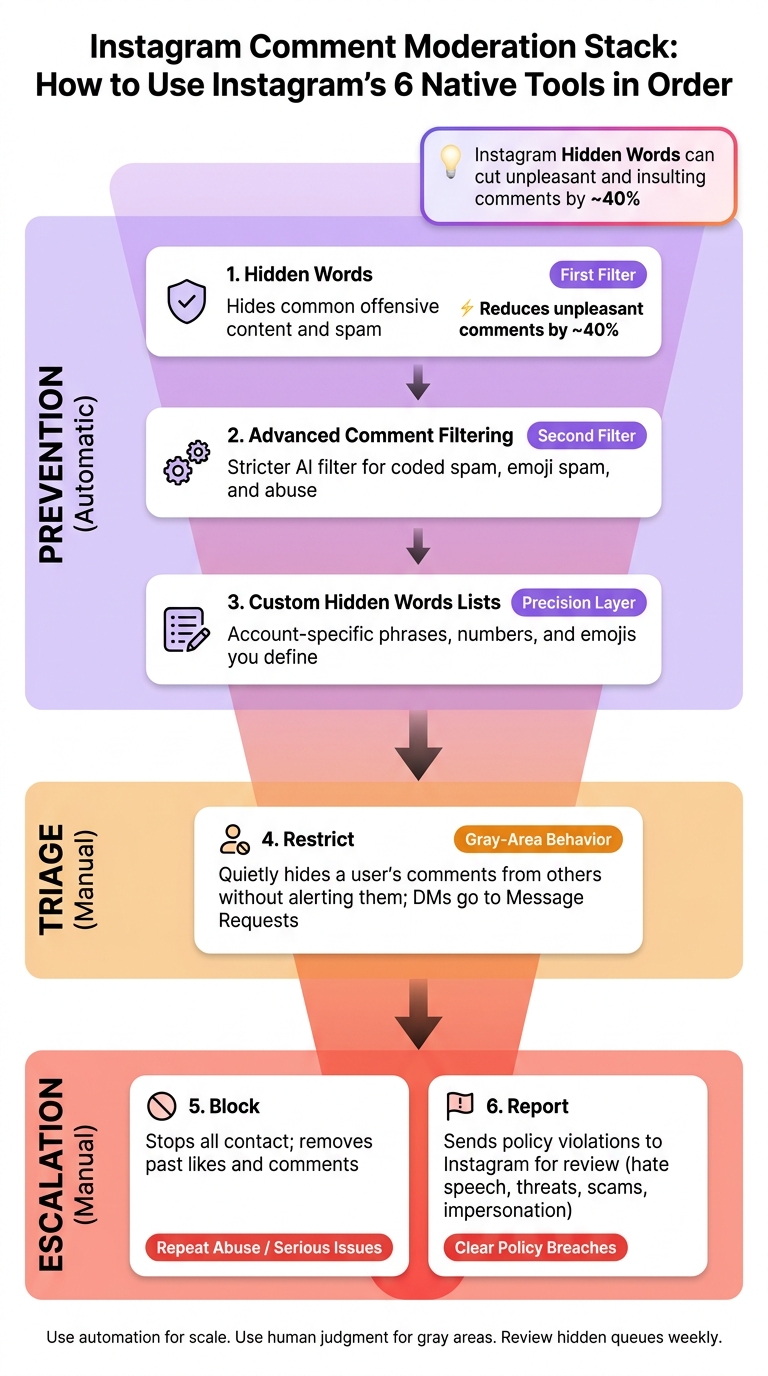
Instagram Comment Moderation Stack: 6 Native Tools in Order
| Tool | What it does | Best use |
|---|---|---|
| Hidden Words | Hides common offensive content and spam | First filter |
| Advanced Comment Filtering | Applies a stricter comment filter | Second filter |
| Custom Hidden Words Lists | Hides terms I choose | Brand-specific spam control |
| Restrict | Limits one account quietly | Repeat borderline behavior |
| Block | Stops all contact from one account | Repeat abuse or serious issues |
| Report | Sends violations to Instagram | Clear policy breaches |
So my take is simple: Instagram’s built-in comment tools work best when I use them in order, not one at a time.
Hidden Words is Instagram's first-pass automated filter. You’ll find it under Settings → Privacy → Hidden Words. From there, you can turn on filtering for comments and message requests, including replies to stories.
This tool catches obvious violations before your team has to look at them. Instagram filters offensive, discriminatory, sexual, threatening, and clear spam comments, along with message requests and story replies. But it’s not perfect. Subtle bullying and coded insults can still get through.
Once you set it up, Hidden Words runs on its own. For high-volume accounts, that kind of consistency matters. This is a key part of a regular Instagram audit to ensure your profile remains professional. It cuts down the load of reviewing abusive comments and keeps moderation steady across the team.
Filtered comments stay out of public view, but they don’t disappear. Instagram places them in the Hidden Comments folder for review. If the filter catches a legit comment, you can unhide it and reply without losing that input.
Hidden Words works best as the first pass. It handles clear-cut violations on autopilot, so your team can spend time on gray areas like borderline feedback, nuanced criticism, or context-heavy comments that need a human read. Cleaner comment sections also make engagement data easier to interpret. When Hidden Words misses borderline abuse, Instagram’s stricter filters take the next pass.
If Hidden Words is the first pass, Advanced Comment Filtering is the stricter second pass. You’ll find it under Settings and privacy → Hidden Words. It’s off by default, and it uses stricter AI detection to hide spam, offensive words or phrases, coded spam, emoji spam, and other comments the basic filter can miss.
There’s one exception: comments from accounts you follow, and that follow you back, aren’t hidden by this filter.
Advanced Comment Filtering catches spam, repetitive self-promotion, abusive language, trolling, and off-topic engagement before those comments crowd a post. This is especially critical when using an Instagram growth service to manage higher traffic levels. Turn it on when spam, trolling, or coded abuse still slips through. It helps most on high-volume or high-risk posts.
The filter runs on its own, but some edge cases still need a human look. That includes sarcasm, reclaimed language, brand-specific terms, and valid complaints written with negative wording.
Like Hidden Words, it hides comments instead of deleting them. That gives teams a private review layer before they decide what to do next.
Use it as a second pass when Hidden Words still leaves too much spam or abuse in plain sight. After that, custom Hidden Words lists can catch terms Instagram still misses.
Advanced Comment Filtering is good at spotting broad spam patterns. But custom lists are where you get more control.
Under Settings → Privacy (or Settings and activity) → Hidden Words → Manage custom words and phrases, you can build a blocklist of words, phrases, numbers, and emojis you don’t want to see in comments or message requests. This is the account-level layer that helps catch spam Instagram’s default filters may miss.
That matters because spam is often specific to your account. Instagram’s built-in filters can catch many offensive terms, but they may miss repeat sales pitches, fake giveaway lines, impersonation attempts, or shady discount codes tied to your brand or audience. Think of custom lists as the precision layer between Instagram’s broad filters and manual review.
Custom lists work across comments and message requests. Since spam shifts over time, the list works best when you update it as new phrases, spellings, and emoji variants start showing up.
Once your list is in place and the right toggles are turned on, filtering runs automatically. It’s usually smarter to add specific phrases instead of broad one-word terms, because broad terms can hide normal comments you may want to keep.
Hidden comments aren’t deleted. They’re moved to a separate area that only the account owner and approved managers can access. That gives you room to review each item, remove spam, and fix the list if one of your terms is sweeping up too many normal replies.
This works best as a simple repeat process:
If a comment moves beyond spam and turns into a policy problem, Reporting is the next step.
When a comment moves past plain spam and into rule-breaking, reporting brings Instagram into the loop. At that point, the issue goes to Instagram’s moderation team for a Community Guidelines review. In more serious situations, that can lead to warnings, a temporary suspension, or a full ban on the account behind it.
Reporting is meant for comments or accounts that may break Instagram’s policies. That includes hate speech, harassment, threats, self-harm promotion, impersonation, and scams.
It’s not the best move for mild negativity or random off-topic replies. Those cases are usually better handled by hiding the comment or restricting the account. Use reporting for clear policy violations that could put you or your followers at risk.
Reporting does not mean instant action. Instagram relies on both automated systems and human review, so some reports lead to action and some don’t.
Instagram’s transparency data says that 98.2% of bullying and harassment content was detected proactively during one reporting period. That sounds high, but things still get through. That’s why reporting still matters when harmful content lands in your comments.
Reports are anonymous, which helps. But reporting does not remove or hide the comment from public view while the review is pending.
For brands and creators, a simple flow tends to work best:
It also helps to log each report. If the same account keeps causing trouble, you’ll spot the pattern much faster.
When a comment gets under your skin but doesn't cross the line into something reportable, Restrict gives you a quieter option. It's Instagram's lowest-profile moderation tool. You can limit how one account interacts with your content without telling them. To that person, everything still looks normal.
In practice, Restrict hides a user's new comments from everyone else, sends their DMs to Message Requests, and gives you private control over whether those comments stay visible.
When you restrict someone, their new comments on your posts are hidden from everyone else by default. Only you and the restricted user can see them. You'll see a subtle "See comment" prompt, and from there you can approve the comment, delete it, or leave it alone.
Restrict also changes how DMs work. Messages from restricted accounts go to Message Requests. They won't see read receipts, and they can't view your active status.
That makes Restrict a good fit for repeated friction, not just a one-time issue.
Restrict is partly automatic. The filtering starts the moment you restrict someone, so you don't need to watch every comment as it comes in. But if you want to approve or delete held comments, that's still up to you.
A simple way to think about it: it's a quiet review queue. The comments are filtered out in the background until you decide what happens next.
Your audience won't notice anything odd. Followers don't know a comment is being held, and the restricted user doesn't know they've been restricted.
That's the whole point. You can protect your comment section without poking the person who's causing the problem.
Restrict works best as a middle layer in your moderation stack. It sits between keyword filters and a full block. Use it when someone's behavior is consistently annoying or borderline, but not bad enough to justify cutting them off completely.
| Use case | Action |
|---|---|
| Repeated snide or off-topic comments | Restrict |
| Disgruntled customer posting publicly | Restrict |
| Threats, hate speech, or scams | Block + Report |
You can apply Restrict from a comment, a profile, or your Privacy settings.
When filters and Restrict don't do the job, blocking is the strongest step you can take. It cuts off contact with an account completely. In comment moderation, this is the last move when you need the interaction to stop.
Blocking stops that account from commenting on your posts or interacting with you anywhere on Instagram. It also removes that user's past likes and comments from your content.
Blocking is manual. You do it one account at a time. Instagram doesn't auto-block accounts based on behavior, but you can choose to block related or new accounts too.
Instagram doesn't send the user a direct notice, but they'll figure it out when they can't view your profile. That also helps clean up your public space: no new comments, likes, or tags from that account will show up on your content.
That makes blocking a final escalation step, not something you'd use every day. Save it for accounts that keep crossing the line after filtering and Restrict.
| Situation | Recommended action |
|---|---|
| Slurs, threats, or hate speech | Block + Report |
| Spam or repeat abuse | Block (+ future accounts option) |
| Policy violations or impersonation | Block + Report |
Check blocked accounts in Settings → Privacy → Blocked if you want to reverse a mistake or keep an eye on repeat offenders.
Now that we've looked at each tool on its own, it helps to see how they work together. In practice, Instagram's native tools work best as a funnel: prevention, triage, manual review, and escalation. Each one has a different job, and the sequence matters.
| Tool | Moderation Scope | Automation Level | Visibility Control | Workflow Fit |
|---|---|---|---|---|
| Hidden Words | Comments, story replies, and message requests | Automatic | Hides from public view; stored in a separate folder for review | Prevention |
| Advanced Comment Filtering | Comments | Automatic | Hides from public view | Prevention |
| Custom Hidden Words Lists | Comments and message requests matching your defined terms | Automatic once configured | Hidden from public view and reviewable by the account owner | Prevention |
| Reporting | Specific comments or accounts | Manual | No direct visibility change; escalates to Instagram | Escalation |
| Restrict | Specific accounts | Manual | Comments may be hidden or held for review; messages go to the requests folder | Triage |
| Blocking | Specific accounts | Manual | Prevents the account from viewing your profile, commenting, or messaging | Final enforcement |
The pattern is pretty simple. Automatic filters do the first pass and cut down the pile before you ever see it. Then manual tools step in when context matters. That's the big idea here: use automation for scale, and use human judgment for the gray areas.
There is a catch, though. Automation helps with speed, but not accuracy. If your keyword list is too broad, you can end up hiding normal comments from real followers as part of your Instagram growth strategies. A word that looks suspicious in one case might be harmless in another. That's why it's smart to check the hidden queue every week and tighten your list as language patterns shift.
Put another way, automation handles volume; humans handle ambiguity. That tradeoff shapes the pros and cons below.
Taken together, these tools work well as a first layer of defense. They are not a full moderation system. Instagram's built-in options are useful, free, and give you a solid starting point without paying for a subscription or adding third-party software.
That said, keyword moderation has limits, even when AI is part of the stack. Instagram says users who turn on Hidden Words for comments see about 40% fewer unpleasant and insulting comments. That's a meaningful drop, but it doesn't mean the problem disappears. A teens' advocacy report also found the feature weak in tests between teen accounts.
The main issue is simple: these tools still lean heavily on keywords. That means coded abuse can slip through. So can misspellings, extra spaces, and Unicode swaps. On the flip side, broad filters can also hide normal comments that should have stayed visible. The tradeoff is speed versus context.
Another limit: filters are global, not campaign-specific.
Here is the tradeoff in one view:
| Tool | Pros | Cons |
|---|---|---|
| Hidden Words | Free; always on | Keyword-dependent; misses coded language; false positives possible |
| Advanced Comment Filtering | Catches spam, bots, and scams via AI | Limited transparency; can flag legitimate promotional content |
| Custom Hidden Words Lists | Highly customizable; targets niche or recurring phrases | Needs regular updates; only catches known terms |
| Reporting | Escalates clear violations to Instagram enforcement | No guaranteed outcome; response times vary |
| Restrict | Quietly limits visibility without alerting the user | User can still view your content; comments may need manual approval |
| Blocking | Strongest control; stops all interaction immediately | Persistent bad actors can return with new accounts |
Use the native stack to keep moderation manageable as engagement grows. This is a key part of learning how to increase Instagram engagement safely. When comment volume starts climbing, that baseline does more work.
Hidden Words, Advanced Comment Filtering, and custom lists are your first line of defense. Then come the next steps: Restrict, Block, and Report when things get worse. On its own, Hidden Words can cut offensive comments by about 40% once it’s turned on. That gives you a solid starting point before any manual review even starts.
If a comment slips through, respond based on how bad it is. Use Restrict for gray-area behavior. Use Block for repeat offenders or more serious abuse. Use Report when there’s a clear policy violation.
That approach falls apart if your custom lists sit untouched. Word lists go stale fast. Review them often, remove false positives, and add new scam phrases as tactics shift.
How often you review hidden comments should line up with the size of your account and how active it is. A solo creator with lower comment volume may only need to check now and then. Bigger accounts, or client profiles, usually need a set review schedule.
A weekly scan is a solid baseline. It helps stop spam and harassment from piling up. If engagement jumps or a post goes viral, check hidden comments more often during that week.
Use restrict for ongoing but less severe negative interactions when you don’t want to alert the person or remove them outright. It’s the quieter option: their comments stay hidden from other people unless you approve them, and they can see less of what you do on the platform.
Use block for persistent spam, abusive direct messages, or repeated bot behavior. It fully stops that person from finding your profile, viewing your content, or contacting you.
Add terms that help protect your brand and keep comment quality high, such as:
Then review comments on a regular basis. That makes it easier to spot new patterns and update your list, so moderation stays proactive and automated.


