Best Free IG Highlight Cover Makers in 2026
Practical comparison of 7 free IG highlight cover makers, with pros/cons on device support, export limits, and brand control.
Practical comparison of 7 free IG highlight cover makers, with pros/cons on device support, export limits, and brand control.
4.98 /5 - from 58k reviews
Trusted by 50,000+ creators — get real engagement delivered to your profile in minutes, not days.
If I had to cut this list down fast, I’d say this: Canva is the safest pick for most people, Adobe Express works well for client and brand work, and Picsart makes the most sense if you do most of your edits on your phone.
This roundup looks at 7 free tools: Canva, Adobe Express, Picsart, Kapwing, CapCut Online, Highlight Cover Maker, and Fotor.
Here’s what matters most before you pick one:
I also noticed a simple pattern across the list:
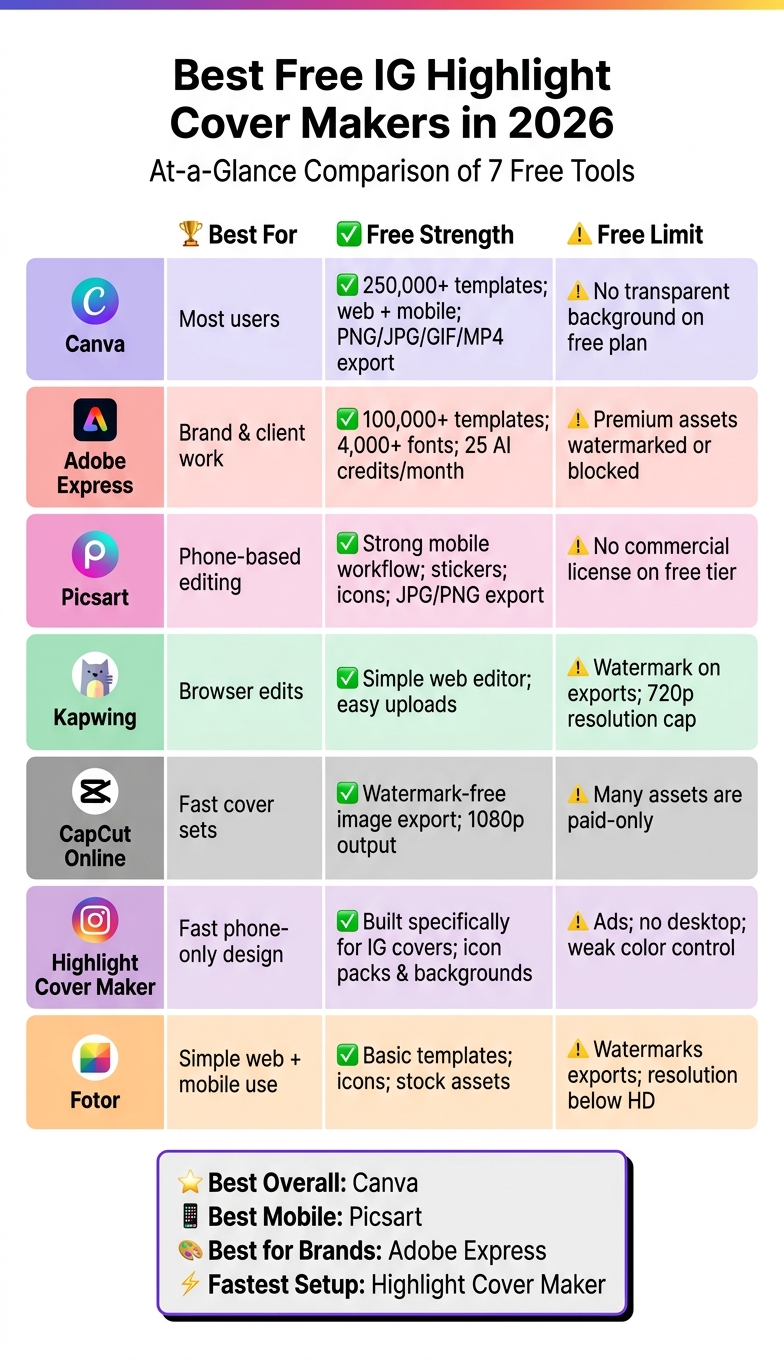
Best Free Instagram Highlight Cover Makers 2026: Side-by-Side Comparison
| Tool | Best For | Main Free Strength | Main Free Limit |
|---|---|---|---|
| Canva | Most users | Large template library, web + mobile, PNG/JPG/GIF/MP4 export | No transparent background on free plan |
| Adobe Express | Brand and client work | 100,000+ templates, 4,000+ fonts, safe-zone preview | Premium assets may be blocked or watermarked |
| Picsart | Phone-based editing | Strong mobile workflow, stickers, icons, JPG/PNG export | Limited AI credits and weaker fit for business use |
| Kapwing | Browser edits | Simple web editor, uploads are easy | Watermark on exports, 720p cap |
| CapCut Online | Fast cover sets | Watermark-free image export, 1080p output | Many assets are paid-only |
| Highlight Cover Maker | Fast phone-only cover design | Built for IG covers, simple icon packs and backgrounds | Ads, no desktop, weak color control |
| Fotor | Simple web + mobile use | Basic templates, icons, and stock assets | Free plan is tighter for fonts and paid assets |
Bottom line: if you want the easiest all-around option, start with Canva. If you care more about brand consistency, try Adobe Express. If you edit mostly on mobile, go with Picsart. And if you want the shortest path to a finished cover set, Highlight Cover Maker is the simplest tool here.
Below, I break down where each one fits best and where the free plan starts to get in the way.
Canva works on web, desktop, iPhone, and Android. Your designs sync across devices, so you can start on a desktop and finish on your phone without missing a beat.
The free plan includes 250,000+ templates plus a big library of free photos and graphics. If you're making Instagram Highlight covers, just search "Instagram highlight covers" and you'll see templates, icons, shapes, and stock photos.
One catch: a lot of the top results are Pro-only. So if you're on the free plan, you'll need to filter a bit more carefully.
Free users can export covers in PNG, JPG, PDF, MP4, and GIF. That also means you can make animated Highlight covers without paying.
Here’s where the free plan starts to feel tighter:
| Feature | Free Plan | Pro Plan |
|---|---|---|
| Transparent background export | ✗ | ✓ |
| Brand Kit (saved colors, fonts, logos) | ✗ | ✓ |
| Magic Switch (auto-resize) | ✗ | ✓ |
The main limit is transparent background export. If you want clean icon-only covers, that missing option can be a pain.
Canva’s free plan is a good fit for influencers and local businesses that want polished designs fast without much of a learning curve. Online stores can use it to build icon sets for things like Shipping, Reviews, or New Arrivals.
For agencies, it’s a different story. If you’re managing more than one client, the free plan’s branding limits show up fast. That’s where Canva starts to feel a little cramped.
If Canva’s export limits get in the way, the next tool gives you a different mix of templates, editing control, and mobile speed.
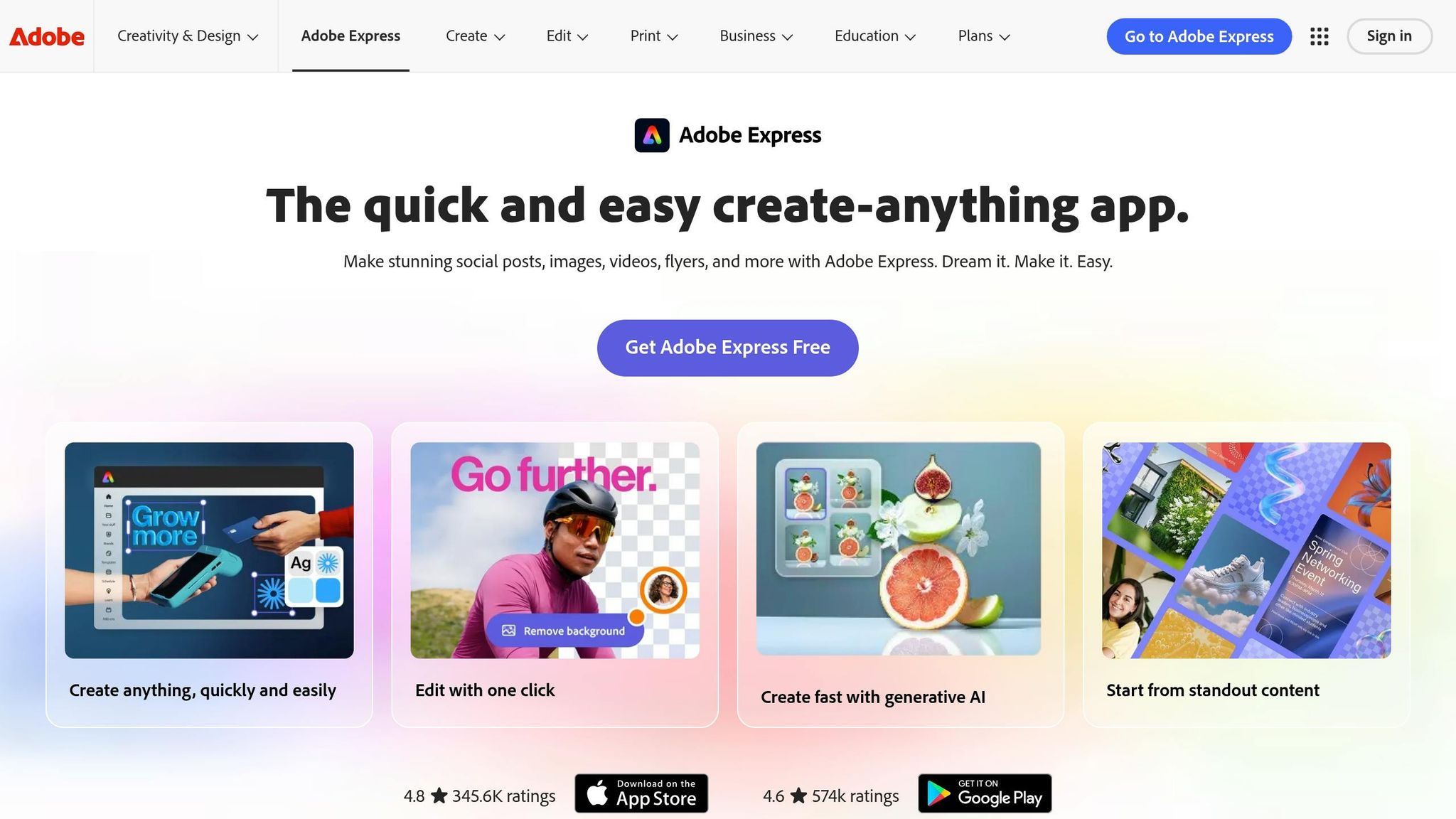
Adobe Express works on the web and on iOS/Android, which means you can make edits on a desktop or from your phone. That flexibility helps if you're fixing a cover on the go. One thing to watch: older iOS versions can lose support, so it's smart to keep the app up to date.
Head to the Instagram Highlights Covers category and you'll find plenty to work with. The free plan includes 100,000+ templates, 4,000+ fonts, and royalty-free Adobe Stock photos. You also get 25 generative AI credits per month.
There is one catch. If a template or asset has a premium icon, it may show a watermark or get blocked at export on the free plan. The simplest move is to stick with assets clearly marked free so your covers export cleanly.
Free users can export in JPEG and PNG. Adobe Express also includes "Social Safe Zones". This preview shows where Instagram's interface will appear, so your icon or text doesn't get cut off by UI elements.
| Feature | Free Plan | Premium Plan |
|---|---|---|
| Generative AI credits | 25/month | 250/month |
| Premium assets | Watermarked/blocked | Fully unlocked |
Adobe Express is a solid fit for small businesses, local brands, and agencies that want licensed assets and clean export choices. If you want something more focused on templates, the next tool gives you a different mix of speed and control.
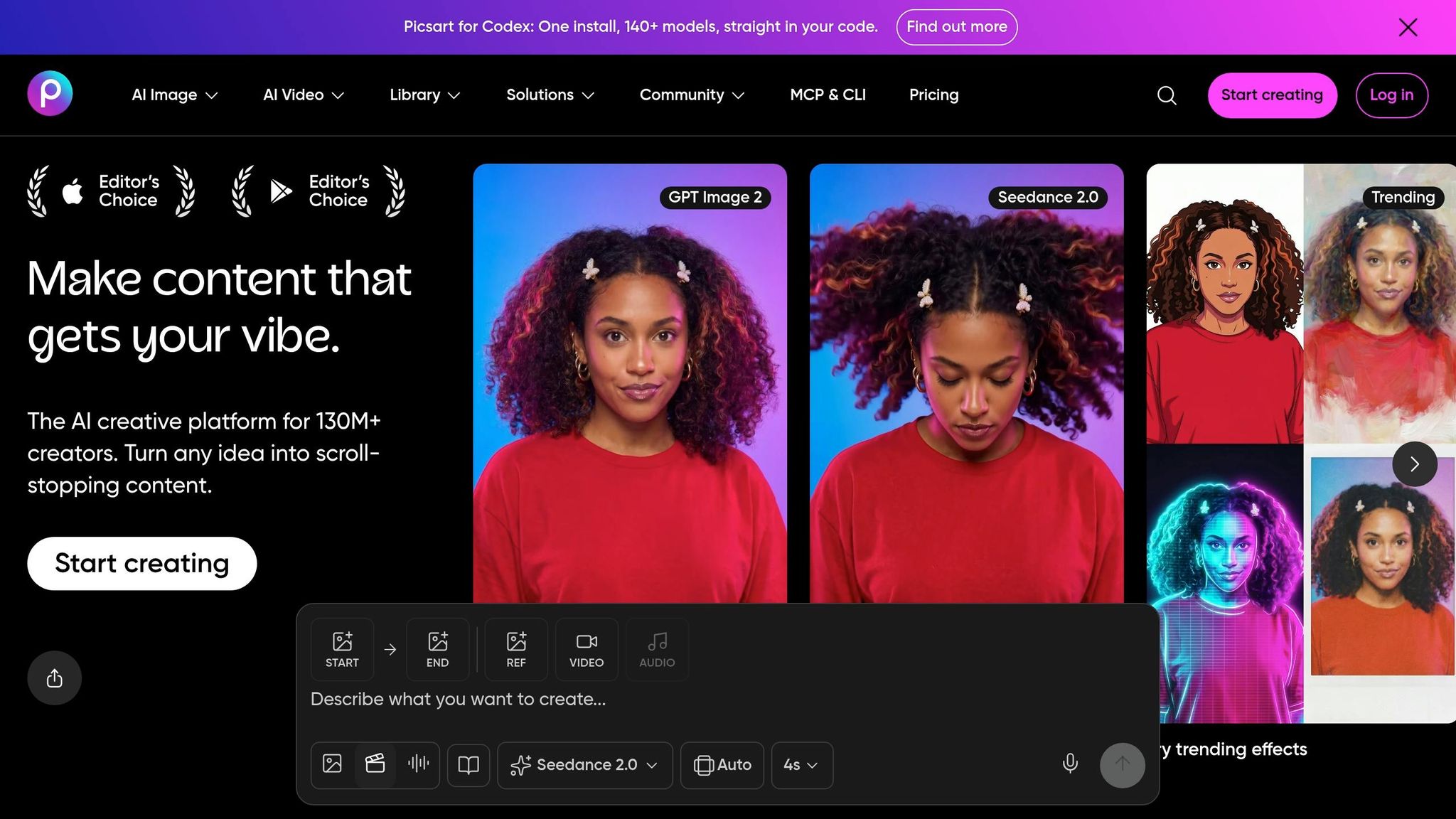
Picsart leans more toward a mobile-first, collage-style editing setup than the template-first tools above.
Picsart works on iOS, Android, the web, and Windows. Its apps sync across devices, which makes it easy to start a design on your phone and wrap it up later on desktop. On mobile, the app is built for fast edits, with touch-friendly tools for stickers, filters, and AI features. You can also explore other free Instagram tools to streamline your content creation.
Picsart gives free users access to Highlight templates, stickers, and icons. If an asset doesn't have the Gold crown icon, you can use it on the free plan. A lot of fonts are free too, while some styles sit behind Gold.
You can also upload your own images or icons at no cost. AI tools like the background remover and image generator are part of the free plan, but usage is capped with limited daily or monthly credits.
If you build with free-only assets, you can export without a watermark. If you use Gold assets, you'll need to pay or accept a watermark. Free users can export in standard JPG and PNG formats. Ultra HD and PDF exports are Gold-only.
| Feature | Free Plan | Gold Plan |
|---|---|---|
| Watermark on export | None, if only free assets are used | None |
| Export formats | JPG, PNG | JPG, PNG, Ultra HD, PDF |
| AI tool credits | Limited daily/monthly use | Expanded access |
| Premium assets | Locked or watermark-triggered | Fully unlocked |
Picsart makes the most sense for influencers and creators who like working on their phones and want a collage-style workflow. It's a weaker fit for shops, local brands, and agencies that need tighter brand systems.
If Picsart feels a bit too mobile-heavy, the next tool shifts back to a simpler browser-first editor.
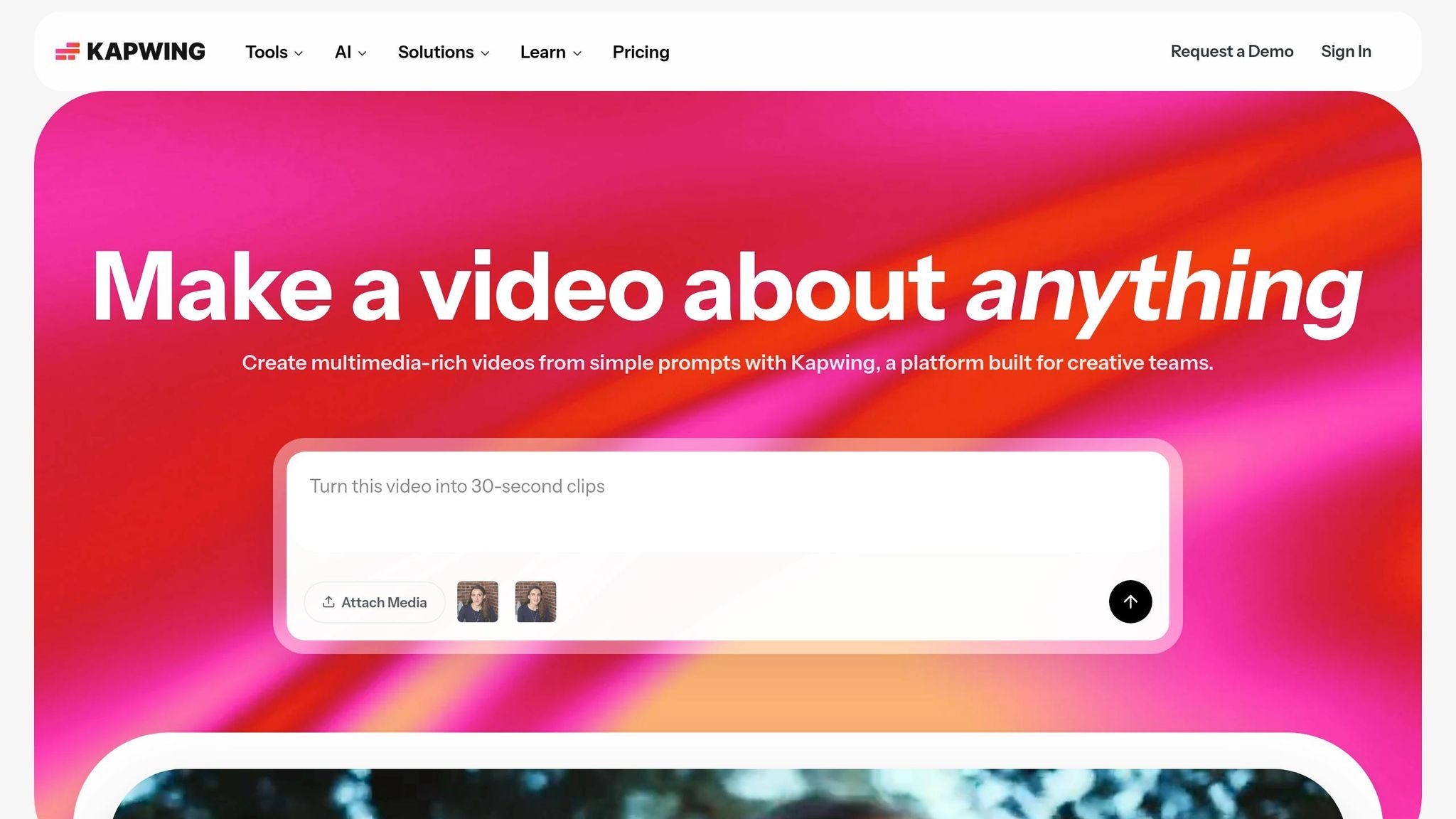
Kapwing keeps everything in the browser, which makes it a solid pick for quick desktop edits.
Kapwing runs in the browser on Windows, macOS, ChromeOS, iOS, and Android.
Kapwing gives you a basic set of templates and assets for quick edits, but its library is smaller than most template-first tools in this comparison. You can upload your own images at no cost, which helps make up for that.
| Feature | Free Plan |
|---|---|
| Watermark on export | Yes |
| Max export resolution | 720p |
| Max upload file size | 250MB |
The free tier is fine for building an Instagram profile with simple covers, but you do give up a few things. The watermark stays on exports, and resolution tops out at 720p.
Best for quick browser edits on desktop. It's a weaker option for people who need watermark-free exports.
If you want more built-in design variety, the next tool comes with a different trade-off.
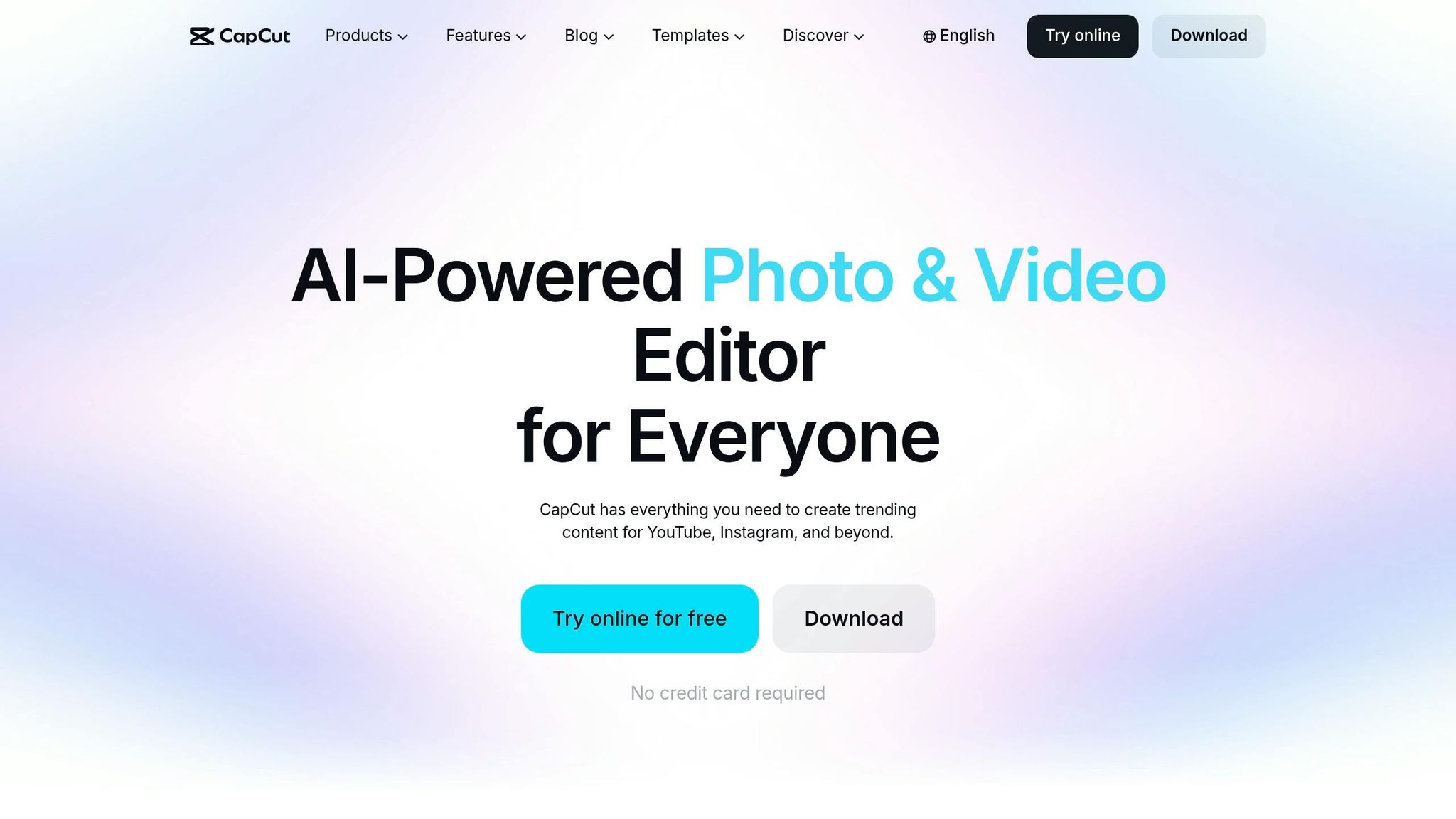
CapCut Online keeps the whole process in your browser, but gives you more template options. It comes with Instagram Story and Social Media templates that can also work for Highlight covers, which makes it a solid pick when you want to make covers fast and export them without a watermark.
The free library includes icons, stickers, and stock photos marked for commercial use. High-quality covers are a key part of professional branding to get more followers on Instagram organically. That makes it a good match for simple icon-style covers. Anything labeled "Pro" or "Diamond" needs a paid plan.
| Feature | Free Plan |
|---|---|
| Image exports | Watermark-free |
| Max export resolution | 1080p |
Image exports are watermark-free. For video exports, you'll need to remove CapCut's end clip.
If you want a simpler tool made just for cover design, the next option cuts the workflow down even more.
Highlight Cover Maker goes in the opposite direction from the bigger editors above. It keeps things simple and mobile-only. The app is free for making Instagram Stories highlights covers on Android and iOS, and there’s no desktop version.
This works well for solo creators who want fast edits on their phone. But if you switch between devices or work with a team, it starts to feel limiting.
The free library comes with templates, icons, stickers, backgrounds, gradients, and textures. You can also upload your own photo as a background, use built-in color palettes, and add text labels with in-app fonts.
Short labels in simple fonts usually look best. Some templates and icon sets are paid, and the free editor shows ads.
| Feature | Free Tier |
|---|---|
| Export format | 9:16 image |
| Custom font upload | Not supported |
| Exact hex/RGB color input | Not supported |
You pick a category, tweak the background and icons, export the image, and then upload it as a Story cover in Instagram.
One catch: the app doesn’t support exact hex or RGB color input. So if you’re trying to match brand colors down to the letter, you’ll be getting close, not exact.
It’s a good match for influencers and small local businesses that want quick, simple cover sets. Agencies will hit its limits fast.
If you want more layout control or more export choices, the next tool is a better fit.
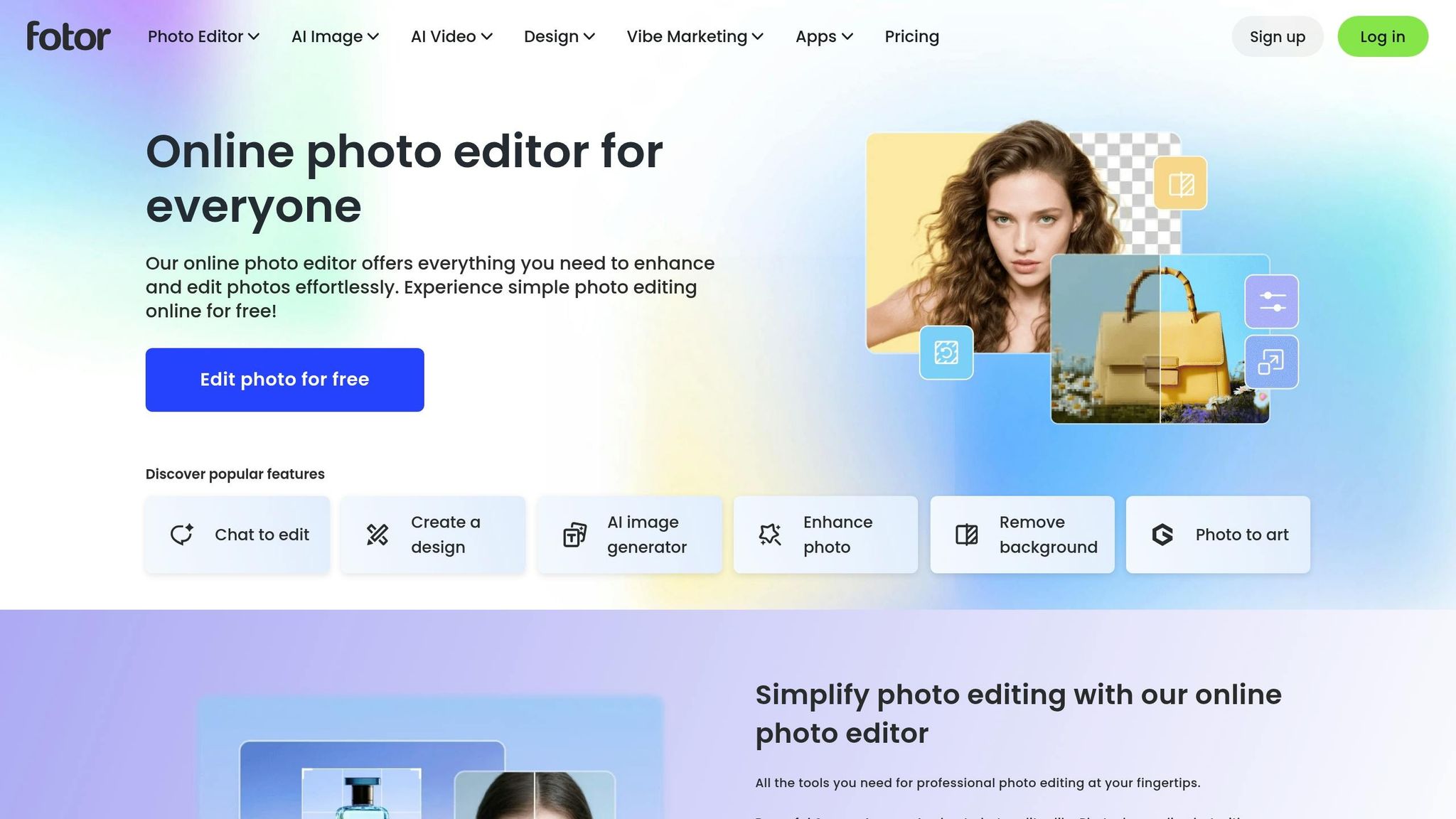
Fotor gives you a fast web-and-mobile setup for simple Highlight covers, but the free plan comes with less brand control. The editor runs on web, iOS, and Android, and it syncs across devices. That makes it a good pick for quick, low-friction cover design.
Fotor has a dedicated Instagram Highlight Cover category in its template library. Free users get access to basic templates, icons, shapes, stock photos, and stickers. Standard fonts are included too, but more stylized fonts are locked behind Pro. Premium assets are marked with a diamond icon, so it’s easy to see what you can’t use before you get too far into a design.
| Feature | Free Tier |
|---|---|
| Basic templates, icons, shapes | Yes |
| Premium templates | Pro only (diamond icon) |
| Stylized fonts | Pro only |
| Premium stock assets | Pro only |
The free plan works well for simple, clean cover sets. But if your brand relies on specific typography or you want a bigger icon selection, you’ll run into the paid tier pretty fast.
Fotor is a solid fit for small shops and local brands that want a simple web-and-mobile workflow. It can also work for influencers. For agencies, though, it’s likely too limited. Those trade-offs stand out even more in the side-by-side use-case breakdown below.
The best free tool comes down to how you work, what device you use most, and whether free-plan limits are fine for personal projects or a pain for client work. If you're looking to go viral on Instagram, choosing the right design tool is just the first step. The table below turns feature differences into more practical picks.
| User Type | Best Options | Main Advantages | Main Drawbacks |
|---|---|---|---|
| Influencers | Picsart, Canva, Highlight Cover Maker | Strong mobile apps, fast drag-and-drop editing, and big free sticker and icon libraries | Many polished templates are Pro-only, and some free apps include ads or upgrade prompts |
| Shops | Canva, Adobe Express, Fotor | Business-friendly icons like shopping carts, stars, and chat bubbles; easy to duplicate designs for sets like Sale, FAQ, and Reviews | Premium icons and brand kits sit behind paywalls, and Picsart doesn't include free commercial-use rights |
| Local Brands | Canva, Adobe Express, Fotor | Clean layouts, manual color matching, and a light learning curve for non-designers | Free tiers don't give you a full brand kit, and niche icons are often locked behind paid plans |
| Agencies | Canva, Adobe Express, Kapwing | Easy template duplication across clients, browser access, and folder organization | Better collaboration and brand controls usually need a paid plan; Kapwing adds a watermark to free exports and may auto-delete projects after 3 days |
For client work, Kapwing and Fotor fall behind. Their free exports are either watermarked or low-resolution, which can be a deal-breaker when you're sending assets to paying clients.
For a quicker side-by-side look, here's each tool's clearest upside and biggest trade-off.
| Tool | Biggest Pro | Biggest Con |
|---|---|---|
| Canva | Beginner-friendly templates and strong mobile and desktop access | Heavy reliance on Pro-only templates and stock, plus frequent paywall prompts |
| Adobe Express | 100,000+ static and video templates and 4,000+ fonts on the free plan | Some templates and photos are premium-only, and advanced branding tools need a subscription |
| Picsart | Mobile-first editing with effects and free stickers | No commercial license on the free tier |
| Kapwing | Browser-based editor with shareable project links | Watermark on free exports, and project-retention limits make asset reuse harder |
| CapCut Online | Template-led workflow with watermark-free image exports | Browser-dependent and more template-led than deeply custom |
| Highlight Cover Maker | Built just for IG covers, with curated icon packs | Smaller icon library, plus ads and export limits on the free version |
| Fotor | Web-and-mobile setup with clean layouts | Watermarks free exports and limits resolution below HD |
Canva and Adobe Express stand out for overall flexibility. If you want one tool that can handle a lot of different workflows, those two are the safest bets. Picsart, on the other hand, makes more sense for personal brands than for client work, where a dedicated Instagram growth service might be more effective.
There’s no one-size-fits-all pick here. The best tool comes down to where you work, how much design skill you have, and whether you’re making covers for your own profile or for a client.
Here’s the shortest way to choose:
| Need | Recommended Tool | Why |
|---|---|---|
| Best overall free option | Canva | Large free template library, drag-and-drop editing, and works on web and mobile |
| Best mobile-first option | Picsart | Phone-first app with quick edits |
| Best for agencies | Adobe Express | Brand-consistent templates and web/mobile access |
| Best for local brands | Canva | Small-business-friendly layouts and fast customization |
| Best for fast, simple creation | Highlight Cover Maker | Built specifically for IG covers, with category-based templates and minimal setup |
For most people, Canva is the safest default. It’s easy to use, has plenty of free templates, and works well across devices.
If brand control matters more, go with Adobe Express. If you do most of your editing on your phone, Picsart makes more sense. And if you just want the fastest path from idea to finished cover, Highlight Cover Maker is the simplest option.
Across all seven tools, the biggest differences come down to mobile support, free-plan limits, and brand control. Those three points make the choice a lot easier.
Clean Highlight covers make your profile easier to scan and increase your story views and help your Instagram presence look more polished with a professional aesthetic.
Canva is the best pick for beginners who want to make Instagram highlight covers. It comes with thousands of customizable templates sized for Instagram, plus a simple drag-and-drop editor. So even if you've never made graphics before, you can still put together clean, polished designs without much hassle.
UpGrow also offers free AI-powered social media tools that can help creators make visuals and fine-tune content without needing to log in.
Yes - you can make Instagram highlight covers right on your phone with mobile-friendly apps like Canva or Picsart. Once the design is done, save it to your camera roll.
Then open the highlight, tap Edit Highlight, choose Edit Cover, and upload the image from your gallery. Using consistent, high-quality covers helps keep your profile organized and professional.
UpGrow’s free AI-powered social media image generator lets you create high-quality visuals without watermarks. Canva’s free tier also supports watermark-free exports for standard designs, including Instagram highlight covers.
That makes both tools a solid pick when you want clean, professional-looking highlight covers without paying extra.