
Best AI Tools For UGC Product Photo Edits
Compare top AI apps for UGC product photo edits—background removal, relighting, retouching, resizing and batch exports for Instagram.
Compare top AI apps for UGC product photo edits—background removal, relighting, retouching, resizing and batch exports for Instagram.
4.98 /5 - from 58k reviews
Trusted by 50,000+ creators — get real engagement delivered to your profile in minutes, not days.

If I need one simple answer, it’s this: the right tool depends on how many photos I edit, where I post them, and how much control I need.
For Instagram UGC product photos, I’d split the options into three groups:
Most teams need the same core jobs done well:
A good tool should help me turn a raw phone shot into something polished enough for Instagram, without making it look overdone. That matters because image quality can affect engagement. The article also notes research showing higher-resolution images can lead to better brand response and more Instagram engagement.
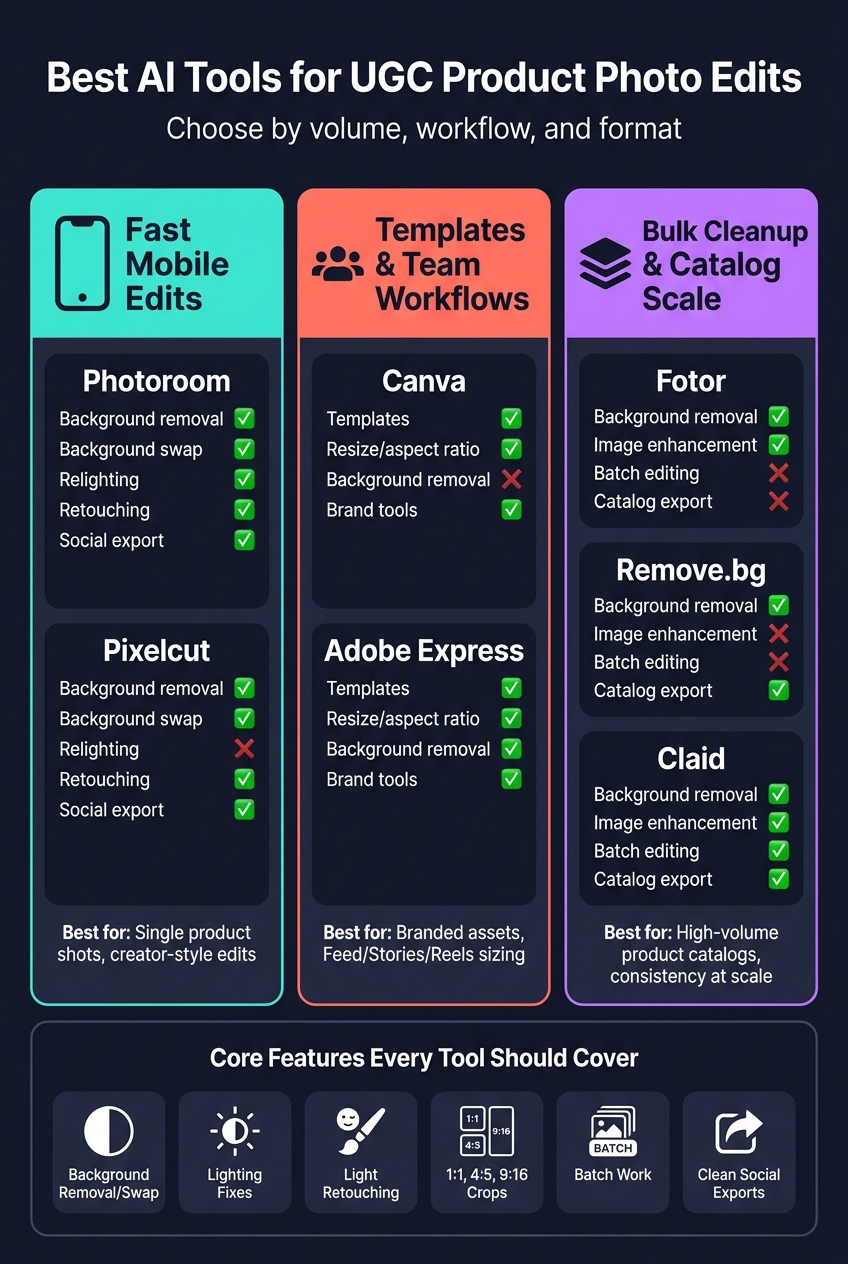
Best AI Tools for UGC Product Photo Edits: Feature Comparison
| Tool | Best use | Background tools | Lighting / retouching | Resize for social | Batch work |
|---|---|---|---|---|---|
| Photoroom | Feed-ready single product shots | Yes | Yes | Yes | Limited |
| Pixelcut | Fast one-image mobile edits | Yes | Retouching only | Yes | Limited |
| Canva | Team workflows and templates | Some workflow support | Light edits | Yes | Team-based workflow |
| Adobe Express | Social resizing and brand-safe exports | Yes | Light edits | Yes | Limited |
| Fotor | Small teams and beginner-friendly cleanup | Yes | Yes | Yes | Limited |
| Remove.bg | Clean cutouts | Yes | No | Limited | Limited |
| Claid | Large product catalogs | Yes | Yes | Yes | Yes |
Here’s the short takeaway: use Photoroom or Pixelcut for fast edits, Canva or Adobe Express for publishing workflows, and Claid when volume gets high. The rest comes down to how often I need to edit and how many formats I have to ship each week.
These tools vary by speed, how much control you get, and how many images you need to process at once. In practice, they fit into three main jobs: fast edits, template-based publishing, and bulk cleanup.

If you want quick, creator-style edits on your phone, Photoroom and Pixelcut are two solid picks. Photoroom handles background removal, background swaps, and relighting inside a fast mobile app. That makes it a good fit for single product shots that need to stay consistent across an Instagram feed.
Pixelcut leans into background changes and retouching with simple one-tap controls. Its export settings are also built with social formats in mind from the start, which saves time when you're posting right away.
| Feature | Photoroom | Pixelcut |
|---|---|---|
| Background removal | ✅ Yes | ✅ Yes |
| Background swap | ✅ Yes | ✅ Yes |
| Relighting | ✅ Yes | - |
| Retouching | ✅ Yes | ✅ Yes |
| Export for social | ✅ Yes | ✅ Yes |
| Best for | Consistent feed-ready product shots | Fast single-image mobile edits |

Canva is built for sizing, templates, and handing work off across a team. Its Magic Studio brings AI tools into a template-led workflow, so you can take an edited product photo and turn it into a post sized for a given platform in just a few minutes. Brand tools also help teams keep campaigns aligned.
Adobe Express makes more sense when resize control and brand-safe exports matter most. It supports aspect ratio changes for Feed, Stories, and Reels, includes background removal, and keeps editing light enough for social teams that don't come from a design background.
| Feature | Canva (Magic Studio) | Adobe Express |
|---|---|---|
| Template-driven workflow | ✅ Yes | ✅ Yes |
| Resize and aspect ratio changes | ✅ Platform-sized posts | ✅ Feed, Stories, Reels |
| Background removal | - | ✅ Yes |
| Brand tools | ✅ Yes | ✅ Yes |
| Best for | High-volume social teams | Resize-focused, brand-safe exports |
Once the image count starts climbing, the focus changes. At that point, you usually care less about fancy editing and more about keeping every product shot clean and consistent.
Fotor is easy for beginners to use and mixes AI-assisted image cleanup with social-focused templates. For small teams that need light edits without much training, it's a practical option.
Remove.bg does one thing: background removal. That's its whole lane, and it works well when you need clean cutouts as the first step in a catalog workflow. Claid, by contrast, is built for scale. It offers batch background removal, image enhancement, and catalog-ready exports to keep output consistent across hundreds of product images.
| Feature | Fotor | Remove.bg | Claid |
|---|---|---|---|
| Background removal | ✅ Yes | ✅ Yes | ✅ Yes |
| Image enhancement | ✅ Yes | - | ✅ Yes |
| Batch editing | - | - | ✅ Yes |
| Catalog-ready export | - | ✅ Yes | ✅ Yes |
| Best for | Beginners and small brands | Fast, accurate cutouts | Bulk catalog workflows |
You can also explore free AI-powered Instagram tools to further streamline your content creation. Next, narrow the choice by the features that matter most for Instagram UGC assets.
Not every feature pulls the same weight. If you're choosing between flashy options and the stuff you'll use every week, put natural-looking edits and fast turnaround at the top of the list. Those two things usually separate a tool that's nice to try from one that fits into your day-to-day workflow.
Background removal and swapping should keep product details sharp, with clean edges and color that stays true to the original.
Relighting tends to work better when you have sliders and presets for light direction and intensity. That setup gives you more predictable results than freeform text prompts, and it helps keep edits consistent across a product catalog. If the same image needs to show up in different placements, resize control moves up the list fast.
One product photo often has to do a lot of work. You may need 1:1, 4:5, and 9:16 versions from the same source file, so resize presets and generative expand help turn one edit into something you can use across each placement.
For higher-volume workflows, focus on batch editing, automation, template layouts, and simple export formats. Implementing Instagram automation can further streamline these workflows. That kind of speed matters most when edited assets need to move straight into weekly Instagram production.
Once the image is edited, results come down to how steadily you use it across Instagram. Better edits can help UGC do more work. On Instagram, stronger visual quality can support engagement and profile visits. Research shows that higher image resolution leads to more favorable brand evaluations and higher Instagram engagement, especially for visually complex posts. Standardized presets, aspect ratios, and posting cadence help the grid feel consistent and trustworthy, which can turn more profile visits into follows.

Once the visuals are ready, the next move is putting them in front of the right people. UpGrow is an AI-powered Instagram growth service built around real follower growth. It uses smart targeting filters like location, age, gender, and language to connect edited UGC content with audiences that are more likely to engage.
Its live dashboard tracks follower growth and engagement in real time, so teams can see which visuals lead to follows and visits. UpGrow also gives profile optimization guidance to help align the grid and bio, making it easier for stronger visuals to convert profile visits into follows. That keeps the whole chain moving, from an edited product photo to audience growth.
Choose your tool based on volume, workflow, and format. That’s the simplest way to narrow it down.
Pick the tool that keeps UGC edits fast, natural, and ready for Instagram growth.
Pixelcut is a solid pick for beginners who want polished, UGC-style product photos without a steep learning curve. It’s simple to use, made for fast edits, and comes with Instagram-specific presets that make the whole process feel much easier.
If you’re new to UGC strategy too, Instagram’s built-in tools and Instagram Insights are free, easy starting points for brand building and basic analytics.
Let AI take care of repetitive work, but keep human review for the final pass. The goal is a casual, less polished look: natural lighting, relaxed poses, and visible skin texture instead of that overly perfect studio finish.
For edits, use targeted inpainting for small fixes instead of remaking the whole image. If something starts to look artificial, add light sharpening or a bit of subtle noise. Then check the image at 100% to 200% zoom to spot texture problems or anatomy mistakes.
Batch editing helps when you need to save time and keep a consistent visual style across a large set of content.
Use it when manual tasks like resizing, upscaling, or changing backgrounds start to get hard to manage. It also makes sense when you're putting together your content calendar in one go or testing different creative versions without editing each image one by one.


