
Instagram Story Quiz Not Working on iPhone
Fix Instagram Quiz sticker on iPhone: update the app, restart or reinstall, check account and iOS permissions, or report the bug.
Fix Instagram Quiz sticker on iPhone: update the app, restart or reinstall, check account and iOS permissions, or report the bug.
4.98 /5 - from 58k reviews
Trusted by 50,000+ creators — get real engagement delivered to your profile in minutes, not days.
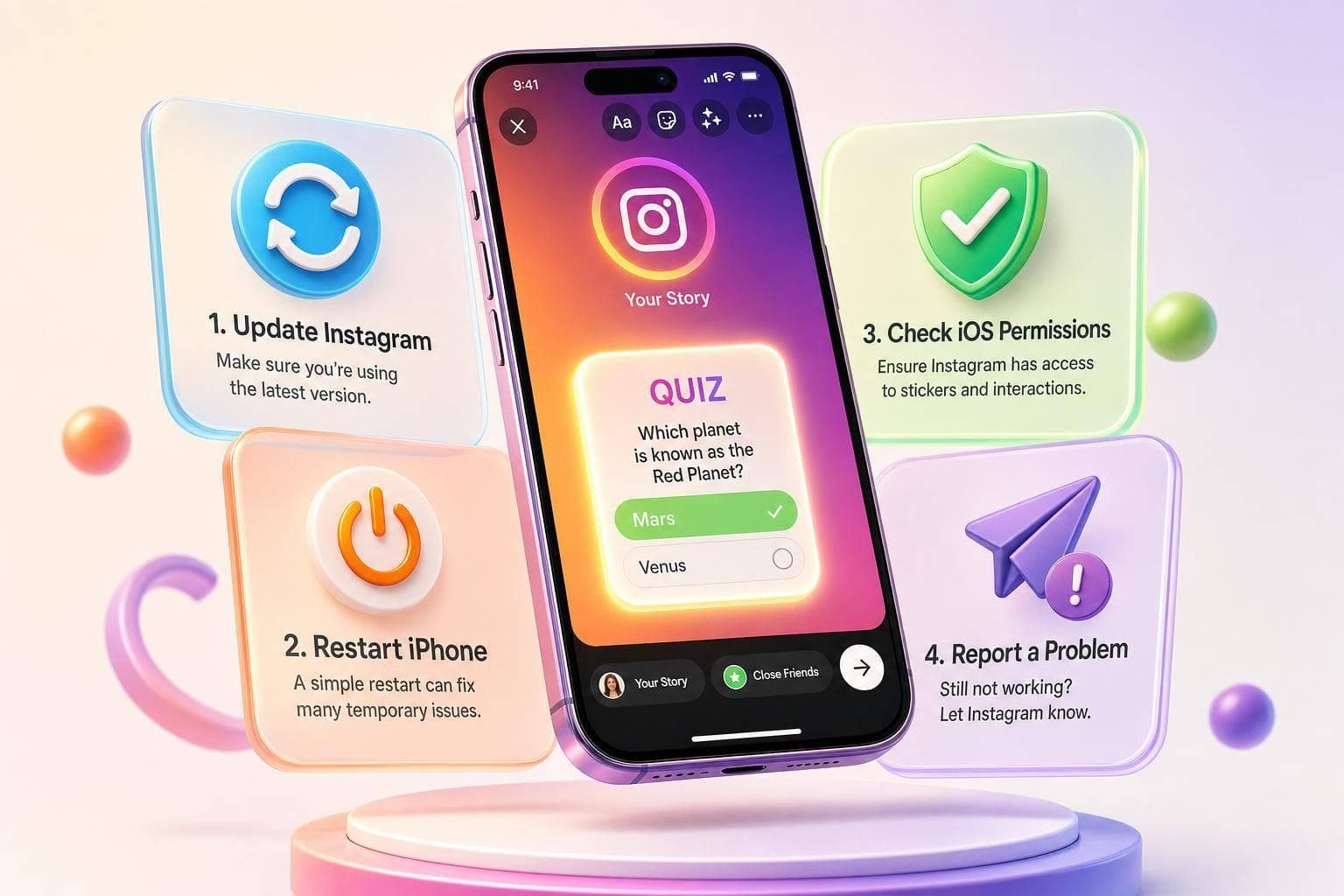
If Instagram’s Quiz sticker isn’t working on your iPhone, the fix is usually one of 4 things: update the app, restart the phone, reinstall Instagram, or check whether the problem is tied to your account instead of your device.
In most cases, I’d do this in order:
Here’s the main point: “Not working” can mean different problems. The sticker may be missing, search may show nothing, the sticker may freeze, or the Story may fail to post. And each one points to a different fix.
A lot of sticker issues come from local app data or account rollout delays. In plain terms, that means some fixes are on your side, and some are on Instagram’s side. If you’ve already tried the basic reset steps and the Quiz sticker still fails, there’s a good chance waiting for Instagram to patch it is the only next step.
One fact worth knowing: app bugs and feature rollouts often hit only part of the user base at first, not 100% of accounts at the same time. So if the Quiz sticker works on one account but not another, that result tells you a lot right away.
Use the article to match your exact symptom to the right fix, instead of trying random steps.
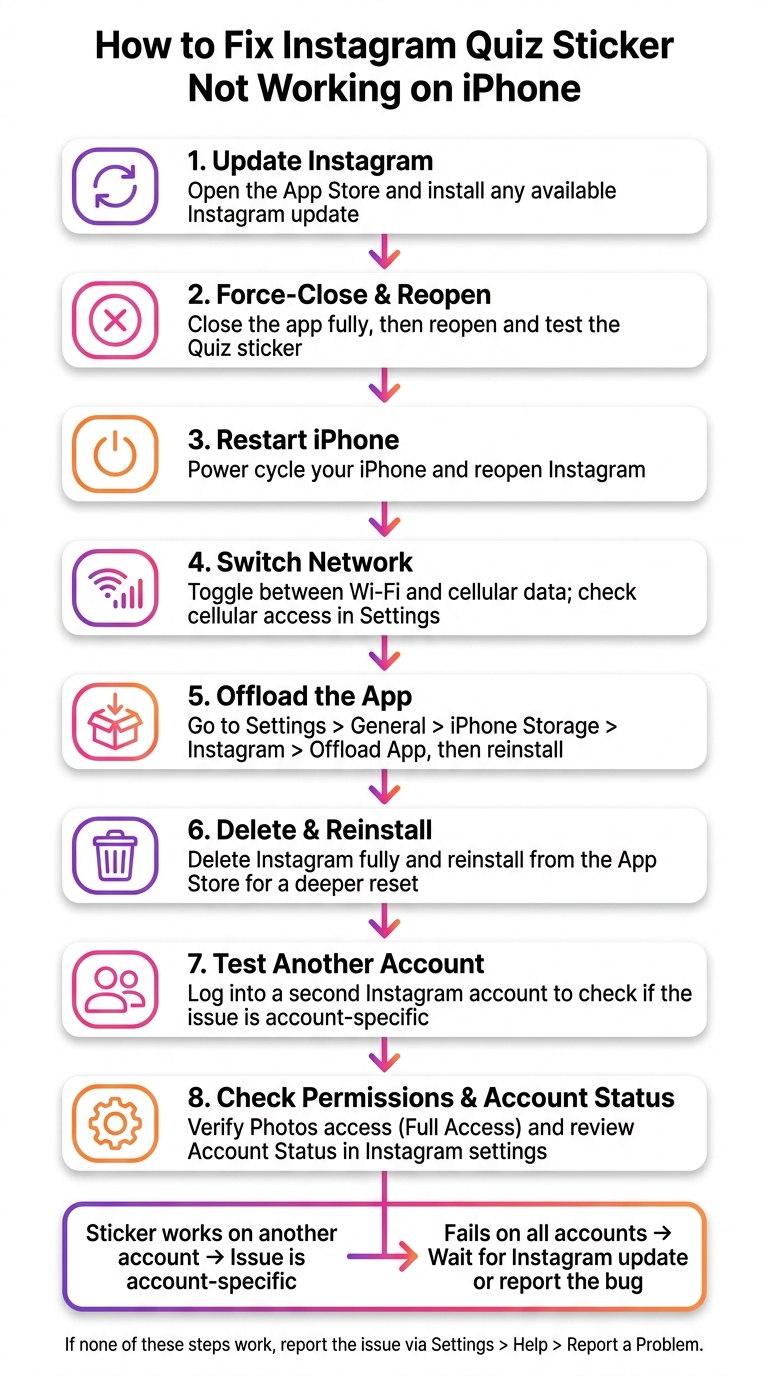
How to Fix Instagram Quiz Sticker Not Working on iPhone
Start with a few quick checks, then test the Quiz sticker after each one. It’s the fastest way to spot what’s breaking.
Open the App Store and install any Instagram update you see. Updates often fix sticker issues, although some features may still roll out over time.
Then force-close Instagram, open it again, and test the Quiz sticker.
If it still doesn’t work, go to a restart and connection check.
A weak connection or a stuck app session can keep the sticker from loading.
Restart your iPhone. Then open Instagram again and test the Quiz sticker. If it still won’t load, switch between Wi‑Fi and cellular data to see whether one network is blocking Instagram. In Settings, make sure Instagram is allowed to use cellular data.
If the sticker still doesn't work after a restart, the next step is to refresh Instagram's local data. On iPhone, Instagram doesn't give you a simple clear cache button, so your best options are to offload the app or delete it and install it again.
Offloading removes the app itself but keeps its data on your iPhone.
Go to Settings > General > iPhone Storage > Instagram, then tap Offload App. After that, tap Reinstall App on the same screen. Then open Instagram and try the Quiz sticker again. You can also try using Instagram Stories polls to see if other interactive elements are working.
Deleting the app is the deeper reset. It removes Instagram and all related local data, which can help if damaged app files are still causing the problem after offloading.
Press and hold the Instagram icon, tap Remove App, then Delete App. Then reinstall it from the App Store.
If that still doesn't fix the issue, move on to account and permission checks.
If reinstalling Instagram didn't solve it, shift your focus to three places: your account, your iPhone permissions, and your device settings. At this point, the app may be fine. The goal is to figure out whether the issue follows your Instagram account or stays with the iPhone.
Start by signing out of your current account and logging into a different Instagram account on the same iPhone. If the Quiz sticker shows up on that second account, the problem is tied to your account, not the phone.
Next, open Account Status in Instagram settings. If Instagram shows restrictions or warnings there, they can affect Story tools, including interactive stickers like Quiz.
If the sticker works on another account, look at the iPhone itself.
Go to Settings > Privacy & Security > Photos and make sure Instagram has Full Access. If it doesn't, Story creation may not load all the way, and some stickers may not appear.
It also helps to check for updates. If iOS or Instagram is out of date, install the latest version.
Here’s the simple way to read the results:
If none of these steps changes anything, the fix is probably on Instagram’s side, and you may need to wait for an app-side update.
If you’ve already updated Instagram, restarted your iPhone, refreshed the app, and checked permissions, the issue may not be on your end.
At that point, the Quiz sticker problem is often tied to a rollout delay or a bug inside Instagram itself. Instagram doesn’t always switch on features for every account at once. The sticker can show up later depending on your account, your region, and the app version you’re on. When that happens, more local troubleshooting usually won’t help. It’s better to stop there and wait for Instagram to sort it out.
If the sticker still won’t work after those checks, report it in Instagram through Settings and privacy > Help > Report a Problem.
Keep the report short but complete. Include:
Send one full report. Sending the same report over and over can slow review.
Start by checking the exact symptom. Then move through the fixes in order: update Instagram, force-close and reopen the app, restart your iPhone, offload or reinstall the app to clear local data, and check your iOS permissions and Account Status.
If the issue is tied to a rollout delay or an Instagram server problem, local fixes won’t solve it. In that case, report it once, then wait for Instagram to push an app update or refresh the feature on its side.
If the Quiz sticker is missing on just one account, the issue usually comes down to that account’s settings or feature limits. Start by checking whether the account is set to a Business or Creator profile, since sticker access can vary from one profile type to another.
It also helps to update the app and clear the cache. And if you’re using third-party scheduling tools, stop there for a minute - some of them strip out interactive stickers based on how the post goes live.
No. Offloading Instagram removes the app from your iPhone to free up storage, but it keeps your documents and data.
When you reinstall the app, your account information, settings, and saved data come back automatically.
Try the quiz sticker in a few different places first. Open Instagram on another device, or log into your account in a web browser. If it fails everywhere, the problem is probably on Instagram’s side.
If the sticker works elsewhere but not on your iPhone, focus on the app itself. Check for Instagram updates, clear the app cache, and make sure Instagram has the right iOS permissions turned on.


