
How to Download Instagram Reels in 2026 (iPhone, Android & PC)
Save Instagram Reels three ways: native Download (if allowed), screen record, or paste the Reel link into a web downloader.
Save Instagram Reels three ways: native Download (if allowed), screen record, or paste the Reel link into a web downloader.
4.98 /5 - from 58k reviews
Trusted by 50,000+ creators — get real engagement delivered to your profile in minutes, not days.
If you want an Instagram Reel as a file in June 2026, you have only 3 main options: use Instagram’s Download button, screen record it, or paste the Reel link into a web downloader.
Here’s the short version: tapping Save does not put a video on your phone. It only stores the Reel inside Instagram. To get an MP4 in Photos, Gallery, or Downloads, you need a download method that creates a local file.
I’d break it down like this:
A few points matter most:
Instagram’s setup in 2026 is simple, but there’s a catch: the native download option only appears when the creator allows it. That means many people tap around, hit Save, and then wonder why nothing shows up in Photos. This guide fixes that fast for iPhone, Android, and PC.
Quick Comparison
| Method | Works for Public Reels | Works for Private Reels | Audio | Watermark | Where File Goes |
|---|---|---|---|---|---|
| Instagram Download | Yes, if enabled | No | Sometimes missing | Yes, often | Photos / Gallery / Downloads |
| Screen Recording | Yes | Yes | Yes, if device audio is on | No, but screen UI may show | Photos / Gallery / Desktop |
| Web Downloader | Yes | No | Usually yes | No | Files / Downloads |
One more thing: if a tool asks for your login, that’s a red flag. A public Reel downloader should only need the URL. In most cases, the fastest path is: check for Download first, use screen recording if it’s missing, and use a web downloader for public links when you want a cleaner MP4.
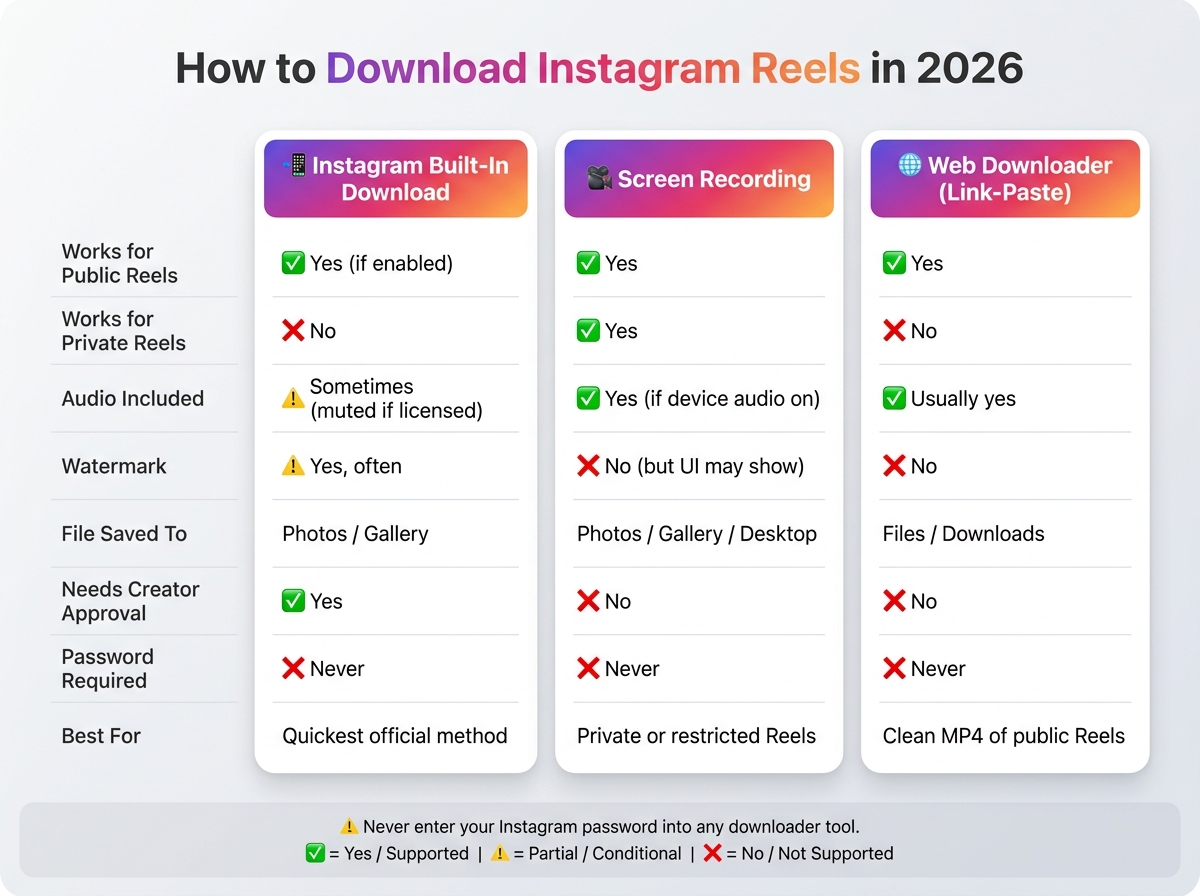
How to Download Instagram Reels: All Methods Compared (2026)
If Save didn't put the Reel in your Photos app, start with Instagram's own download button. If that button isn't there, your next best options are screen recording or a link-paste downloader. Here's the fastest iPhone route when Download shows up, and what to do when it doesn't.
When Instagram gives you a Download button, use it. It's the simplest path.
If Download is missing, the creator turned it off.
Native downloads can add a watermark. They may also mute licensed audio.
Screen recording is the fallback when Download isn't available.
A small tip that helps: turn on Do Not Disturb first, then trim the clip in Photos after you're done.
The tradeoff is pretty clear. Screen recordings can include on-screen buttons and captions, and the video quality is lower than a direct download.
For public Reels, a link-paste downloader can give you a clean MP4 when Instagram's native option is missing.
Here's the part that matters most: no legit downloader needs your Instagram password - ever. A public Reel URL is all that's required. If a tool asks you to log in, back out right away.
| Method | Watermark? | Audio Included? | File Location |
|---|---|---|---|
| Built-in Download | Yes (watermark) | Sometimes (muted if licensed) | Photos |
| Screen Recording | No (UI elements instead) | Yes | Photos |
| Web Downloader | No | Usually yes | Files > Downloads |
On Android, the steps are almost the same; the next section shows the exact taps.
On Android, the easiest path is Instagram’s Download button when it shows up. If it doesn’t, you can screen record the Reel or use a link-paste downloader in your browser. And if you want that same file on a desktop later, the next section covers the PC steps.
If the creator has turned downloads on, this is the fastest way.
This option only shows up when the creator has enabled downloads. If you don’t see it, go to Method 2 or 3.
Screen recording is a solid backup on Android. It also works even when the creator hasn’t allowed downloads.
If the video looks a bit rough after recording, use the link-paste method next.
For public Reels, a link-paste web downloader is a simple option on Android.
One rule here: never enter your Instagram password. A public Reel URL is the only thing you need to paste.
| Method | Keeps audio? | Quality | Needs creator approval? |
|---|---|---|---|
| Built-in Download | Sometimes (stripped if licensed) | Original | Yes |
| Screen Recording | Yes (if Device Audio is on) | Lower | No |
| Web Downloader | Yes (usually original audio) | High | No |
On a computer, those same two backup options still work: a browser downloader or screen recording. If you’re saving your own Reel, Instagram’s export options later in the article can help you keep better quality.
Next: how to download Reels on a computer.
On desktop, the simplest route is a paste-the-link downloader for public Reels. If the Reel is private, or the tool just doesn't work, screen recording is the backup.
This is the fastest, cleanest way to download Reels on a computer.
Never enter your Instagram password into a downloader. You only need the public Reel URL. If a tool asks for your login details, that's unnecessary and unsafe.
Use screen recording when the Reel is private, the downloader fails, or you just need a quick copy saved on your machine.
When direct download isn't available, screen recording is the fallback. On Windows, press Win + G to open Xbox Game Bar and record. On macOS, use Shift + Command + 5 or QuickTime. Before you hit record, let the Reel load all the way so it doesn't buffer mid-playback. It's also smart to turn on Do Not Disturb so random notifications don't pop up on screen. Then play the Reel in full-screen mode to get the best image you can, and trim off the browser interface at the start and end afterward.
The tradeoff is simple: screen recordings depend on your screen and playback quality. They also tend to catch browser buttons and other on-screen clutter unless you trim with care.
| Method | Platforms | Keeps Audio? | Quality | Needs Creator Enablement? |
|---|---|---|---|---|
| Web Downloader | PC, Mac | Yes (except licensed music) | Preserves Instagram's stored quality | No (public accounts only) |
| Screen Recording | Windows, macOS | Yes | Variable/Lower | No |
For your own uploads, the best path is to export the Reel before it leaves Instagram.
If you're a creator, save the Reel to your device before publishing. From the final editing screen, Instagram gives you a local save option, which keeps the highest quality, your original audio, and no watermark.
If the Reel is already live, go to your profile, open the Reel, click the three dots, and choose Save to device or Download. That file may include a watermark with your username, and the audio may be muted if you used licensed music. If you want the step-by-step version for other Instagram video types too, see UpGrow's guide on how to download Instagram videos.
For your own Reel, saving it before publish usually gives you the cleanest file. If you're planning to repost it somewhere else, the copyright rules come next.
Once you've chosen a download method, the next step is simple: what are you allowed to do with that file?
Downloading a Reel for personal offline use is usually fine. Reposting it without permission is not. A download gives you the file. It does not give you the right to reuse it.
If you re-upload someone else's Reel without clear consent, you could get hit with a copyright claim or takedown. And yes, that still applies if you tag the original creator. Credit is polite. Permission is what protects you.
There's another wrinkle here: audio. Licensed music in a Reel may not be cleared for use outside Instagram. So if you download a Reel and post it somewhere else, the audio alone can trigger a separate copyright claim, even if the video itself isn't the issue. That's why the method matters. In some cases, screen recording or a native download makes more sense, depending on whether you need the audio to stay attached to the file.
If you want to repost, get written permission by DM or email and keep a copy of that approval. If the creator doesn't reply, or says no, leave the footage alone.
Here’s the quick rule of thumb:
| Usage Scenario | Permission Required? | Risk Level |
|---|---|---|
| Personal offline viewing | No | Low |
| Internal team inspiration / mood boards | No | Low |
| Reposting to a personal or brand feed | Yes | High |
| Using in paid advertisements | Yes | Very High |
| Editing into a reaction video | Yes, or fair use check | Moderate |
So the practical takeaway is pretty simple: download for personal use, ask first for reposting.
The best method comes down to one thing: is the Reel yours, public, or private?
According to the Meta Help Center, the native download button only shows up when the creator's download settings allow it. So start there. Check for the built-in download option first. If it's not available, screen recording is the fallback. And if the Reel is public and you want a cleaner file, a public-link web downloader can do the job.
Once you're making Reels people want to save, UpGrow can help you get in front of the right audience with AI targeting, real human experts, and live analytics.
Last updated: June 2026


&description=Save%20Instagram%20Reels%20three%20ways%3A%20native%20Download%20(if%20allowed)%2C%20screen%20record%2C%20or%20paste%20the%20Reel%20link%20into%20a%20web%20downloader.&image=https://www.upgrow.com/blog-images/assets.seobotai.com/cdn-cgi/image/quality=75,w=1536,h=1024/upgrow.com/6a41d96f2902db05ecd852d6-1782701924442.jpg)