
Best AI Tools for UGC Ad Resizing 2026
Compare AI tools for turning one UGC video into 9:16, 4:5, 1:1, and 16:9 ads—focus on auto-reframe, captions, and bulk output.
Compare AI tools for turning one UGC video into 9:16, 4:5, 1:1, and 16:9 ads—focus on auto-reframe, captions, and bulk output.
4.98 /5 - from 58k reviews
Trusted by 50,000+ creators — get real engagement delivered to your profile in minutes, not days.

If you want the short answer: the best tool depends on what slows you down most. For clip reframing, I’d look at Munch or OpusClip. For browser edits, Kapwing or VEED make sense. For brand-led size changes, Canva or Adobe Express fit better. And for bulk output, Rocketium or Cloudinary are the top picks.
Here’s the core idea in plain English: one UGC video often needs to become 9:16, 4:5, 1:1, and 16:9 versions for TikTok, Reels, Instagram feed, Shorts, and YouTube. You can also use AI for Instagram marketing to optimize these assets for better engagement. The hard part isn’t only resizing. It’s keeping faces, products, text, and subtitles in frame while avoiding blocked areas from platform buttons and overlays.
I’d judge these tools by seven things:
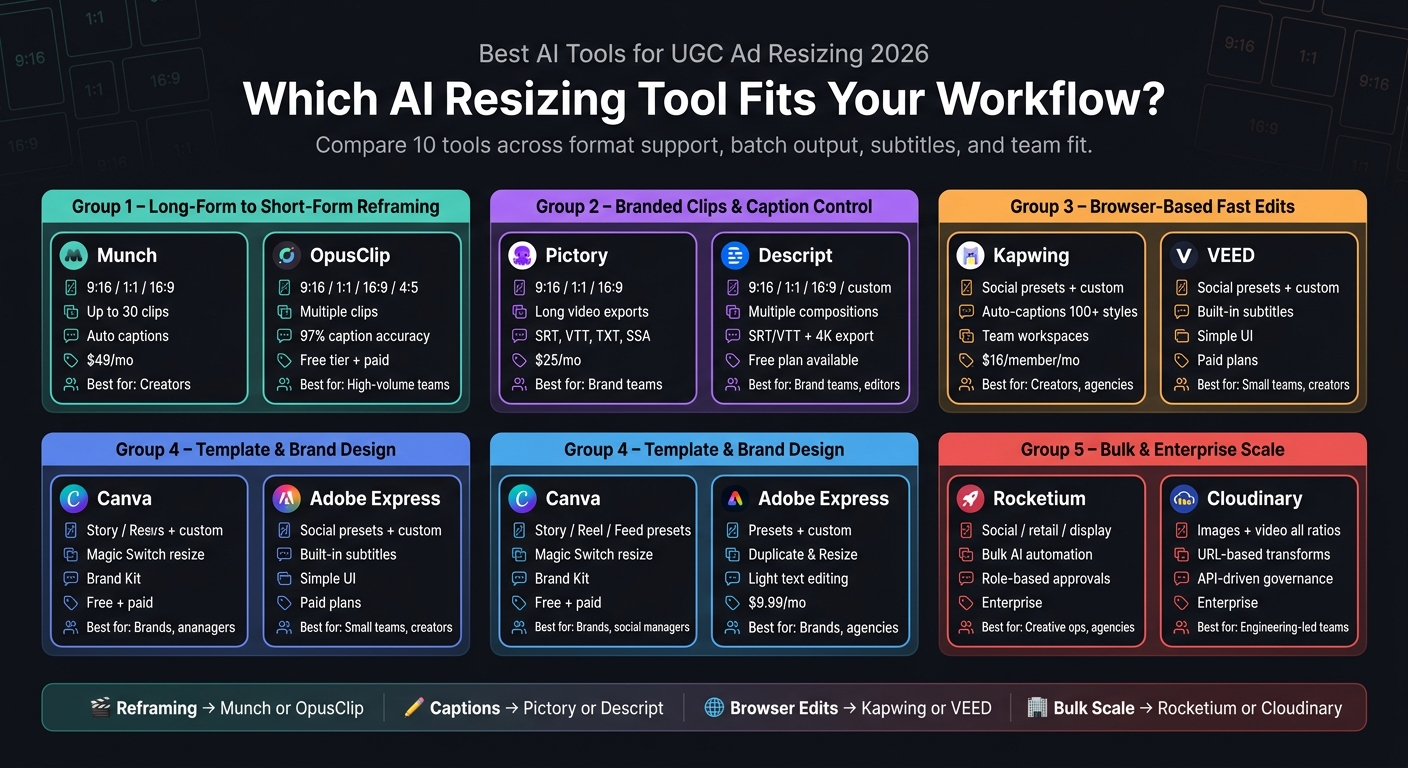
Best AI Tools for UGC Ad Resizing 2026: Side-by-Side Comparison
| Tool | Best For | Main Output Sizes | Subtitle Support | Team Fit |
|---|---|---|---|---|
| Munch | Turning long videos into many short clips | 9:16, 1:1, 16:9 | Auto captions, editable, burned-in | Creators |
| OpusClip | High-volume reframing with 4:5 support | 9:16, 1:1, 16:9, 4:5 | Dynamic captions, transcript/subtitle download | High-volume teams |
| Pictory | Branded clips with file export control | 9:16, 1:1, 16:9 | SRT, VTT, TXT, SSA, burned-in | Brand teams |
| Descript | Transcript-led editing and multi-size versions | 9:16, 1:1, 16:9, custom | SRT/VTT and embedded captions | Brand teams, editors |
| Kapwing | Browser resizing plus caption edits | Social presets + custom | Auto-captions, transcript editing, style options | Creators, social teams, agencies |
| VEED | Simple browser video resizing | Social presets + custom | Built-in subtitle tools | Small teams, creators |
| Canva | Template-based UGC variants | Story, Reel, feed presets | Text-first layout control | Brands, social managers |
| Adobe Express | Simple duplicate-and-resize design workflow | Presets + custom sizes | Light text editing in templates | Brands, agencies |
| Rocketium | Bulk ad variant production | Social, retail media, display | Workflow-led, tied to production system | Agencies, creative ops |
| Cloudinary | Programmatic media resizing and delivery | Image and video across major ratios | More delivery-focused than edit-focused | Engineering-led teams, agencies |
A few points stand out fast:
So if I were narrowing this down fast, I’d do it like this:
In other words: this isn’t just about changing dimensions. It’s about keeping the right thing on screen in every placement. The full article breaks down which tool fits each workflow without making you sort through every feature on your own.
These four tools cover the main video UGC resizing jobs, from fast clip extraction to branded exports. The goal is simple: take one UGC source video and turn it into ad-ready versions without manual recropping. The table below shows what matters most in practice: speed, control, and scale.
| Tool | Formats Supported | Crop Logic | Batch Workflow | Subtitle Handling | Best Fit |
|---|---|---|---|---|---|
| Munch | 9:16, 1:1, 16:9 | Smart auto-crop, face/subject centered | Up to 30 clips from one long video | Auto-generated, editable, burned-in captions | Creators |
| OpusClip | 9:16, 1:1, 16:9, 4:5 | ReframeAnything model, genre-aware subject tracking | Multiple clips per session | Dynamic captions | High-volume teams |
| Pictory | 9:16, 1:1, 16:9 | Non-destructive aspect-ratio changes | Long videos, multiple exports | SRT, VTT, TXT, SSA, burned-in captions | Brand teams |
| Descript | 9:16, 1:1, 16:9, custom | Non-destructive resize, duplicate compositions | Multiple compositions per project | SRT/VTT export, embedded captions | Brand teams, editors |
If speed is the main thing, Munch and OpusClip are the first tools to look at. Both start from the same setup: upload one long video, then get a batch of short clips back. That sounds simple, but the way each tool reframes footage is where the difference shows up.
Munch surfaces strong moments first, then auto-crops them for 9:16, 1:1, or 16:9. It also uses safe margins tuned for TikTok, Reels, Shorts, and Facebook placements. In plain terms, a brand team can take one long customer testimonial and turn it into up to 30 auto-cropped clips, each with subtitles, ready for review and export. Paid plans start at $49/month.
OpusClip takes a different route. Its ReframeAnything model detects the genre of the video and shifts the reframing behavior to match. That can help when the subject moves around a lot, like in walking demos or product shots. It also supports 4:5 as a native output, which is useful for Instagram feed placements. On the caption side, its dynamic captions report 97% accuracy, and Pro users can download transcripts and subtitles. There’s also a free tier with 60 processing credits per month, though exports include a watermark.
If your team cares less about pumping out lots of clips and more about getting captions and branding just right, the next pair leans more in that direction.
Pictory and Descript give teams more hands-on control over messaging and what appears on screen. They’re a better fit when polish matters more than output volume.
Pictory works well for teams that want caption styling to stay consistent across a batch of clips. It supports long videos, creates transcripts, and lets teams resize exports after branding has already been applied. There’s a caption styling panel for adjusting the look, and exports can include both a captioned MP4 and a separate SRT, VTT, TXT, or SSA file. Plans start at $25/month.
Descript centers the workflow around the transcript. Cut a sentence from the transcript, and the matching footage disappears. Move paragraphs around, and the video shifts with them. That setup makes it easy for teams to edit once, then duplicate the same cut into 9:16, 1:1, and 16:9 versions with matching captions. Descript supports exports up to 4K and lets users export captions as SRT/VTT or burn them directly into the video. It also has a free plan with no credit card required.
For teams that want browser-based editing instead of desktop-heavy workflows, the next tools are faster to open and easier to share.
When desktop editing feels slow, browser tools are often the fastest way to handle two common jobs: reframing video with captions and resizing simple UGC graphics from templates. If you want a browser-only setup after using heavier video editors, these are the fastest options.
| Tool | Resizing Presets | Crop / Canvas Controls | Subtitle / Text Handling | Collaboration | Best Fit |
|---|---|---|---|---|---|
| Kapwing | TikTok, Reels, Stories, YouTube Shorts, custom | Resize Canvas, Fit to Center, Fill and Crop, drag/scale | Auto-captions, transcript editing, 100+ styles, burned-in export | Team workspaces, link-based sharing, real-time commenting | Creators, social teams, agencies |
| VEED | Instagram Story, TikTok, YouTube, Twitter/X, custom | Fit to canvas, drag corners, preset dropdown | Built-in subtitles, text, filters, effects | Browser editor, team collaboration on paid plans | Small teams, creators |
| Canva | One-click presets for Story, Reel, and feed posts | Template-first, copy-and-resize workflow | Text and brand assets central to layout | Real-time co-editing, brand kit sharing | Brands, social managers |
| Adobe Express | Suggested presets and custom dimensions | Unit dropdown, custom width/height, duplicate-and-resize | Lightweight text and design edits in templates | Team/Enterprise tiers; resize is a Premium feature | Brands, agencies |
Kapwing and VEED are built for fast browser resizing, but they take slightly different paths. Kapwing gives you more control over the canvas, while VEED keeps things simpler.
Kapwing’s Resize Canvas tool supports Instagram Reels, Stories, TikTok, YouTube Shorts, and custom sizes you can save for later. After resizing, you can move straight into captions. The subtitle panel includes auto-generated captions, transcript editing, timing changes, more than 100 preset styles, and burned-in caption export. Pro plans start at $16/member/month when billed annually.
VEED uses a fit-to-canvas setup with built-in subtitle tools, which makes it a good pick for quick exports when you don’t need as much layout control.
Kapwing and VEED lean more toward video editing. Canva and Adobe Express lean more toward design. That makes them a better fit for turning one branded UGC asset into many size variants, especially when every placement needs the same look and feel.
Canva starts with a master layout tied to your brand colors, fonts, and logo through Brand Kit. Then Magic Switch copies that design into a new size without changing the original. It’s a simple setup, and for social teams using Instagram automation to push out lots of versions, that matters.
Adobe Express takes a similar approach with preset sizes and Duplicate & Resize, which also keeps the original file untouched. One limit is that Adobe Express does not batch-resize multiple pages, so teams producing a high volume of variants may hit that wall sooner than they would in Canva. Premium costs $9.99/month, and the free tier covers basic use.
Template resizing works best when branding needs to stay consistent across many placements. For those on a budget, using free AI-powered Instagram tools can help bridge the gap between manual design and full automation.
For bulk variant production and approval workflows, the next section covers enterprise-scale tools.
Once simple template resizing stops doing the job, the work changes fast. It’s no longer just about fitting one asset into a new frame. It becomes a bulk production and approval system. Teams need to generate, approve, version, and deliver UGC variants across many placements to support Instagram growth strategies without checking every single file by hand.
| Tool | Automation Depth | Format Handling | Batch Output | Team Workflows | Best Fit |
|---|---|---|---|---|---|
| Rocketium | AI agents handle resizing, compliance checks, file naming, and versioning automatically | Social formats like 9:16, 1:1, and 16:9; retail media; display | Bulk resize and export via File Agent; feed/spreadsheet-driven variant generation | Role-based approvals, brand-guideline enforcement, client workspace organization | Creative ops and agencies |
| Cloudinary | URL-based transformation recipes applied automatically at request time; generative AI fill and cropping | Images and video in vertical, square, and horizontal formats; format conversion | Assets Studio bulk editing; transformations cached and applied on demand | AI-powered moderation, permissioned libraries, API-driven governance | Engineering-led teams and agencies |
Rocketium is built for teams that need to turn one UGC layout into a large batch of ad-ready variants. It automates bulk resizing, naming, compliance checks, and versioning, so human review can stay focused on quality instead of repetitive production work.
Cloudinary is a strong fit for teams that want programmable media delivery. You set crop, compression, and fill rules once, then apply them automatically through URLs across both images and video.
For agencies, the two can work side by side. Rocketium acts like the asset factory for campaign production. Cloudinary then stores and delivers those assets across digital properties.
These tools start to matter when resizing shifts from one-off edits to repeatable, high-volume production. The table above helps with feature fit. The guidance below is more about team fit.
Choose Rocketium when the main problem is producing compliant variants fast. Choose Cloudinary when the main problem is standardizing, storing, and delivering UGC at scale.
For agencies, the choice usually comes down to workflow pain:
No single tool works for every team. The best pick comes down to your main bottleneck: reframing, captions, brand control, or batch scale.
Use this matrix to line up each tool with the part of the workflow that slows you down most.
| Use Case | Best Tool(s) | Why |
|---|---|---|
| Long-form to short-form reframing | Munch, OpusClip | AI reframing and subject tracking |
| Fast browser-based edits | Kapwing, VEED | Quick resizing and subtitle edits in the browser |
| Brand consistency across formats | Canva, Adobe Express | Template-based resizing with brand kits |
| Bulk variant production | Rocketium, Cloudinary | Batch resizing and workflow automation |
The takeaways below make that choice simpler based on team type and how you produce content.
Choose based on your team’s production volume, workflow needs, and top platforms. Start by figuring out what matters most: fast mobile edits, template-based publishing, or high-volume batch processing.
Check for:
Use manual review to confirm accuracy and brand alignment.
Use tools with auto-reframing that can follow the action for you. CapCut’s Reframe tool tracks facial movement to keep subjects centered, and OpusClip helps keep the active speaker in focus across different aspect ratios.
For captions, Captions (Mirage Studio) and CapCut’s built-in captioning features help keep text legible, easy to customize, and placed within safe zones.
The top priority is keeping your core content inside each platform’s safe zones. On Instagram, that means placing key visuals and text in the center and staying away from the top and bottom edges, where UI elements like profile names, captions, and call-to-action buttons show up.
It also helps to use the right aspect ratio for each placement, keep natural textures and lighting intact, and export in high resolution - usually 1,080 px wide - to avoid quality loss during compression.


