
Ultimate Guide to Instagram Geotagging
How to add and create Instagram geotags for posts, Stories, and Reels to boost local visibility, engagement, and measure performance.
How to add and create Instagram geotags for posts, Stories, and Reels to boost local visibility, engagement, and measure performance.
4.98 /5 - from 58k reviews
Trusted by 50,000+ creators — get real engagement delivered to your profile in minutes, not days.

Geotagging on Instagram links your posts, Stories, and Reels to specific locations, making your content easier to find. This feature helps boost visibility, engagement, and local discovery. Whether you're tagging a famous landmark, a local business, or creating a custom geotag for your brand, geotagging connects your content to real places, helping you reach the right audience.
Geotagging is a simple yet effective way to increase your reach and connect with local audiences.
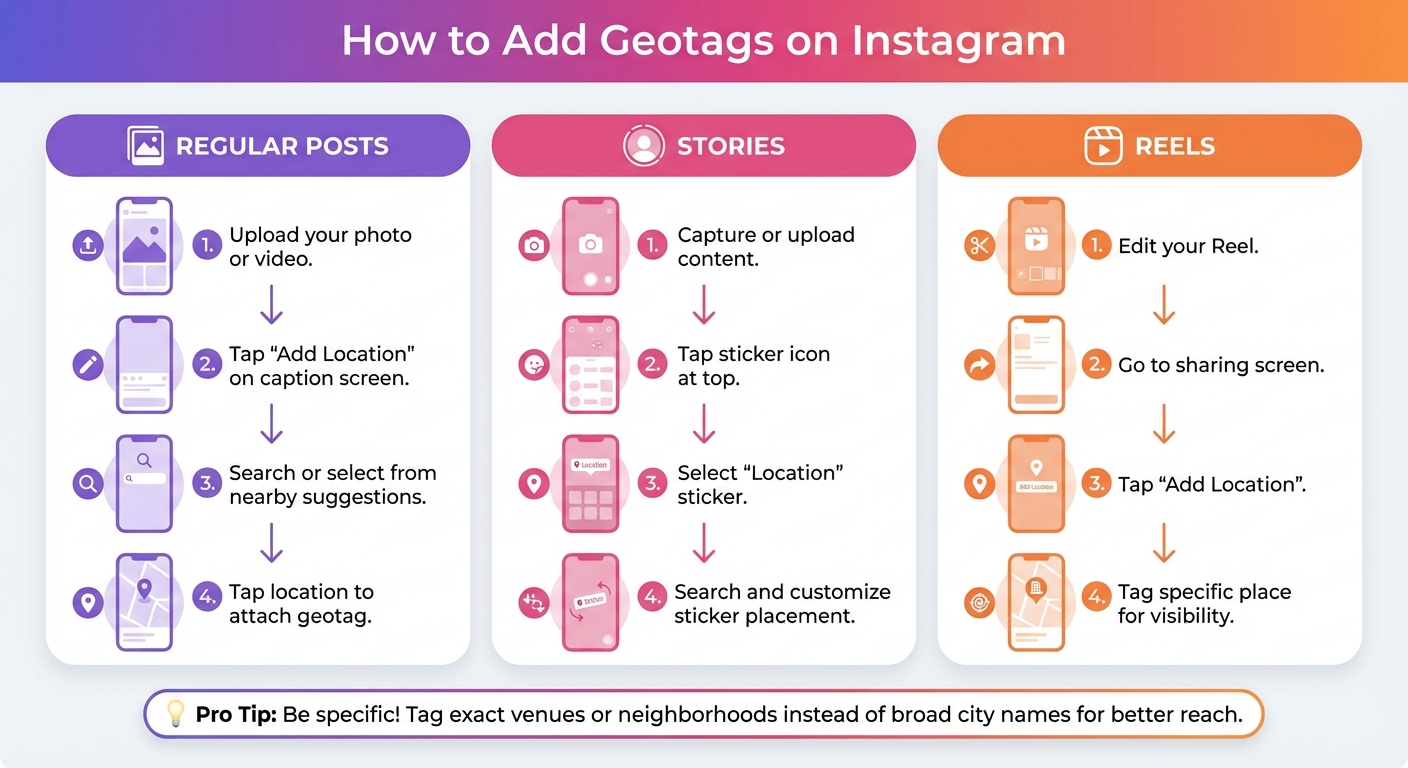
How to Add Geotags on Instagram: Posts, Stories, and Reels
Adding geotags to your Instagram content is simple, but the steps differ slightly depending on whether you're posting a photo, video, Story, or Reel. Using geotags effectively ensures your content reaches the right local audience and shows up in location-based searches.
For regular posts, start by uploading your photo or video. On the screen where you add your caption and tags, tap the "Add Location" option. Instagram will suggest nearby locations based on your device's GPS, or you can manually search for a specific city, business, landmark, or neighborhood. Once you’ve found the right location, tap it to attach the geotag to your post.
For Stories, after capturing or uploading your content, tap the sticker icon at the top of the screen to open the sticker tray. Select the "Location" sticker, then search for the location you want to tag. Instagram allows you to customize the sticker’s style and placement before sharing it, giving you a bit of creative flexibility.
For Reels, the process mirrors that of regular posts. After editing your Reel, go to the sharing screen and tap "Add Location." Tagging specific places - like a restaurant, concert venue, or park - can help your Reel appear on that location’s page, increasing its visibility.
Want to create a custom geotag for your brand? Keep reading for more on that in the next section.
Accuracy is key when adding geotags, especially if you’re guiding customers to a physical location. Always ensure the geotag matches the exact address to build trust and credibility.
Specificity matters too. Instead of using a broad tag like "New York City", opt for something more precise, such as the name of a restaurant or a specific neighborhood. For businesses with multiple locations, make sure each site has its own distinct tag with the exact brand name. This consistency helps customers find the right spot easily.
Including the city or town name in your geotag can also boost visibility. For example, "Sally’s Bakery – Chicago" is more searchable than just "Sally’s Bakery." If you consistently use the same branded geotag across your posts, it can drive traffic to a single, unified location feed.
To see how your geotags are performing, use Instagram Insights. Check metrics like "Impressions from Location" to find out which tags are generating the most engagement. Think of geotags as metadata - they work similarly to hashtags by helping Instagram’s algorithm categorize and distribute your content among the platform’s millions of daily posts.
In the next section, we’ll explore how to create custom geotags that showcase your brand.
Custom geotags take your geotagging strategy to the next level by transforming your business into a searchable digital location. Whether you're launching a new store, hosting a pop-up event, or operating a venue that’s not yet listed on Instagram, creating your own location tag makes it easier for customers to find and share content about your brand.
To create a custom geotag on Instagram:
Alternatively, you can create a location using Facebook:
For verified locations, Meta Business Suite is your go-to tool. Navigate to Business Settings → Locations, click Add Location, fill in your business details, and upload any necessary documents. Once approved - usually within 24 hours - your location will rank higher in Instagram searches.
If you’re organizing a temporary event, use Instagram Story stickers to create event-specific tags. These tags last up to 30 days and don’t require verification.
Once your custom geotag is set up, you can leverage it to boost your business’s visibility and engagement.
Custom geotags can significantly increase engagement and make your business easier to find. Verified locations managed through Meta Business Suite appear higher in search results, adding credibility to your brand.
"On Instagram, your location is your digital storefront." – SurgeBlog
They also encourage user-generated content. For instance, in October 2025, Luna Boutique created custom geotags on Facebook and Instagram. Within just a week, over 30 customers tagged the boutique in their posts, creating instant social proof and driving more foot traffic. Similarly, Aurora Yoga Loft in Toronto used Meta Business Suite to verify its location and sync details with Google Maps. As users tagged the studio in their posts, it gained visibility in local map searches, effectively becoming a digital destination.
When naming your geotag, keep it straightforward. Avoid clutter like emojis, which can interfere with search indexing. Names like "The Green Spoon Café" are clear and easy to find. Consistently using your geotag across Instagram, Facebook, and Google Maps enhances local SEO and strengthens your brand’s credibility. Encourage customers to tag your business by adding a prompt in your captions, such as “Tag us at [Location Name],” to build ongoing social proof.
Geotags work similarly to hashtags, making your content more discoverable in location-based feeds. On average, posts with geotags see a 79% boost in reach and engagement. This approach helps your content stand out in a crowded landscape.
To maximize impact, focus on tagging specific locations like well-known neighborhoods or landmarks instead of using broad city names. For instance, a coffee shop in Brooklyn could tag "Williamsburg" or "Brooklyn Bridge Park" rather than just "Brooklyn." This level of detail helps Instagram's algorithm target users who are genuinely interested in that area.
If your business doesn't have a physical storefront, you can still create a branded or "imaginary" location through Facebook. This allows you to establish a digital presence and increase brand awareness. Pairing your visuals with the geotagged location also helps Instagram's image recognition software categorize your content accurately, ensuring it reaches the right audience. If you're trying to break into a new market, consistently tagging that region can help build a strong local presence.
Pair manual geotagging with AI-driven tools like UpGrow to enhance local engagement. Beta users of UpGrow have reported as much as 275% monthly follower growth. By combining precise geotags with AI analytics, you can maintain steady engagement in your target areas.
Here’s how it works: configure UpGrow's location filters to align with the cities or regions you’re tagging. This creates a focused local growth strategy, where the AI interacts with users in your target area 24/7, even when you’re not actively managing it. For businesses operating in multiple regions, rotating between a set of key locations can help establish a broader yet targeted presence. With UpGrow’s GPT-o3 technology, follower and engagement growth can increase by up to 50x, and the platform boasts a 4.98/5 rating from over 58,000 reviews.
Instagram doesn’t offer direct metrics for geotag clicks or usage frequency, so you’ll need to evaluate performance indirectly. Use Instagram Insights (Profile > Menu > Insights) to check the "Top Locations" and "Accounts Reached" sections for insights into your local audience.
You can also manually review your business's geotag page by clicking on it to explore both "Recent" and "Top" posts. This can help you discover user-generated content and identify local influencers. Experiment with different geotags, such as landmarks versus city-wide tags, and combine them with location-specific hashtags (e.g., #ChicagoFoodie) to amplify your reach and engagement. If you’re targeting multiple regions, rotating geotags every one to three months can help you pinpoint which areas respond best to your content. These insights allow you to fine-tune your strategy, ensuring your geotagging efforts drive meaningful local growth.
Geotagging is a straightforward yet highly effective way to boost your Instagram visibility and connect with local audiences. With approximately 100 million posts shared daily, location tags serve as powerful filters to extend your reach. The trick lies in being intentional - tagging specific venues or neighborhoods can help you connect with an engaged niche audience, while broader locations like cities or landmarks can attract a wider range of viewers. Using this approach strategically can help create a strong foundation for building a localized digital presence that enhances your brand.
Custom geotags are also a great way to encourage branded engagement and spark user-generated content. When applied consistently across your Feed posts, Stories, and Reels, they make your content easier to discover. As Spencer Lanoue, Founder of Postbase, explains:
"Tagging your location on Instagram is a simple but powerful habit that can significantly increase your reach, connect you with a local audience, and bring more context to your content".
To take things a step further, you can combine manual geotagging with tools like UpGrow to amplify your efforts. UpGrow offers features like automated location targeting and 24/7 engagement, so you can focus on creating content while it helps you connect with your ideal audience. Use Instagram Insights to monitor metrics like "Top Locations" and "Accounts Reached", and regularly check your geotag pages to interact with user content. Experiment with different tagging strategies - specific venues versus city-wide tags combined with targeted hashtags - to see what resonates most with your audience. With consistent effort and smart tactics, geotagging can significantly enhance your Instagram presence and help you cultivate a vibrant local community around your brand.
While Instagram doesn’t let you create brand-new geotags directly, you can still add a custom location for your business. The trick? Set up a business profile and include your address in the profile settings. Once you’ve done that, your location will show up as an option whenever you tag posts or Stories.
Geotags on Instagram are a powerful tool for local businesses, transforming posts into location-based discovery opportunities. By tagging a location, your post can appear on the location’s page and even surface in the Explore feed, making it easier for potential customers in the area to find your business.
Here’s why geotags matter:
UpGrow takes this a step further by using AI-powered geo-targeting to fine-tune posts for local audiences. Their tools also offer real-time tracking, helping businesses measure success and adjust strategies for better results.
Geotags, or location tags, are a smart way to increase engagement and visibility on Instagram. When you add a geotag to your posts or Stories, your content doesn’t just show up in your followers' feeds - it also gets featured on the location’s dedicated page. This means people browsing or searching for that location can stumble upon your content, giving you a chance to connect with a wider audience.
Geotags also play a role in helping Instagram’s algorithm understand the relevance of your content to users interested in that specific area. This can boost the chances of your posts showing up in their Explore feed. For businesses and creators, tagging popular spots or even creating custom geotags can help build local brand awareness and encourage more engagement. Combine geotags with tools like UpGrow’s AI-powered location targeting to make sure your posts reach the right audience and get the most out of this feature.


