
Mobile Instagram Scheduling: Common Problems and Fixes
Most mobile Instagram scheduling problems stem from expired tokens, missing Meta permissions, outdated apps, or bad media — refresh connections and fix formats.
Most mobile Instagram scheduling problems stem from expired tokens, missing Meta permissions, outdated apps, or bad media — refresh connections and fix formats.
4.98 /5 - from 58k reviews
Trusted by 50,000+ creators — get real engagement delivered to your profile in minutes, not days.
Scheduling Instagram posts on mobile can save time, but it often comes with challenges like failed posts, expired tokens, or app glitches. These issues usually stem from expired connections, outdated apps, unsupported formats, or incorrect permissions. Here's what you need to know:
To minimize disruptions, check your device settings, refresh tokens as needed, and verify permissions. For better results, tools like UpGrow can help expand your reach while your scheduler handles posting logistics.
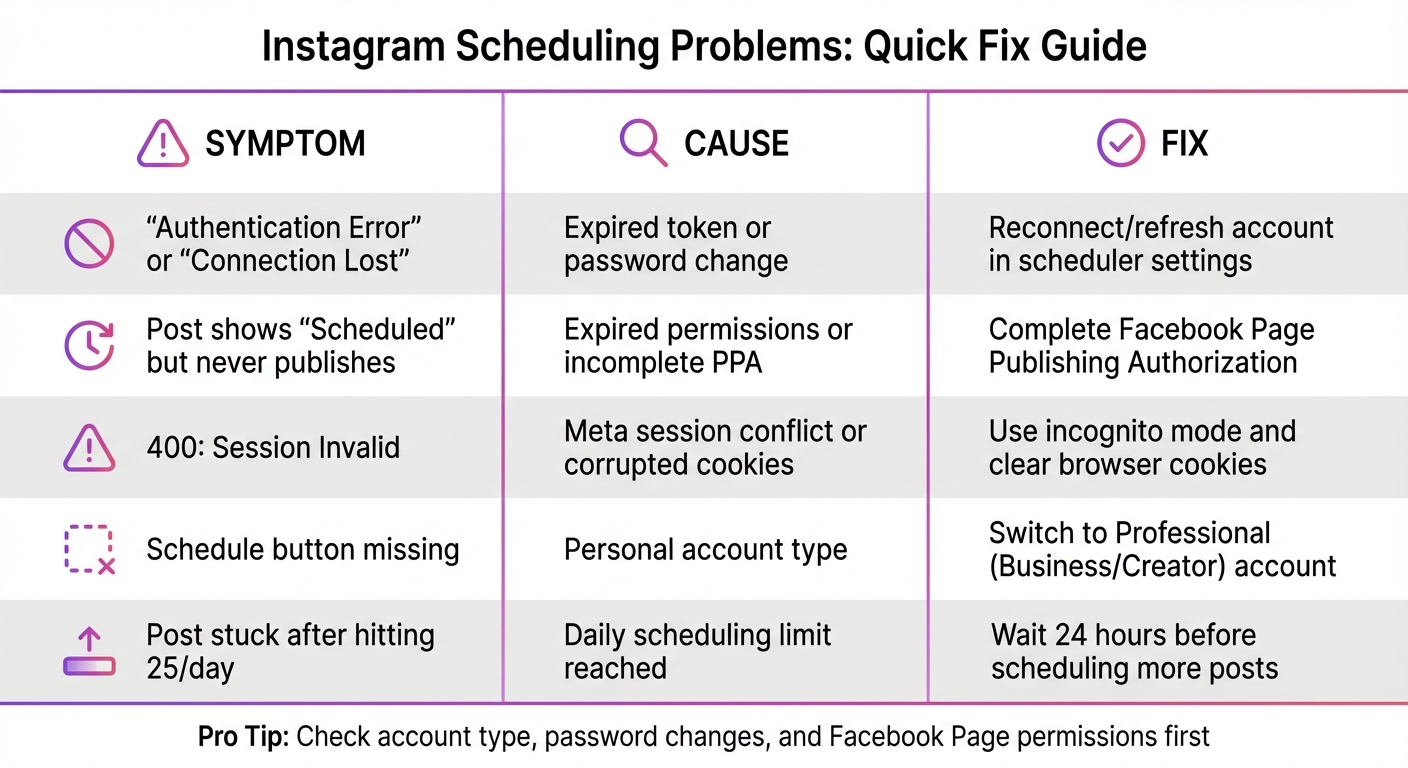
Instagram Scheduling Problems: Symptoms, Causes, and Fixes Quick Reference Guide
When scheduling Instagram posts, most hiccups can be traced back to a handful of common issues. Once you identify the root cause, fixing it is typically straightforward. Here’s a breakdown of the most frequent problems and how to resolve them.
Token expiration is one of the biggest culprits. Scheduling apps rely on an access token to connect to Instagram, but this token can expire if you change your password, a security update occurs, or the account remains inactive for 60 days. Errors like "Authentication Error" or "Session Invalid" often point to this issue. The solution? Refresh the account connection in your scheduler's settings. If that doesn’t work, remove the app’s access via Facebook’s "Business Integrations" settings and reconnect it from scratch. Be sure to grant all requested permissions when prompted by Meta - skipping any can cause connection issues.
Outdated apps or corrupted cache can also disrupt scheduled posts. If your Instagram app hasn’t been updated recently or if cached files are corrupted, posts may fail to publish. Update Instagram to the latest version from the App Store or Google Play. On Android, you can also clear the cache by going to Settings > Apps > Instagram > Storage & Cache and selecting "Clear Cache." If problems persist, uninstall and reinstall the app after restarting your device.
Permission issues arise when using a personal Instagram account instead of a Professional (Business or Creator) account. API-based scheduling only works with Professional accounts. Check your account type by navigating to Profile > Settings and Privacy > Account Type. For Professional accounts, "Permission denied" errors often mean you need to complete the Page Publishing Authorization (PPA) on your linked Facebook Page. Without this step, scheduling won’t function properly.
Device settings can interfere with scheduling, especially if Data Saver Mode or background restrictions are enabled. On iOS, go to Settings > Cellular > Cellular Data Options and disable "Low Data Mode" for both Wi-Fi and cellular connections. On Android, head to Settings > Network > Data Saver and either turn it off entirely or make Instagram an exception. Within Instagram, you can also go to Profile > Menu (☰) > Settings and Privacy > Data Usage, and toggle off "Data Saver." These adjustments ensure your device won’t block scheduled posts.
Media format problems and daily limits can also throw a wrench in your plans. Instagram only supports specific media formats: JPEG or PNG for images (aspect ratio between 4:5 and 1.91:1) and MP4 or MOV for videos (H.264 codec, under 1GB, and a duration between 3 seconds and 15 minutes). If you encounter an "unsupported format" error, apps like CapCut or InShot can help optimize your posts and files. Remember, Instagram limits scheduling to 25 posts per day. If you hit this cap, you’ll need to wait 24 hours before adding more. If you're stuck on what to post next, try using Instagram content ideas to plan your upcoming week.
Meta Business Suite glitches can lead to session conflicts, especially if multiple accounts are logged in. Errors like "Session Invalid" often require clearing your browser’s cookies and cache, logging out of all Facebook accounts, and reauthorizing in an incognito window. For app-related glitches, ensure both Instagram and Meta Business Suite are updated to the latest versions.
Lastly, don’t forget the basics. If you’re experiencing connectivity issues, try switching networks or restarting your device - it’s a simple step that often resolves unexpected problems.
| Symptom | Likely Cause | Primary Fix |
|---|---|---|
| "Authentication Error" or "Connection Lost" | Expired token or password change | Reconnect/refresh the account in scheduler settings |
| Post shows "Scheduled" but never publishes | Expired permissions or incomplete PPA | Complete Facebook Page Publishing Authorization |
| "400: Session Invalid" | Meta session conflict or corrupted cookies | Use incognito mode and clear browser cookies |
| Schedule button missing | Personal account type | Switch to a Professional (Business/Creator) account |
| Post stuck after hitting 25/day | Daily scheduling limit reached | Wait 24 hours before scheduling more posts |
When scheduling fails, it often boils down to a few common issues. You can usually pinpoint the problem within minutes by asking yourself three key questions: Is your account set to Professional (Business or Creator)? Did you recently change your password? Do you have Admin or Full Control access to your linked Facebook Page? These three factors are behind most scheduling hiccups.
Here’s a handy table to help you quickly diagnose and fix common problems. Match the symptom to its likely cause, and you’ll find the solution right there. Once these typical issues are sorted out, you can focus on refining your Instagram content strategy with advanced tools.
| Symptom / Error Message | Likely Root Cause | Primary Fix |
|---|---|---|
| Missing "Schedule" option? | Using a personal account or unlinked Facebook Page | Switch to a Professional account and link a Facebook Page |
| "Access Denied" or "Missing Permissions"? | Incomplete authorization during setup | Reauthorize in Facebook settings; select "All Pages" |
| Post shows "Scheduled" but never publishes? | Expired access token or permissions | Reconnect/refresh your account in scheduler settings |
| "400: Session Invalid"? | Meta session conflict or corrupted cookies | Clear browser cookies/cache or use incognito mode |
| "PPA Required"? | Page Publishing Authorization needed | Complete Page Publishing Authorization on the linked Facebook Page |
| App feels buggy or schedule button missing? | Corrupted cache or outdated app version | Clear the app cache and update to the latest version |
| Posts fail on mobile but work on desktop? | Data Saver mode or background restrictions enabled | Disable Data Saver in Instagram and phone settings |
| Reel fails but feed posts work fine? | Incorrect aspect ratio (not 9:16) or file size over 100MB | Resize the video to 9:16 and compress the file |
| "Media ID not available"? | Video still processing on Instagram's servers | Wait a few minutes or re-upload the video |
| Photos not appearing for notification? | Missing Camera Roll access | Grant "All Photos" permission in your phone settings |
If none of these fixes work, check for platform-wide outages on Downdetector before diving deeper. Once the basics are resolved, you’ll be better equipped to explore tools that can help you streamline Instagram scheduling.
Once technical issues are resolved, the next step is ensuring your posts connect with an engaged audience. That's where AI-driven growth tools come into play. These tools complement your scheduling routine, helping your content reach real, interested followers. By integrating them into your strategy, you can build on earlier troubleshooting efforts to strengthen your overall Instagram presence.
UpGrow is an AI-powered Instagram growth service designed to attract genuine followers using Instagram-approved practices. Unlike services that depend on bots or fake accounts, UpGrow combines patented AI technology with real human expertise to grow your audience organically. This method helps reduce the risk of account restrictions while focusing on authentic engagement. The platform also provides a real-time dashboard to monitor follower growth and engagement metrics.
UpGrow offers a range of tools to help you connect with the right audience and improve your Instagram strategy:
UpGrow seamlessly integrates with your scheduling tools. While your scheduler handles the timing and logistics of posting, UpGrow focuses on expanding your reach and engagement. By combining UpGrow's AI-targeting capabilities with your scheduled posts, you can attract a more engaged audience that genuinely connects with your content. This partnership ensures your posts not only go live at the right time but also reach the right people - boosting visibility and interaction while staying compliant with Instagram's guidelines.
Scheduling posts on Instagram from a mobile device is relatively simple. Most challenges arise from issues like expired access tokens, missing Meta permissions, or unsupported media formats. These are typically connectivity-related rather than problems with the scheduling tool itself. To minimize disruptions, refresh your connection tokens, enable all necessary permissions, and double-check that your media meets Instagram's specifications. This will help ensure your posts go live as planned.
Instagram's algorithm favors real-time engagement, so it's a good idea to be active around your scheduled post times. Aim to interact for about 10 minutes before and 30 minutes after your post is published. This can help you respond to early comments and increase your post's visibility. With 90% of Instagram users following at least one business account, maintaining a consistent posting schedule is crucial for standing out in a crowded feed.
For even better results, consider incorporating AI tools like UpGrow into your workflow. While your scheduler handles the technical aspects of posting, tools like UpGrow can help attract engaged and authentic followers. Together, they ensure your content not only goes live on time but also reaches the right audience, boosting your visibility and protecting your account's integrity.
To spot an expired Instagram access token, look out for error messages indicating it's invalid or expired. You can also attempt to refresh the token - if the refresh process fails or the token status is marked as "Expired", it’s no longer active.
To schedule posts on Facebook, start by logging into Meta Business Suite with your business account. This tool not only helps you manage ad accounts but also lets you schedule content for both Facebook and Instagram. Make sure you're signed into the right account to access the scheduling options. For the best experience, use the desktop version to plan and schedule your posts with ease.
When scheduled posts fail on your phone, it’s often due to a few common issues: an outdated Instagram app, a weak internet connection, or missing app permissions. To fix this, start by updating your Instagram app to the latest version. Then, check your internet connection to ensure it’s stable. Also, review your app permissions to make sure Instagram has the access it needs.
If the problem persists, try restarting your device. As a last resort, uninstall and reinstall the app. These simple steps usually resolve most mobile scheduling problems.


