Common Instagram API Errors and Fixes
Fixing authentication, permission, data, rate-limit, and network failures is essential to keep Instagram API integrations reliable.

Instagram API errors can disrupt your workflow, but understanding their causes and solutions can help you fix them quickly. Here's a quick summary of common issues and how to address them:
- Authentication Errors: Often caused by expired or invalid tokens. Solution: Reconnect the app and refresh tokens.
- Permission Errors: Happen when necessary permissions are missing or revoked. Solution: Ensure proper account setup and reauthorize permissions.
- Data Errors: Result from incorrect IDs, deleted media, or unsupported content. Solution: Verify data accuracy and account access.
- Rate-Limit Errors: Triggered by excessive API requests. Solution: Space out requests, batch operations, and follow retry guidelines.
- Network Errors: Caused by connectivity issues or outdated SSL settings. Solution: Check server configurations and update SSL certificates.
Stay ahead by monitoring API usage, logging errors, and testing integrations regularly. Tools like UpGrow can help streamline compliance and reduce errors. By addressing these issues proactively, you can ensure smooth API performance and focus on delivering value to your audience.
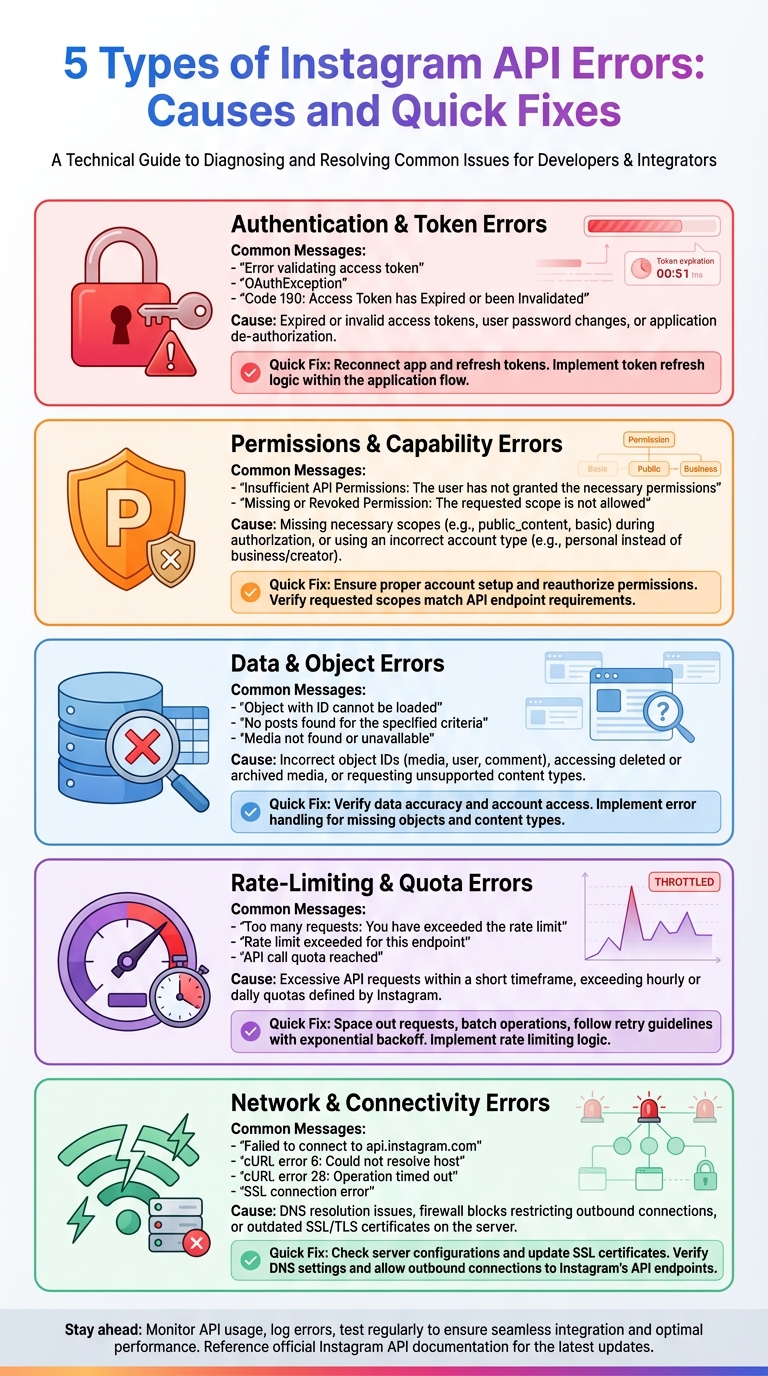
5 Types of Instagram API Errors: Causes and Quick Fixes
Resolving the Unsupported request - method type: get Error in Instagram's Graph API
Types of Instagram API Errors
Instagram API errors are grouped into five categories, as outlined in Meta's documentation. Here's an overview of each type, along with common scenarios where they might occur.
Authentication and Token Errors
These errors typically include messages like "Error validating access token", "The access token provided is invalid", "OAuthException", or "Invalid token." They also include generic 400 errors related to credentials. These messages often appear in JSON responses with a "type" of "OAuthException" and codes like 190, which signal expired or invalid sessions.
Such errors arise when an access token has expired, been revoked, or otherwise become invalid. For example, if a U.S.-based business fails to refresh a long-lived token for months, their API calls will stop working until the token is renewed.
Permissions and Capability Errors
Permission-related errors include phrases like "Insufficient API Permissions", "Missing or Revoked Permission", "Capability or Permissions Issue", and "No Permission to Publish the Video." These occur when the necessary scopes (like instagram_basic, pages_read_engagement, or publishing permissions) haven't been granted.
For instance, an agency in the U.S. might run into an "Application Permission Denied" error if their client’s account is still a personal profile instead of a business or creator account linked to a Facebook Page, which is required for the Instagram Graph API.
Data and Object Errors
These errors include messages like "Object with ID cannot be loaded", "Object with ID … does not exist", or "No posts found." They often result from outdated or incorrect IDs, such as mixing legacy API IDs with Graph API IDs or referencing deleted media. They can also occur when attempting to access private accounts or unsupported content types.
For example, a U.S. brand embedding an Instagram feed on its website might encounter a "No posts found" error if recent posts are IGTV videos. While IGTV posts count toward limits, some endpoints don’t return them. Similarly, if media IDs are stored in a database but the corresponding posts are later deleted, API lookups will fail with an "Object with ID cannot be loaded" error.
Rate-Limiting and Quota Errors
Messages like "Too many requests", "Rate limit exceeded", or "Temporarily blocked for policy violations" indicate rate-limiting issues. These errors occur when you exceed Instagram's per-app or per-user request quotas or engage in behavior flagged as spam-like. Examples include polling the API too frequently (e.g., every few seconds instead of minutes), sending too many concurrent requests, or repeatedly fetching the same data instead of caching it.
Once limits are exceeded, subsequent requests are blocked until the reset period, potentially causing disruptions to dashboards or scheduled posts.
Network and Connectivity Errors
Network errors include messages such as "Failed to connect to api.instagram.com", "Connection timed out", "Could not resolve host: graph.facebook.com", or cURL errors like "cURL error 6: Could not resolve host" or "cURL error 28: Resolving timed out."
These issues typically stem from DNS resolution problems, outbound connection blocks by firewalls or hosting providers, or SSL/TLS issues like expired CA bundles. For instance, a WordPress site in the U.S. using an Instagram feed plugin might face a cURL error when failing to connect to graph.facebook.com. Resolving this might require contacting support or tweaking firewall settings.
How to Fix Instagram API Errors
If you're dealing with Instagram API issues, here’s how to tackle them based on the type of error you're encountering.
Fixing Authentication Issues
Start by logging the full error response, including details like the error type (often OAuthException), code, and any subcode. If you see "Error validating access token" or code 190, it likely means the token has expired or been revoked. The solution? Prompt the user to reconnect through Facebook Login, ensuring they approve all requested permissions. It's essential that users don't uncheck boxes for scopes like instagram_basic, pages_show_list, or instagram_content_publish, as these are crucial for your app to function.
For teams managing multiple client accounts, it’s a good idea to schedule nightly token checks and send reminders before tokens expire. When refreshing a token, store it securely, update your records, and log the refresh time for future reference. If refreshing doesn’t solve the problem, double-check your app configuration in Meta's developer dashboard. Ensure redirect URIs are correct, the app is in Live mode, and the appropriate Instagram Business or Creator account is linked to the right Facebook Page.
Once authentication is sorted, focus on fixing permission-related errors.
Resolving Permission Denials
Errors like "Insufficient API Permissions" or "Application Permission Denied" often stem from improper account setup. First, confirm the Instagram account is either a Business or Creator account - personal profiles won’t work with the Instagram Graph API. Also, make sure the account is linked to a Facebook Page. You can verify this in the Instagram app under Settings → Account → Sharing to other apps and in Facebook's Page settings.
If the setup looks fine but errors persist, it’s likely the user declined permissions during login. Instruct them to remove the integration under Facebook's "Business Integrations" and reconnect through your app to request a fresh set of permissions.
With permissions in place, let’s address data retrieval issues.
Addressing Data Retrieval Problems
When errors like "No posts found" or "Object with ID cannot be loaded" pop up, start with the basics. Does the account actually have posts? Is it a brand-new account with no content, or is it set to private? Keep in mind that many API endpoints only return data from public or authorized Business/Creator accounts. For hashtag feeds, remember that some tools only index posts made within the last 24 hours.
If the account has posts but they’re not showing up, unsupported content types might be the culprit. For instance, IGTV videos or other media types might not be supported. Try increasing the limit parameter to skip over unsupported content. For invalid object ID errors, ensure you’re using a valid Instagram media ID or user ID obtained through the Graph API, not a legacy or scraped ID. Also, confirm that the object still exists and belongs to the authorized account.
Next, let’s tackle rate-limiting challenges.
Handling Rate-Limit and Policy Errors
If you’re hitting API rate limits, check the error code and message to determine whether it’s due to general throttling or specific product limits, like content publishing caps. Use exponential backoff for retries - start with a 1–2 second delay and double the wait time for each retry, up to a maximum limit. Pay attention to Retry-After headers if they’re included. Meta recommends retrying only 1–2 times within 30 seconds to 2 minutes for publishing errors. If the issue persists, try generating a new media container.
To avoid hitting limits, batch operations when possible, cache static data, and monitor daily request counts. For publishing, space out scheduled posts - aim for 10–15 minutes between posts for small businesses. If you’ve hit an API limit, communicate this clearly to users so they understand why publishing is delayed. Always stay within Instagram’s policies - avoid spam-like automation (e.g., excessive likes, follows, or comments) and steer clear of unofficial tools or bots that could jeopardize your app’s approval or the user’s account.
Finally, let’s address network-related problems.
Troubleshooting Network Issues
Network errors like "Failed to connect to api.instagram.com" or "cURL error 6: Could not resolve host" often result from DNS issues, firewall blocks, or outdated SSL/TLS configurations. To test connectivity, use a command-line tool like curl. For example, run curl -I https://graph.facebook.com from your server to see if you can reach Meta's API. If the request fails, check your server’s outbound firewall rules to ensure traffic to graph.facebook.com and api.instagram.com is allowed.
For DNS resolution errors, verify that your server’s DNS settings are configured correctly and can resolve external hostnames. If you’re using shared hosting, confirm with your provider that outbound HTTPS connections to Meta domains are permitted. SSL/TLS issues usually indicate an outdated CA bundle. Update your server’s SSL certificates and libraries (like cURL or OpenSSL) to the latest versions to resolve these errors.
sbb-itb-3c55afb
Best Practices for Instagram API Integration
Once you've tackled immediate errors, it's important to take steps to prevent them from cropping up again. Issues like expired tokens, permission denials, and rate limits can be kept in check with a proactive approach. These strategies build on earlier error resolution methods, helping maintain stability over time.
Monitor API Usage and Logs
Keep a detailed log of every API request, including the endpoint, parameters, status, error codes, and latency. Tools like CloudWatch, DataDog, or ELK can help you aggregate these logs and display key metrics, such as endpoint activity and error rate spikes, on dashboards.
Set up alerts to notify you when error rates or call volumes exceed thresholds, or when critical errors - like OAuthException, rate-limit issues, or expired tokens - occur. Tracking usage by app user or access token can help pinpoint which integration or client is causing problems with quotas or permissions. Make it a habit to review these dashboards regularly.
Pay close attention to specific errors:
- OAuthException: These indicate token or authentication issues. Automatically mark tokens as invalid, prompt users for re-authentication, and avoid excessive retries.
- Permission Errors: Log the missing permission (e.g., publish or read_insights) and provide clear instructions on what permissions are needed.
- Rate-Limit Errors: Use response headers to understand limits, slow down traffic, and apply exponential backoff instead of retrying immediately.
Implement Safe and Compliant Automation
Automation should mimic natural human behavior and stay within Instagram Graph API limits. To achieve this:
- Batch requests where possible.
- Cache data that doesn’t change often.
- Avoid frequent polling.
- Enforce rate controls per user and per app to prevent heavy users from consuming shared quotas.
Set strict retry limits to avoid abuse. For instance, Meta suggests retrying publishing errors only 1–2 times within a 30-second to 2-minute window. Steer clear of prohibited behaviors like aggressive follow/unfollow actions, mass direct messaging, or posting spammy comments - these can trigger account restrictions or checkpoints.
By keeping automation within safe limits, you reduce the likelihood of errors. Platforms like UpGrow help by centralizing automation and ensuring compliance with Instagram’s guidelines. Their tools include features like real-human oversight for engagement, strict adherence to rate limits, and transparent activity logs. They also avoid risky practices like using fake followers or bots. UpGrow’s AI-driven targeting and monitoring allow businesses to manage activity by location, language, and audience segment, helping U.S.-based companies grow genuine followers while avoiding spam detection. Their real-time dashboards and analytics offer a consolidated view of growth metrics and API performance, making it easier to respond quickly to errors or restrictions.
Regularly Update and Test Integrations
Stay on top of updates by reviewing Meta’s Instagram Graph API changelog and deprecation schedule each month. Update your libraries and endpoints well before any deadlines. Keep a clear inventory of all the Instagram endpoints, permissions, and features your product uses so you can quickly assess the impact of any announced changes. Use feature flags or configuration-driven designs to adjust endpoints, scopes, or behaviors without requiring a full redeployment.
Automate checks in your continuous integration (CI) pipelines to catch issues early. This can include linting, contract tests, or schema validation against known API responses to identify format or field changes. Many U.S. engineering teams treat API version upgrades as small projects, involving planning, testing in staging environments, limited rollouts, and monitoring logs for 24–72 hours after implementation.
Maintain a staging account dedicated to automated integration tests. Periodic low-impact production smoke tests can verify key functions like authentication, media retrieval, and test content publication (if allowed), while also ensuring error handling works as expected.
Conclusion
Instagram API errors can throw a wrench into your workflow. To tackle them effectively, start by understanding the error codes, categorizing the issues, and applying the right fixes. Common problems include authentication errors caused by expired tokens or missing credentials, permission errors linked to incorrect account setups or missing scopes, and data issues like unsupported content or accounts with no posts that match your query. Rate-limit errors occur when too many requests are made in a short period, while network failures are usually temporary and can often be resolved by retrying. Addressing these errors efficiently is crucial for ensuring smooth API performance.
Consistent API reliability hinges on proactive monitoring and staying up-to-date with changes. Log every API call, set up alerts for unusual spikes in errors, and regularly review dashboards to identify potential issues before they snowball. Keep your tokens updated, follow Meta's API changelog closely, and always test updates in a staging environment before deploying them to production.
When automating processes, make sure to operate within Instagram's policies and documented limits. Use techniques like batching requests, caching static data, and implementing exponential backoff strategies. Avoid behaviors that violate Instagram's guidelines to maintain a healthy integration.
A great example of a compliant solution is UpGrow, which helps users sidestep many common API errors. Built on the official Instagram Graph API, UpGrow combines patented AI technology with human oversight to ensure safe and organic follower growth. Since its launch in 2016, it has supported over 100,000 users, earning a stellar 4.98/5 rating from more than 58,980 reviews. By pacing interactions, respecting rate limits, and offering real-time analytics, UpGrow minimizes API errors caused by over-automation or misconfiguration. This allows you to focus on creating engaging content while the platform handles compliant, round-the-clock growth.
To maintain a robust integration, audit your setup regularly, document detailed runbooks for handling different error categories, and analyze your logs for insights. With a solid strategy in place, you can spend less time troubleshooting and more time building the features that truly matter.
FAQs
How can I avoid Instagram API authentication issues in the future?
To keep Instagram API authentication running smoothly, it's crucial to ensure your access tokens stay valid and are refreshed on a regular basis. Stick to proper OAuth protocols during the authentication process, and be mindful not to exceed API rate limits to avoid interruptions.
Make sure to store your credentials in a secure location to safeguard sensitive data. Additionally, review your app permissions periodically to confirm they’re current and aligned with your needs. Staying on top of these steps will help maintain a reliable connection to the Instagram API.
How can I fix Instagram API rate-limit errors?
If you hit a rate-limit error, it means your app has made more requests than Instagram allows within a set time period. Here’s how you can address it:
- Lower your request rate to ensure you're staying within Instagram's API limits.
- Take a break and wait for the limit to reset before sending more requests.
- Review your app's request patterns to confirm they align with Instagram's API rules.
By keeping your request rates under control, you can prevent interruptions and ensure your app runs smoothly.
How do I keep my Instagram API integration compliant and free from errors?
To ensure your Instagram API integration runs smoothly and stays within compliance, it's important to stick closely to Instagram's official API guidelines. Use the correct authentication methods, keep an eye on your API usage to avoid exceeding rate limits, and consistently update your integration to reflect any changes in Instagram's policies.
You might also want to explore tools or services designed with compliance and security in mind. These can help you sidestep common issues while keeping your integration running efficiently. Staying informed and ahead of updates is essential for a hassle-free API experience.